Last Updated on March 19, 2026 by Simple Tech Help
Your phone or computer is the foundation of your digital life. This guide helps you understand how devices work, how to maintain them properly, and where to find step-by-step help for your specific device.
Whether you use an iPhone, an Android phone, a Mac, or a Windows PC, start here.
Choosing the Right Device
The best device is not necessarily the most expensive. It’s the one that fits your needs. Understanding how phones, laptops, and tablets differ helps you avoid overspending and underbuying.
Choosing the right device depends on how you plan to use it. Understanding a few key concepts can help you avoid overspending, underbuying, or replacing a device sooner than necessary.
Here’s what you should know before making a decision.
Smartphone vs Laptop vs Tablet: Which Device Do You Actually Need?
Each device serves a different purpose.
Smartphones
- Best for communication, apps, photos, and everyday tasks
- Highly portable and always connected
- Limited for complex multitasking or long typing sessions
Tablets
- Larger screen than a phone
- Good for reading, streaming, light work, and travel
- Can replace a laptop for basic tasks, but not for demanding software
Laptops
- Designed for productivity and multitasking
- Full keyboard and desktop-level operating system
- Better for work, school, content creation, and advanced tasks
The right device depends on your daily needs, not hype.
Storage Size Explained: How Much Storage Do You Need?
Storage, measured in gigabytes (GB), holds your apps, photos, videos, and files. System software also takes up space.
General storage guidance:
- 64GB is enough for light users who rely heavily on cloud storage
- 128GB–256GB is best for most users
- 512GB or more is best for large media libraries, offline files, or professional use
Keep in mind:
- Storage is usually not upgradeable on smartphones and many tablets.
- System updates require free space to install properly.
Choose storage based on how you expect to use the device over the next 2–3 years, not just on how you use it today.
What Is RAM? And How Much Do You Need?
RAM affects how smoothly your device runs apps and handles multitasking.
A simple way to think about it:
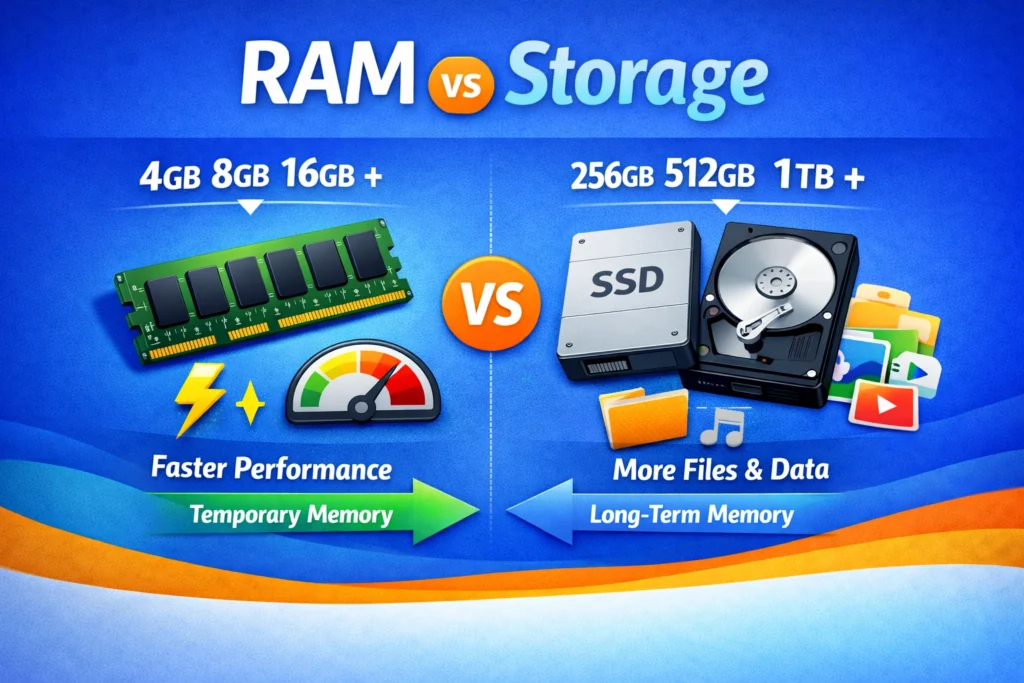
- Storage is long-term space.
- RAM is short-term working memory.
More RAM allows more apps to run at once without slowing down.
General RAM guidance:
- 4GB–6GB suits light users
- 8GB is suitable for most users
- 16GB or more is best for power users and heavy multitaskers
More RAM can improve performance, but only if your usage demands it.
Battery Life Expectations for Phones, Tablets, and Laptops
Battery life varies based on screen brightness, app usage, and background activity.
Typical expectations:
- Smartphones provide around one full day of average use
- Laptops provide 5–12 hours depending on model and workload
- Tablets often have longer battery life than laptops
Important to know:
- Manufacturer claims are based on ideal conditions.
- All batteries naturally degrade over time, usually after 2–3 years.
Battery decline is normal, not a sign your device is defective.
New vs Refurbished Devices: What’s the Difference?
Both options can be valid depending on your budget and priorities.
New Devices have full manufacturer warranty, the latest hardware, and a higher price
Refurbished Devices offer a lower cost, have been tested and restored before resale, and may include limited warranty.
If buying refurbished:
- Purchase from reputable sellers
- Confirm warranty details
- Check battery health if possible
Refurbished devices can offer strong value when purchased carefully.
Understanding Ecosystem Lock-In: Apple vs Google vs Microsoft
Devices work best within their ecosystem. The connected network of apps, services, and other hardware from the same company.
Apple Ecosystem
- Strong integration across iPhone, iPad, and Mac
- Seamless messaging and file sharing
- Higher average cost
Google Ecosystem (Android and ChromeOS)
- Wide range of device options
- Deep integration with Google services
- Flexible pricing
Microsoft Ecosystem
- Strong productivity tools
- Dominates the Windows laptop market
- Often preferred for professional workflows
Switching ecosystems later can require transferring data, repurchasing apps, and adjusting to new systems.
Choose the ecosystem that fits your existing devices and daily tools.
⚠ Beginner Mistake: Buying based on price or brand without considering long-term needs.
Choosing the cheapest model or the most popular brand without evaluating storage, RAM, or ecosystem compatibility often leads to early upgrades or frustration.
Buy for how you’ll use the device over the next 2–3 years.
The Smart Device Decision Rule
Before choosing a device, ask:
- What tasks will I use this for most often?
- How much storage will I need in 2–3 years?
- Do I multitask heavily?
- Am I staying within my current ecosystem?
- Would refurbished meet my needs?
Understanding these fundamentals helps you make confident choices and avoid unnecessary upgrades later.
Device Setup Fundamentals: How to Set Up a New Phone, Tablet, or Computer the Right Way
How you set up a device on day one affects its security, performance, and organization for years to come. A few intentional choices during setup can prevent common problems later.
Use this checklist to start strong.
Create Your Primary Account Securely
Your primary account (such as your Apple ID, Google account, or Microsoft account) controls backups, purchases, app downloads, and device recovery. It is the foundation of your device.
During setup:
- Use a strong, unique password
- Enable two-factor authentication immediately
- Add a recovery email address and phone number
- Store your login credentials securely
Your account is the key to your device. Protect it carefully.
Install Software Updates Before You Start Using the Device
New devices may not ship with the latest software. Updates improve security, stability, and compatibility.
Before fully using your device:
- Check for system updates
- Install any available updates
- Enable automatic system updates
- Turn on automatic app updates
Starting with updated software reduces security risks and performance issues.
Set Up Automatic Backups Immediately
Backups are easiest to configure during initial setup. Skipping this step is one of the most common mistakes users make.
To protect your data:
- Enable automatic cloud backups
- Confirm what data is included (photos, contacts, messages, settings)
- Verify that backups run regularly
Backing up your device ensures your data is protected if it is lost, stolen, or damaged.
Configure Essential Security Settings
Basic security settings protect your device and personal information from unauthorized access.
During setup:
- Use a 6-digit (or longer) passcode instead of a simple 4-digit PIN
- Enable biometric authentication (Face ID or fingerprint, if available)
- Turn on device tracking (Find My or Find My Device)
- Confirm device encryption is enabled (most modern devices are encrypted by default)
Strong security settings reduce risk from day one.
Review Privacy Controls and App Permissions
Default privacy settings often allow broader access to data than necessary. Adjusting them early gives you more control.
After setup:
- Review location settings
- Limit camera and microphone access to necessary apps
- Disable unnecessary data sharing
- Adjust ad personalization preferences
Privacy is easier to manage at the beginning than after dozens of apps are installed.
Organize Storage from Day One
Organizing storage from Day One helps prevent clutter and storage problems later.
To keep your device efficient:
- Create folders for important files and documents
- Delete unnecessary pre-installed apps
- Remove unused widgets
- Decide whether photos and files will be stored locally or in the cloud
⚠ Beginner Mistake: Skipping backup and security setup during initial configuration.
Many users rush through setup screens and postpone enabling backups, device tracking, and two-factor authentication. These are the hardest to fix after a problem occurs.
Set up security and backups before you start downloading apps.
The Smart Setup Checklist
Before you consider your device fully set up, confirm you have:
- Created a secure primary account
- Installed all available updates
- Enabled automatic backups
- Configured strong security settings
- Adjusted privacy controls
- Organized storage intentionally
Setting up your device properly takes a few extra minutes, but it prevents hours of troubleshooting later.
Everyday Device Good Habits
Devices last longer and perform better when used intentionally. Small habits make a major difference in performance, privacy, and lifespan.
A few simple actions, done consistently, can prevent the most common device problems and extend the life of your phone, tablet, or computer.
These everyday practices keep your device running smoothly and securely.
Keep Software Updated
Software updates improve security, stability, and compatibility with apps and websites.
To stay protected:
- Enable automatic updates when possible
- Install security patches promptly
- Avoid delaying major updates for long periods
Updates are designed to fix issues, not create them. Staying current reduces risk over time.
Review App Permissions Quarterly
Many apps request access to your location, camera, microphone, or contacts. Over time, permissions can expand beyond what’s necessary.
Every few months:
- Review which apps have location access
- Disable microphone or camera access for unused apps
- Limit “Always Allow” location permissions
- Remove access for apps you no longer use
Access should match purpose.
Manage Storage Regularly
Storage fills gradually from photos, videos, downloads, and app data. Waiting until you see a warning can affect performance and updates.
To prevent issues:
- Delete apps you no longer use
- Remove old downloads and screenshots
- Clear duplicate or large files
- Keep 10–20% of storage free when possible
Routine cleanup prevents emergency fixes.
Restart Occasionally
Restarting your device clears temporary system processes and can resolve minor glitches.
Consider restarting:
- Once every week or two
- If apps behave unexpectedly
- After installing major updates
A simple restart often improves performance.
Limit Unnecessary Apps
More apps mean more background activity, storage usage, and potential security risks.
To streamline your device:
- Remove apps you haven’t used in months
- Avoid installing multiple apps that serve the same purpose
- Be selective when downloading new apps
Fewer apps often lead to better performance.
Use Backups Consistently
Devices can be lost, stolen, or damaged without warning. Regular backups protect your photos, contacts, and important files.
To stay protected:
- Enable automatic cloud backups
- Confirm backups are running properly
- Keep your account login credentials secure
Backups provide peace of mind before problems occur.
⚠ Beginner Mistake: Ignoring small maintenance tasks because the device “still works.”
Software updates, permission reviews, and restarts are easy to postpone. Over time, neglect compounds into larger problems.
Consistency prevents complexity.
The Habit Rule
If you focus on only a few things, make them these:
- Keep software updated
- Review permissions regularly
- Maintain free storage space
- Restart periodically
- Back up your data
Consistent habits prevent most device issues before they start.
Common Device Myths, And the Truth
Technology advice is often outdated or misunderstood. Clearing up common device myths helps you make better decisions and avoid unnecessary upgrades or anxiety.
Myth: “Closing apps saves battery.”
The truth: Constantly force-closing apps can actually use more battery.
Modern smartphones are designed to manage background apps efficiently. Forcing apps to close and reopening them repeatedly may consume more power than letting the system manage them automatically.
Close apps only if they’re malfunctioning.
Myth: “More RAM always means a faster device.”
The truth: RAM helps with multitasking, but it’s not the only factor in speed.
Processor performance, software optimization, and storage type also affect how fast a device feels. A well-optimized device with moderate RAM can outperform one with higher RAM but a weaker processor.
Balance matters more than numbers.
Myth: “You need antivirus software on every device.”
The truth: Not all devices require antivirus software.
iPhones have strong built-in security, and Android devices are generally safe when apps are downloaded from official stores. Safe browsing habits, software updates, and strong passwords are often more important than antivirus apps.
Security behavior matters most.
Myth: “Updates slow your device on purpose.”
The truth: Software updates are designed to improve security and stability.
While some updates may slightly affect performance, they primarily fix bugs, patch security vulnerabilities, and improve compatibility. Slower performance after an update is usually due to aging hardware rather than intentional slowdowns.
Skipping updates can increase security risks.
Myth: “You must upgrade your phone every year.”
The truth: Most people can use a phone for 3–5 years.
Annual upgrades are rarely necessary unless you need new features or improved performance. If your device still receives security updates and runs smoothly, upgrading yearly offers little practical benefit.
Upgrade based on need, not marketing cycles.
Myth: “Charging overnight ruins the battery.”
The truth: Modern devices are designed to prevent overcharging.
Smartphones stop charging at 100% and automatically manage battery health. While constantly staying at 100% for long periods may slightly affect long-term battery health, occasional overnight charging is generally safe.
Battery wear happens gradually over time.
Myth: “More megapixels mean a better camera.”
The truth: Camera quality depends on more than megapixels.
Sensor size, image processing, lens quality, and software optimization matter more than the megapixel count alone. A 12MP camera with strong processing can outperform a 50MP camera with weaker hardware.
Megapixels are just one part of the equation.
Myth: “You should fully drain your battery before recharging.”
The truth: Modern lithium-ion batteries do not need full discharge cycles.
Regularly draining a battery to 0% can actually increase wear. It’s better to keep the battery between 20% and 80% when possible for long-term health.
This myth comes from older battery technology.
Myth: “Incognito mode makes you completely anonymous.”
The truth: Incognito mode does not hide you from websites or your internet provider.
Private browsing only prevents your browser from saving history and cookies on your device. Your activity can still be visible to websites, networks, and service providers.
It protects local privacy, not full anonymity.
Myth: “A full storage warning means you need a new device.”
The truth: Storage issues can often be fixed without upgrading.
Deleting unused apps, clearing downloads, backing up photos to cloud storage, or moving files to external storage can free up significant space. Running out of storage doesn’t automatically mean your device is outdated.
Sometimes, cleanup is all that’s needed.
Myth: “Macs don’t get viruses.”
The truth: Macs are less targeted, but not immune.
macOS includes strong built-in security, but malware and phishing still exist. Safe browsing habits, software updates, and cautious downloads are essential on any device.
No operating system is completely invulnerable.
Device Troubleshooting Basics
Most device problems have simple causes. Learning a few troubleshooting fundamentals can save time, money, and unnecessary repair visits.
Since most device problems fall into a few common categories, before assuming something is broken or that you need to upgrade, try these basic troubleshooting steps. Many issues can be resolved in minutes.
Device Running Slow
A slow device is usually caused by background apps, outdated software, or aging hardware, not just low storage.
Try this first:
- Restart your device
- Install any available updates
- Close unused apps
- Remove apps you no longer use
Devices naturally slow down over time as apps become more demanding. Slow doesn’t always mean broken.
Storage Full
Running out of storage is one of the most common device issues.
Photos, videos, and downloaded apps usually take up the most space. System files and app data also grow over time.
What to do:
- Check storage settings to see what’s using space
- Delete unused apps
- Remove duplicate or large photos and videos
- Empty the “Recently Deleted” or trash folder
- Move files to cloud storage if available
A storage warning does not automatically mean you need a new device.
Battery Draining Quickly
Fast battery drain is often related to usage patterns rather than a hardware defect.
Screen brightness, background apps, location services, and poor signal strength can all reduce battery life. Batteries also naturally degrade after 2–3 years.
Check these settings:
- Battery usage (to see which apps use the most power)
- Screen brightness
- Background app refresh
- Software updates
In many cases, small adjustments significantly improve battery life.
Apps Crashing
When apps crash, the problem is usually app-specific, not device-wide.
Crashes commonly happen due to outdated apps, software conflicts, or low storage space.
Fix order:
- Update the app
- Restart your device
- Install system updates
- Uninstall and reinstall the app
Fix the app before assuming the device is failing.
Wi-Fi Connectivity Issues
If your Wi-Fi says “connected” but isn’t working, the issue may not be your device.
Internet problems can occur at multiple levels: your device, your router, or your internet service provider.
Troubleshoot in layers:
- Restart your device
- Restart your router
- Test another device on the same network
- Contact your provider if all devices fail
Diagnose before replacing hardware.
Device Overheating
It’s normal for devices to feel warm during updates, gaming, streaming, or charging. Persistent overheating is different.
Heat can be caused by heavy multitasking, direct sunlight, charging while in use, or a tightly fitted case.
If your device feels too hot:
- Remove the case
- Stop running demanding apps
- Avoid charging temporarily
- Move to a cooler location
- Restart the device
Warm is normal. Overheating that causes shutdowns should be evaluated.
⚠ Beginner Mistake: Assuming the device is “dying” before trying simple fixes.
Many common issues, slow performance, app crashes, Wi-Fi glitches, can be resolved with a restart, update, or storage cleanup.
Start simple before assuming hardware failure.
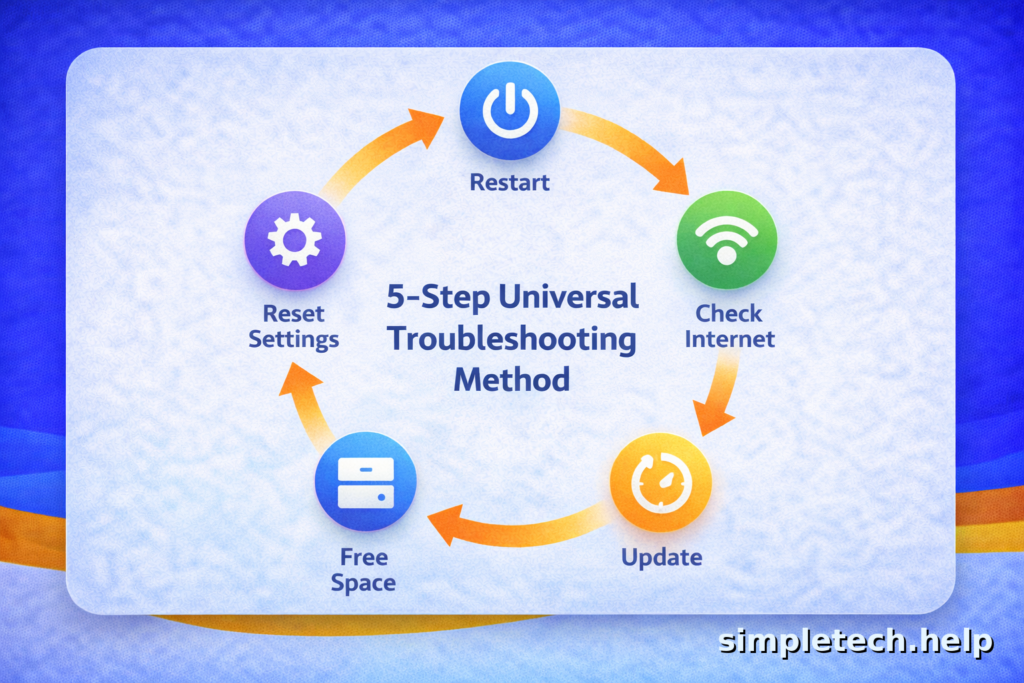
The 5-Step Universal Troubleshooting Method
If you’re unsure where to start, follow this troubleshooting order:
- Restart
- Check storage
- Install updates
- Check your internet connection
- Reset settings, if necessary
This structured approach solves most common device issues without repairs or upgrades.
Device Security Essentials
Security is vital for extending the life of your devices, protecting personal data, and preventing unwanted messages.
Most device security problems are preventable. You don’t need advanced technical knowledge, just a few strong habits applied consistently.
These core practices protect your personal data, financial accounts, and devices from common threats.
Use Strong, Unique Passwords
Weak or reused passwords are the most common cause of account breaches.
To strengthen your security, create passwords that:
- Use at least 12–16 characters
- Avoid names, birthdays, or common words
- Never reuse passwords across important accounts
- Consider using a password manager to generate and store secure passwords
Long, unique passwords are one of the most effective security tools available.
Enable Two-Factor Authentication (2FA)
Two-factor authentication adds a second layer of protection beyond your password.
Even if someone obtains your password, they cannot access your account without the second verification step.
You can enable 2FA on:
- Email accounts
- Financial accounts
- Apple ID or Google account
- Social media platforms
Authentication apps are generally more secure than SMS codes, but each platform, app, or service will walk you through its process.
One extra step prevents most account takeovers.
Keep Device Encryption Enabled
Most modern smartphones, tablets, and computers are encrypted by default.
Encryption protects your data if your device is lost or stolen. However, encryption only works if your device is secured with a strong passcode or biometric lock.
If someone physically takes your device, encryption prevents them from accessing your information without your credentials.
Turn On Device Tracking, such as Find My / Find My Device
Device tracking tools allow you to locate, lock, or erase your device remotely if it’s lost.
These features must be enabled before a device is misplaced.
Make sure:
- “Find My” (Apple) or “Find My Device” (Google) is turned on
- Location services are enabled
- You know your account login information
Preparation significantly increases recovery chances.
Be Cautious on Public Wi-Fi
Public Wi-Fi networks are often unsecured, making them risky for sensitive activities.
When using public networks:
- Avoid banking or financial transactions
- Do not change account passwords
- Disable file sharing
- Use mobile data for sensitive tasks when possible
Convenience should never override caution.
Recognize Phishing Attempts
Phishing is one of the most common digital threats. It typically appears as urgent emails, texts, or pop-ups asking you to click a link or provide information.
To protect yourself:
- Check sender addresses carefully
- Avoid clicking unexpected links
- Never share verification codes
- Visit official websites directly instead of using email links
Pause before you click. Most scams rely on urgency.
⚠ Beginner Mistake: Reusing the same password across multiple accounts.
One compromised password can unlock multiple services. Unique passwords and two-factor authentication prevent most account takeovers.
Security habits matter more than expensive software.
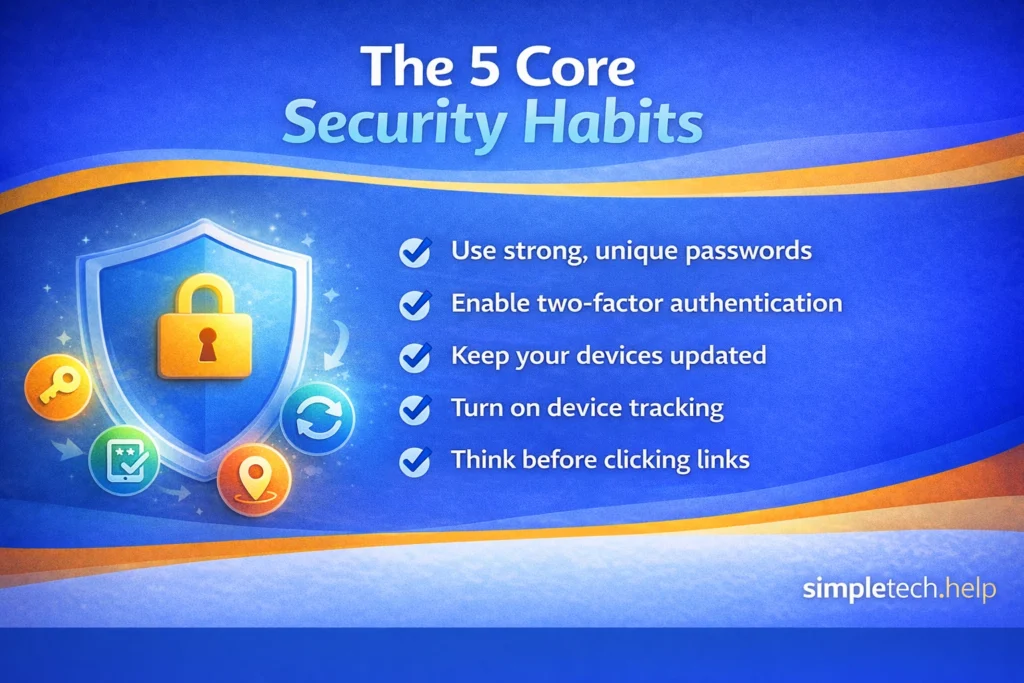
The 5 Core Security Habits
If you focus on only five things, make them these:
- Use strong, unique passwords
- Enable two-factor authentication
- Keep your devices updated
- Turn on device tracking
- Think before clicking links
These habits prevent the most common security issues.
Device Maintenance & Longevity
Most devices don’t need to be replaced as quickly as people think. With proper care and smart decisions, smartphones, tablets, and computers can last several years longer than expected.
Here’s how to know when to maintain, repair, or upgrade.
When to Replace the Battery
Batteries naturally wear down over time. Most smartphone and laptop batteries begin to noticeably degrade after 2–3 years of regular use.
Consider replacing the battery if:
- It drains unusually fast
- The device shuts down unexpectedly
- It struggles to hold a charge
- Battery health, if available in settings, shows a significant decline
Battery replacement is usually far less expensive than buying a new device. Shorter battery life alone does not mean your device is outdated.
When Storage Is Truly Insufficient
Storage fills gradually from photos, videos, apps, downloads, and system updates. In many cases, cleaning up space can restore normal performance.
Try this first:
- Delete unused apps
- Remove large or duplicate files
- Empty trash or “Recently Deleted” folders
- Move photos and files to cloud storage
Storage is likely insufficient long-term if:
- You must constantly delete apps to install updates
- The device cannot complete system updates
- Essential apps won’t run due to low space
If cleanup no longer solves the issue, upgrading may make sense.
Physical Care Tips
Physical wear, especially on portable devices, shortens a device’s lifespan more than software issues do.
To extend longevity:
- Use a protective case and screen protector
- Avoid extreme heat or cold
- Do not leave devices in hot cars
- Use manufacturer-approved chargers and cables
- Keep laptop vents clear to prevent overheating
Preventing damage is easier and cheaper than repairing it.
Safe Cleaning Practices
Proper cleaning helps preserve screens, ports, and performance.
Follow these safe cleaning guidelines:
- Power off the device before cleaning
- Use a microfiber cloth
- Lightly dampen the cloth. Never spray liquid directly on the device
- Use 70% isopropyl alcohol for disinfecting screens (when safe for your device)
- Use compressed air to clear charging ports
- Avoid paper towels, abrasive cloths, or sharp objects
Gentle cleaning protects coatings and internal components, helping extend the device’s life.
When Repairs Make Sense
Repairs are often worthwhile if the device is still relatively modern and otherwise functioning well.
Repairs usually make sense when:
- The device is under 4–5 years old
- The issue is isolated, such as a screen, battery, or charging port
- Repair cost is significantly lower than the replacement cost
If multiple components are failing or repair costs approach the price of a new device, replacement may be more practical.
When Upgrades Make Sense
Upgrading should be based on functionality, not marketing cycles. Some users need to keep up with the newest upgrades, but most people can keep their devices through several cycles.
Consider upgrading if:
- The device no longer receives security updates
- Essential apps are no longer supported
- Performance severely limits daily tasks
- Repair costs are close to replacement cost
If your device still performs reliably and receives updates, upgrading may not be necessary.
⚠ Beginner Mistake: Waiting until the device feels broken before maintaining it.
Storage warnings, battery decline, and overheating usually develop gradually. Routine cleanup and monitoring prevent emergency repairs.
Maintenance should be proactive, not reactive.
The Longevity Rule
Sometimes, upgrading a device is more of a want than a need.
For users who must remain practical, before replacing a device, ask:
- Can this be repaired?
- Can storage be cleaned up?
- Can the battery be replaced?
- Does it still receive security updates?
- Is repair significantly cheaper than replacement?
If most answers are yes, your device likely has more life left in it.
9 Common Beginner Device Mistakes to Avoid And What to Do Instead
Most device problems aren’t caused by hardware failure. They’re caused by small oversights that build up over time. Avoiding these common mistakes will help your smartphone, tablet, or computer stay secure, run smoothly, and last longer.
Skipping Backups
The mistake: Not enabling backups until after something goes wrong.
If your device is lost, stolen, or damaged without a backup, recovery may be impossible.
What to do instead: Enable automatic cloud backups during setup and confirm they run regularly. Verify that photos, contacts, and important data are included.
Back up before you need it.
Reusing the Same Password Everywhere
The mistake: Using one password across multiple accounts.
If one account is compromised, others can be accessed quickly.
What to do instead: Use strong, unique passwords for important accounts and enable two-factor authentication whenever available. Consider using a password manager to simplify this process.
Security habits prevent most account breaches.
Ignoring Software Updates
The mistake: Postponing system or app updates because the device “still works.”
Updates often include important security fixes and performance improvements.
What to do instead: Enable automatic updates and install major updates within a reasonable timeframe. Staying current reduces risk and compatibility issues.
Updates protect your device. They don’t harm it.
Buying Too Little Storage
The mistake: Choosing the lowest storage option to save money.
Storage fills gradually with photos, videos, and apps, often leading to frustration within a year or two.
What to do instead: Choose storage based on how you expect to use the device over the next 2–3 years. Leave room for growth and future updates.
Buying slightly more storage upfront can extend a device’s lifespan.
Installing Too Many Apps
The mistake: Downloading apps without removing ones you no longer use.
Unused apps take up storage, run background processes, and may retain unnecessary permissions.
What to do instead: Limit installations to apps you regularly use. Review and remove unused apps every few months.
Fewer apps often mean better performance.
Never Restarting the Device
The mistake: Leaving a device running continuously without rebooting.
Minor glitches and slowdowns can accumulate over time.
What to do instead: Restart your device every week or two, or when apps behave unexpectedly. A simple reboot clears temporary processes and often improves performance.
Start simple before assuming a bigger problem.
Using Public Wi-Fi for Sensitive Tasks
The mistake: Logging into banking or changing passwords on unsecured public networks.
Public Wi-Fi can expose sensitive activity to unnecessary risk.
What to do instead: Use mobile data for financial transactions or sensitive logins. If using public Wi-Fi, avoid accessing important accounts.
Convenience should not override security.
Delaying Battery Replacement Too Long
The mistake: Ignoring severe battery degradation.
Old batteries can cause performance issues, shutdowns, and overheating.
What to do instead: Monitor battery health when possible. Replace the battery when its capacity declines significantly, rather than replacing the entire device prematurely.
A battery replacement is often more cost-effective than a full upgrade.
Upgrading Too Quickly
The mistake: Replacing a device simply because a new model is released.
Most modern devices can function well for several years with proper maintenance.
What to do instead: Upgrade only when performance no longer meets your needs, security updates are no longer supported, or repair costs exceed value.
Intentional upgrades save money and reduce waste.
The Core Principle
Devices last longer when you:
- Back up consistently
- Use strong security habits
- Install updates
- Manage storage intentionally
- Maintain rather than react
Technology becomes simpler when you approach it proactively instead of reactively.
Device Management FAQs
These are the most common device questions that everyday users ask. Start here if you’re looking for quick answers.
How long should a smartphone last?
A smartphone should last about 3 to 5 years with normal use. Longevity depends on software updates, battery health, and storage capacity. iPhones and premium Android devices often receive updates longer, which helps extend their usable life.
If your phone no longer receives security updates or struggles with basic tasks, it may be time to upgrade.
How much storage do I need on a phone?
Most people need 128GB to 256GB of storage on a smartphone. If you take many photos, download apps, or store videos, choose a higher storage plan. If you mainly stream content and use cloud services, 128GB is usually enough.
It’s better to buy slightly more storage than you think you need, since it cannot be upgraded on most phones.
Is it safe to use public Wi-Fi?
Public Wi-Fi can be risky because networks may not be secure. Avoid logging into bank accounts or entering sensitive information while connected. Use a trusted website (look for “https”), disable file sharing, and consider using a VPN for added security.
If possible, use your mobile data for important tasks.
Do I need an antivirus on my phone?
Most iPhones do not need antivirus software because of Apple’s built-in security protections. Android phones are generally safe if apps are downloaded only from the Google Play Store. However, antivirus apps can add extra protection against phishing links and unsafe downloads.
Safe browsing habits matter more than antivirus apps.
Why is my device slow, even with free storage?
A device can be slow due to background apps, outdated software, aging hardware, or battery degradation — even if storage isn’t full. Restarting regularly, updating software, and limiting background processes can improve performance.
If the device is several years old, a slower speed may be normal.
How often should I upgrade my phone or computer?
Most people upgrade phones every 3–4 years and computers every 4–6 years. Upgrade sooner if your device no longer receives security updates, struggles with everyday tasks, or cannot support essential apps.
If your device still runs smoothly and securely, upgrading may not be necessary.
What’s the difference between iOS and Android?
iOS (used on iPhones) offers a tightly controlled, streamlined experience with strong security and long software support. Android offers more customization options and is available on a wide range of devices at different price points.
Both systems are secure and capable. The best choice depends on personal preference and budget.
Is a tablet a replacement for a laptop?
A tablet can replace a laptop for browsing, streaming, reading, email, and light document editing. However, laptops are better for multitasking, professional software, large spreadsheets, and extended typing.
If you need full desktop programs or heavy productivity tools, a laptop is usually the better choice.
How long should a laptop last?
A laptop typically lasts 4 to 6 years, depending on usage and build quality. Premium models often last longer. Regular updates, battery care, and avoiding overheating can extend lifespan.
If the laptop cannot run current software or feels significantly slow, it may be time to replace it.
What’s the difference between a Chromebook and a regular laptop?
A Chromebook primarily runs web-based applications using ChromeOS, while traditional laptops run Windows or macOS and support full desktop software. Chromebooks are usually more affordable and great for browsing and schoolwork, but less suited for advanced programs.
Choose based on the software you need.
Should I shut down my device or just restart it?
Restarting refreshes memory and fixes minor glitches, while shutting down completely powers off the device. Restarting once a week is generally helpful. Shutting down is useful if you won’t use the device for several days.
Both are safe and beneficial when used appropriately.
Does keeping my phone charged at 100% damage the battery?
Modern smartphones automatically manage charging, but consistently staying at 100% for long periods can contribute to battery wear. Keeping the battery between 20% and 80% when possible may help extend battery lifespan.
Occasional full charges are completely fine.
Are refurbished devices safe to buy?
Refurbished devices are generally safe if purchased from reputable sellers or manufacturers. Look for warranties, return policies, and certified refurbishment programs.
Refurbished devices can offer significant savings while still providing reliable performance.
What specs matter most when buying a device?
Devices have several specs, which vary to suit a range of users. When buying a device, review its:
- Processor, which determines performance
- RAM, which determines multitasking ability
- Storage, which determines capacity
- Battery life
- Software support length
Marketing features like camera megapixels matter less than overall performance and support for updates.
How do I know if my device is secure?
Your device is secure if it receives regular security updates, uses strong passwords or biometric login, and installs apps only from trusted sources. Keeping your operating system up to date is one of the most important steps for maintaining device security.
Outdated devices are more vulnerable to threats.
Learning and Next Steps
Devices are tools. When chosen thoughtfully, set up correctly, and maintained consistently, they can serve you reliably for years.
You don’t need to upgrade every year. You don’t need the most expensive model. And you don’t need advanced technical skills to keep your devices secure and running smoothly.
What you need are strong fundamentals:
- Smart setup
- Good security habits
- Routine maintenance
- Intentional purchasing decisions
Technology becomes simpler when you understand it.
If you need help with a specific issue, explore our troubleshooting guides. If you’re deciding what to buy next, visit our Buying Tech guide for practical, brand-neutral advice.
Use your devices. Don’t let them use you.