Last Updated on April 12, 2026 by Simple Tech Help
At some point, every device has a moment when nothing seems to work, and it feels like nothing works, even after troubleshooting.
🚨 Urgent Issues: Start Here Immediately
If something feels wrong or unsafe, don’t wait:
- I think my phone has been hacked
- I clicked a suspicious link
- My email was hacked
- I’m getting scam messages
These guides walk you through exactly what to do next.
Apps freeze, screens won’t respond, the internet disconnects, or error messages appear without warning. And for beginners, it can feel frustrating or even intimidating.
We remove that panic and replace it with clarity. Instead of assuming something is broken, you’ll learn how to calmly identify what’s happening, why it’s happening, and what simple steps usually fix it. Most everyday tech problems have straightforward solutions. And you don’t need advanced skills to solve them.
If something isn’t working, you’re in the right place.
🚀 Need to Speed Up Your Wi-Fi?
If your internet feels slow, you’re not alone.
This is one of the most common issues, and you can troubleshoot it.
👉 Step-by-step: How to Increase Wi-Fi Speed
Or explore all fixes here →
Internet & Wi-Fi Help Center
Instead of guessing what’s wrong, use this page to quickly identify your problem and get the exact fix, whether it’s your phone, internet, apps, or something else.
Solutions that Fix 80% of Tech Problems
Before diving deeper, try these quick fixes:
- Restart your device
- Check your internet connection
- Update your device or apps
- Clear app cache or storage
- Restart your router
In many cases, restarting solves many tech problems.
What’s Going Wrong? Next Steps
If you’re not experiencing security or safety issues, choose what best describes your issue:
- Internet or Wi-Fi problems
- Phone or device is slow
- Nothing is loading or working
- I think something is hacked or unsafe
- Email or account issues
Not sure? Use the SimpleTech Help Interactive Troubleshooter:
🔍 What’s Wrong With Your Device?
Select what you're experiencing and we’ll guide you to the fix.
Fix the Most Common Tech Issues Fast
If your tech issue isn’t urgent, but it has happened more than once, these high-impact guides help you fix the most common tech issues fast:
- Internet connected, but not working
- Why does my internet keep disconnecting?
- Why is my phone so slow?
- Nothing is loading on my phone
- I think my phone has been hacked
You’ll learn the difference between restarting, resetting, and restoring, how to troubleshoot internet, apps, storage, and login issues, and when it’s time to seek help safely.
Think of this as your “stay calm and fix it” playbook. A place to return anytime your device has a bad day because tech problems are normal.
Moreover, these and our other troubleshooting guides arm you with the knowledge you need to maintain your devices. On the day you need to replace them, you can buy tech with confidence, even if you opt for a refurbished device.
Common Problems: Find Your Situation
Since technology ages and it’s not perfect, tech devices will experience glitches and issues. Tech problems fall into core categories:
- Connectivity (Wi-Fi, Bluetooth, data)
- Performance (slow, freezing)
- Battery (drain, charging issues)
- Software (apps crashing, bugs)
- Hardware (screen, buttons, sound)
Once you identify the category, you can fix the issue faster.
Devices can freeze when memory fills up or when too many processes run at once. Apps sometimes crash due to bugs, compatibility issues, or outdated software.
Internet connections drop because of signal strength, router hiccups, or service outages. Even updates, designed to improve performance and security, can cause short-term glitches as apps and systems adjust.
The important mindset shift for beginners is this: Most tech problems are routine and fixable.
A calm, step-by-step approach, restarting, checking connections, updating, or clearing space, resolves most everyday issues.
Internet & Wi-Fi Issues
If your device is experiencing internet and Wi-Fi issues, such as:
- Slow internet speed
- Wi-Fi keeps disconnecting
- Connected but no internet
- Weak signal in certain rooms
Start here:
Slow Devices
Symptoms of slow devices include:
- Phone lagging or freezing
- Computer running slow
- Apps taking too long to open
Start here:
Nothing Is Working
Sometimes, devices seem like they’re broken when they’re actually just glitching, such as:
- Apps won’t load
- Websites won’t open
- Device feels completely stuck
Start here:
Security & Safety Concerns
In the digital era, cybersecurity crimes have increased, affecting millions of online users. Security and safety concerns can manifest through:
- Strange pop-ups or messages
- Suspicious emails or links
- Device acting unusual
Start here:
Email & Account Issues
Your email account is the key to unlocking sensitive and personal information, so you need to protect it. If you notice that you’re:
- Not receiving emails
- Too much spam
- Locked out of account
Start here:
When fixing tech issues, it helps to adopt the right approach, such as the SimpleTech Troubleshooting Mindset and Framework.
Not Sure What’s Wrong?
If you can’t figure out why your device or software isn’t working as expected, continue reading about the various possible issues in more depth.
Restart vs Reset vs Restore: What’s the Difference?
These three terms sound similar but mean very different things when fixing devices. Restarting refreshes your device, resetting changes settings or erases data, and restoring brings information back from a backup.
Think of them as a ladder: restart is the lightest fix, reset is more involved, and restore is the most drastic.
When Should I Restart My Device?
When you restart a device, you’re turning it off and then turning it back on.
Restarting a device temporarily clears glitches, refreshes memory, and stops stuck background processes.
Use Restart when:
- Device running slow
- Apps crashing
- Internet or Bluetooth issues
- The battery is draining unusually fast
- After installing updates
Restarting does not delete apps, photos, or data. Instead, it turns the device off and back on, and clears temporary glitches, but it doesn’t delete anything
Remember, Restart is best for:
- Freezing
- Slow performance
- App issues
What Happens When You Reset a Device?
Resetting changes system settings and sometimes erases data, depending on the type you choose. When you Reset a device, you have two options: Settings or Factory.
Use Settings Reset when resetting Wi-Fi, permissions, and preferences. It keeps your personal files. Settings Reset resets specific settings without deleting personal data.
Use Settings Reset for:
- Resetting Wi-Fi & Bluetooth when neither connects
- Reset app preferences when they start crashing
- Reset accessibility settings if you notice notification or permission glitches
A light Reset does not impact photos, apps, or files.
On the other hand, Factory Reset erases the device completely and returns it to “new” condition.
The Full Reset removes:
- Apps
- Accounts
- Photos/files stored locally
- Settings and customizations
Use Factory Reset if you plan to sell or give away the device, if it has severe software corruption or persistent malware, or if it has security issues. You can also use the Full Reset when the device has major performance issues.
Tip: Always back up data before a Factory Reset.
Keep in mind that Factory Resets are rarely needed for everyday problems.
Does a Restore Delete Everything?
Restore refers to reinstalling your data from a backup after a reset or device replacement.
Using Restore:
- Returns files and settings from a backup
- Used after resets or device replacement
- Common with iCloud or Google backups
It restores apps, recovers photos/files, reapplies settings, and signs you back into accounts.
Use Restore when setting up a new device, recovering after a factory reset, or fixing major system errors while keeping data.
Restore depends entirely on having a prior backup in the Cloud or on a computer.
Takeaway:
- Restart = refresh
- Reset = change settings or erase
- Restore = bring data back
What to Do Before Resetting or Restoring
- Try Restart first → fixes most everyday glitches
- Use Settings Reset → for connectivity or preference issues
- Use Factory Reset → for severe problems or before selling
- Use Restore → to get your data back afterward
Most problems are resolved at the restart stage, rarely requiring a Factory Reset. Always treat reset and restore as advanced steps to use only after simpler fixes fail.
How to Fix Apps That Keep Crashing
An app crash happens when a program freezes, closes suddenly, or refuses to open. This is usually caused by software bugs or temporary glitches, not something you did wrong.
Why Does My App Keep Crashing?
When an app “crashes,” it means the app suddenly closes, freezes, or stops responding while you’re using it. This can happen occasionally with every day apps. It means the app ran into an error it couldn’t recover from.
Why Apps Crash
Crashes often occur because the app needs an update, your device’s software is outdated, storage is full, or the app is temporarily overloaded. Sometimes an app may crash after a major system update until developers release compatibility fixes.
The app closes unexpectedly, freezes, or won’t open, or displays error messages.
Quick Fixes for Apps That Won’t Open
If you experience app crashes on your device, you can take some steps to fix them.
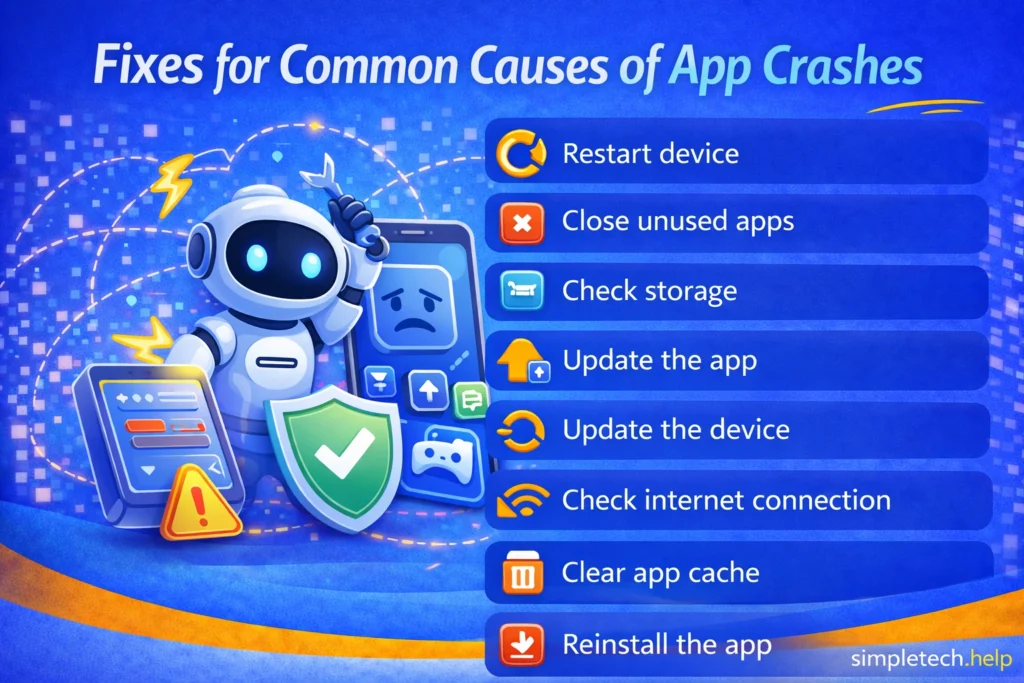
Step 1: Reopen the App. Close the app completely, then reopen it. Many crashes are one-time glitches.
Step 2: Restart Your Device. Restarting clears temporary memory issues that can cause apps to fail.
Step 3: Update the App. Go to your app store and install any pending updates.
Step 4: Update Your Device Software. System updates often include stability fixes for apps.
Step 5: Check Storage Space. If storage is nearly full, apps may crash more frequently.
Step 6: Clear App Cache (Android). This removes temporary files that may be corrupted.
Step 7: Reinstall the App. Delete and reinstall if crashes continue, which may require you to log in again.
Remember: Crashes are usually app bugs, not user mistakes.
Occasional crashes are normal, especially after updates or on older devices. If the app works again after restarting or updating, there’s usually no deeper issue.
Internet Not Working? Step-by-Step Fixes for Wi-Fi and Data Issues
Internet issues can come from your device, your Wi-Fi router, or your service provider. Simple steps, such as reconnecting to Wi-Fi or restarting equipment, often resolve the problem.
Why Is My Wi-Fi Connected but Not Working?
When the internet stops working, it can feel like your entire device is broken, but the problem usually falls into one of three areas: your device, your Wi-Fi equipment, or your service provider. Understanding where the failure point is makes troubleshooting much faster and less stressful.
Troubleshooting Internet Connection Issues
First, the issue could be with your device itself. Wi-Fi may be turned off, Airplane Mode could be enabled, or the device may simply need a restart.
Second, the problem might be your Wi-Fi router or modem. These devices can freeze or lose connection, and they often just need a reboot.
Third, internet outages happen at the provider level, meaning your home equipment and devices may be working fine, but service is temporarily down in your area.
The key is to test each layer step by step rather than assuming the worst.
Start by toggling Wi-Fi on your device from on to off, then back to on. You can also restart the router and the device.
Next, forget the network and reconnect.
Lastly, check your other devices.
Remember: The three possible failure points for a non-working Internet connection are:
- Device problem
- Wi-Fi/router problem
- Service provider outage
Nonetheless, most internet problems, including when your device connects to the internet but isn’t working, are temporary and fixable. Restarting your device and router solves a large percentage of connection issues without needing technical support.
Quick Troubleshooting Flow
Here’s a more detailed troubleshooting flow when the Internet is not working.
Step 1: Check the Device
Ask yourself:
- Is Wi-Fi turned on?
- Is Airplane Mode off?
- Try restarting the device
- Forget and reconnect to the Wi-Fi network
Step 2: Check the Wi-Fi Equipment
Next, you will want to:
- Restart the router/modem by turning it off and unplugging it for 30–60 seconds
- Wait for all lights to return to normal
- Move closer to the router
Step 3: Check for Provider Outages
Finally:
- Try another device on the same network
- If nothing connects, service may be down
- Check provider outage pages or wait for restoration
If all devices fail, you are most likely experiencing a provider issue.
Wi-Fi vs. Mobile Data
When the internet stops working, the first thing to check is how your device is connected. Phones and tablets typically use either Wi-Fi at home or at work, or mobile data from your cellular carrier’s network.
Wi-Fi is usually faster and doesn’t count against your phone plan, while mobile data works anywhere you have a signal, but may have limits. If one connection fails, switching to the other can quickly tell you whether the issue is your device, your network, or your service.
Mobile Data Clarification
Many beginners assume their internet is “broken” when their mobile data isn’t working as expected or connecting. Sometimes, it is simply turned off or restricted. A few small settings can completely block cellular internet without making it obvious.
Data Turned Off Accidentally
Mobile data can be toggled on or off in your device settings or quick controls. If it’s off, apps like maps, browsers, and email won’t work unless you’re on Wi-Fi.
Quick check: Settings → Network / Connections → Mobile Data → Toggle On
Airplane Mode Enabled
Airplane mode disables all wireless connections, including mobile data, Wi-Fi, and Bluetooth. It’s easy to turn on accidentally through quick settings.
Signs it’s on:
- Airplane icon in the status bar
- No signal bars
- Wi-Fi appears off or disconnected
Turning airplane mode off usually restores connections within seconds.
Data Limits Reached
Some phone plans, or device settings, include data limits. When you hit the cap, mobile data may slow down dramatically or stop working entirely.
What to look for:
- Warning notifications about data usage
- Carrier text messages
- “Data limit reached” alerts in settings
You can review usage in: Settings → Network / Mobile Data → Data Usage
If Wi-Fi works but mobile data doesn’t, your phone itself is usually fine. The issue is likely a setting, signal problem, or plan limit. Checking these three items first resolves a large percentage of “No internet” frustrations on mobile devices.
When your Wi-Fi feels slow, explore the common causes of a poor signal and how to fix them.
Many people buy smartphones, specifically so that they can connect to their internet, and it can cause frustration when the device does not.
Nothing Loading on My Phone
If nothing is loading on your phone, such as websites, apps, or messages, the issue is usually related to your internet connection, not the phone itself.
This can happen even when your phone appears connected to Wi-Fi or mobile data.
Here’s how to troubleshoot nothing loading on your phone.
Nothing Is Working on My Phone
If it feels like nothing is working on your phone, the issue may involve more than just the internet.
This usually means multiple problems are happening at once, such as apps not opening, the phone freezing, or the screen not responding, but you can troubleshoot it.
Storage Full? How to Free Up Space Without Deleting Everything
When storage fills up, devices may slow down, stop saving photos, or prevent app updates. Clearing unused files, apps, or downloads usually restores normal performance.
It doesn’t just stop you from saving new photos or apps. It can affect how your entire device works. Phones, tablets, and computers need free space to install updates, run apps smoothly, and store temporary system files. When storage is maxed out, devices often slow down, apps crash, cameras stop saving photos, and updates may fail.
Think of storage like a closet: if there’s no room left, nothing new can fit, and it becomes harder to find or use what’s already there.
What Happens When Storage Fills
Many problems stem from low storage. You may notice:
- “Storage Almost Full” warnings
- Apps freezing or crashing
- Camera refusing to take photos or videos
- Emails failing to download
- System or app updates not installing
- Device running slower than usual
Many features quietly depend on free space to function.
How to Check What’s Using the Most Space
Not all files take up the same amount of space. A few categories account for most storage usage:
Photos & Videos: Usually the biggest storage users — especially videos, screenshots, and duplicates.
Apps: Games, social media, and streaming apps can take up several gigabytes — plus storage space.
Messages: Text threads with photos, videos, and voice notes accumulate over time.
Downloads: PDFs, documents, images, and files often sit forgotten in Downloads folders.
Email Attachments: Attachments saved locally can add up quickly.
System & App Data: Cached files, offline content, and background data grow silently.
Quick Fix Steps
If you are receiving storage error notifications, these quick steps help you fix them. Start with the easiest, safest space-clearing actions:
Step 1: Check Storage Breakdown
Go to the device’s Settings → Storage
This shows exactly what’s using space, so you can prioritize.
Step 2: Delete or Back Up Photos & Videos
After reviewing the storage breakdown:
- Remove duplicates or blurry shots
- Back up to cloud storage or computer first
- Empty “Recently Deleted” afterward
Step 3: Remove Unused Apps
Delete apps you haven’t used in months. You can always reinstall later.
Step 4: Clear Downloads Folder
Many beginners forget this folder exists. Old files here are often safe to delete.
Step 5: Delete Large Message Threads
Especially ones with lots of videos or images.
Step 6: Clear App Cache (if available)
Some apps store temporary files you can safely clear without losing accounts or data.
Step 7: Restart After Cleanup
Restarting helps your device recalculate free space and run more smoothly.
Remember: Storage warnings are common and manageable.
Freeing even a small amount of space, 5–10% of total storage, can noticeably improve performance.
For example, you don’t need to delete everything on your phone to free up space; just focus on the largest categories first for the fastest results.
Why Is My Device So Slow? Simple Ways to Speed It Up
A slow device is often caused by low storage, too many open apps, or pending updates. Restarting and freeing space can noticeably improve speed.
If your phone, tablet, or computer feels sluggish, freezes, or takes longer to open apps, it’s usually not a permanent problem. Devices slow down over time due to storage limits, background activity, and software demands, not just age.
Common Reasons Phones and Computers Slow Down
One of the most common causes of a slow phone and computer is having too many apps open or running in the background. These apps use memory and processing power even when you’re not actively using them. Low storage is another major factor. When your device is nearly full, it has less space to function efficiently. Pending system or app updates can also cause slow performance, as outdated software may struggle to run smoothly.
Finally, aging hardware plays a role. Older devices can still work well, but newer apps and updates require more resources, which may cause gradual slowdowns.
If your issue goes being a slow device and nothing is loading on your phone, here’s how to troubleshoot it.
Troubleshooting a Slow-Running Device
Troubleshoot a slow-running device by restarting. Then, check it when it turns back on.
You can also close the background apps, which may free up memory.
Updating the system can fix glitches. Plus, it helps apps run more smoothly.
Lastly, free up storage, especially if you are close to using all of it. Leave 2 to 10 GB free, or 10 to 20%, as often as possible.
Quick Fix Checklist for Slow-Running Devices
- Restart the device
- Close unused background apps
- Install system updates
- Update apps in the app store
- Free up storage space (photos, videos, downloads)
- Remove unused apps
- Reduce widgets or live wallpapers
A slow device doesn’t automatically mean you need a replacement. Restarting, updating, and clearing storage often restores noticeable speed, especially if the slowdown started recently.
Battery Draining Fast? How to Improve Battery Life
Fast battery drain can result from brightness settings, background apps, or aging batteries. Small adjustments, such as lowering the brightness or closing apps, can extend battery life.
If your battery suddenly starts draining faster than usual, it doesn’t always mean your device is broken or needs replacing. Battery life is heavily influenced by settings, apps, and daily usage, and small adjustments can make a big difference.
Common Battery Drain Causes
One of the most common causes is a screen brightness setting that is too high, especially if Auto-Brightness is turned off. Background apps also play a major role. Apps that constantly refresh, track activity, or send notifications can quietly drain power even when you’re not using them.
Location services (GPS) are another major battery drain, particularly for apps like maps, ride-share, weather, and fitness that run in the background.
Over time, all rechargeable batteries age and hold less charge. If your device is several years old, shorter battery life is normal and gradual, not a sudden malfunction. However, most fast-drain issues are caused by software or settings rather than battery health.
Troubleshooting a Fast-Draining Battery
Sometimes fixing a fast-draining battery on a smartphone or computer is as easy as turning down the screen’s brightness. Other times, you’ll need to turn off the background apps.
Location services can also drain the battery because it accesses the device’s GPS.
Lastly, older devices hold their battery charges for less time. A one-year-old smartphone should retain 80% of its original battery capacity, but that capacity continues to drop.
Quick adjustments can dramatically improve battery life.
You can also troubleshoot the battery with the following checklist.
Quick Fix Checklist for Fast-Draining Battery
- Lower screen brightness or enable Auto-Brightness
- Close unused background apps
- Limit apps using location services
- Turn off Bluetooth or Wi-Fi when not needed
- Reduce notifications from non-essential apps
- Enable Battery Saver / Low Power Mode
- Restart the device
- Check for system or app updates
Fast battery drain on a phone or other device is usually fixable without repairs. Before replacing a battery or device, review brightness, background activity, and location settings. These three areas solve the majority of beginner battery complaints.
If your device won’t charge, you can troubleshoot it.
Update Not Working? How to Fix Software Update Issues
System and app updates improve security and performance but can sometimes cause temporary glitches. Restarting after updates and keeping apps up to date usually stabilizes things quickly.
Software updates aim to improve your device. They fix security risks, patch bugs, and add new features. In most cases, updates make phones, tablets, and computers safer and more stable over time.
However, it’s normal for updates to cause temporary glitches right after installation. You might notice apps crashing, battery draining faster, Bluetooth disconnecting, or settings behaving differently. This usually happens because apps and system processes are still adjusting to the new software.
Why Won’t My Device Update?
The first fix is simple: restart your device after the update finishes. Then check for app updates as well. Outdated apps often struggle to work properly on newly updated systems.
If problems continue, don’t panic. Companies regularly release small follow-up patches to fix early bugs, so waiting a few days can resolve many issues automatically.
Sometimes, updates can cause temporary inconveniences. However, updates are still important overall.
Quick Fix Checklist for Update Issues
- Restart your device after updating
- Update all apps in the app store
- Check settings that may have reset
- Monitor battery and performance for a few days
- Install follow-up “patch” updates when available
If your device works but feels “off” after an update, it’s usually temporary, not permanent damage. Updates are part of keeping devices secure, and most post-update issues resolve quickly with a restart, an app update, or a small system fix.
Bluetooth Not Connecting? How to Fix Pairing Problems
When built-in features stop working, the issue is often permissions or settings, not broken hardware. Checking app access, volume levels, or Bluetooth connections resolves many problems.
The trick is to know where to look for the issue.
Troubleshooting Sound, Camera, and Bluetooth Connection Issues
When troubleshooting the sound, camera, and Bluetooth connection issues, start with some quick checks, such as:
- Permissions
- Volume levels
- Bluetooth toggled
- App access setting
Permissions Enabled
Apps need permission to access hardware like the microphone, camera, or Bluetooth. Check your device settings to ensure the app has the correct permissions enabled.
Volume Levels
If your sound isn’t working, make sure:
- Media, call, or alarm volume is turned up
- The device isn’t in Silent or Do Not Disturb mode
- Headphones or Bluetooth audio are still not connected unintentionally
Bluetooth Toggled
Bluetooth problems often occur when the feature is turned off or not properly connected. Turn Bluetooth off and back on, and confirm the device is paired with the correct accessory.
For Bluetooth, toggle it off and back on, and confirm you’re connected to the correct accessory. Sometimes audio routes to headphones, cars, or speakers without you realizing it.
App Access Allowed
Even with permissions, some apps have internal settings controlling hardware access. Check the app’s settings to ensure it’s allowed to use the microphone, camera, or Bluetooth.
You can also check for physical obstructions, such as phone cases blocking the lenses or debris in the speakers. Finally, ensure your apps and system software are up to date, as outdated software can cause hardware glitches.
Quick Checklist for Troubleshooting Camera and Bluetooth Issues
- Restart your device, which often resolves temporary glitches.
- Check permissions and app settings for camera, microphone, or Bluetooth.
- Toggle the feature off and on (Bluetooth, sound, or camera).
- Confirm volume levels or connected devices aren’t interfering.
Additionally:
- Verify the correct device is connected
- Test the feature in another app
- Remove cases or clean lenses/speakers
- Restart the device
- Check for app or system updates
Remember: Apps must be granted permission to use your microphone, camera, speakers, or Bluetooth, and if permission is denied, even accidentally, the feature won’t work.
Before assuming something is broken, go to Settings → Privacy / Permissions, open the app in question, and make sure access to the camera, microphone, or Bluetooth is turned on. This quick check solves a surprising number of “nothing works” issues in seconds.
Account & Login Issues
Login problems can include forgotten passwords, verification delays, or sync errors. Most account access issues can be fixed using recovery tools or reset options.
Sometimes the problem isn’t your device, but your accounts or login credentials. Understanding common issues and how to address them helps you regain access safely and avoid frustration.
Password Errors
Incorrect passwords are the most common login issue. Make sure:
- Caps Lock, or Num Lock, isn’t on
- You’re entering the correct password for that account
- You haven’t accidentally used an old password
If you still can’t log in, use the “Forgot Password” feature to securely reset it.
Verification Codes Failing
Two-step verification codes may fail due to:
- Delays in SMS delivery or email
- Using an outdated authenticator app
- Incorrect time settings on your device
Try resending the code, checking your backup email/phone, or syncing your device clock.
Sync Not Updating
If your emails, contacts, or cloud files aren’t syncing:
- Check your internet connection
- Ensure sync is enabled in your account settings
- Restart the device or app to refresh the connection
Persistent sync issues may require logging out and back in, or checking for app/system updates.
Beginner Tip: Step-by-Step Recovery
- Double-check credentials before assuming something is broken.
- Use account recovery features (email reset links, backup phone, authenticator apps).
- Avoid repeated login attempts that could temporarily lock your account — take a pause and follow official recovery instructions.
SimpleTech Troubleshooting Mindset and Framework
Approaching tech problems step by step makes them easier to solve. Checking what changed recently and trying simple fixes first builds confidence and independence.
Thinking through tech problems means taking specific steps, such as asking:
- What changed recently?
- Restart first
- Check internet
- Check storage
- Update apps/system
This process builds independence.
When your device or app isn’t working, it’s easy to feel stuck. A clear, step-by-step mindset helps beginners tackle problems without panic and avoids unnecessary resets or data loss.
Ask: What Changed Recently?
Before assuming something is broken, think about what changed. Did you install a new app, update software, or change settings? Identifying recent changes often points directly to the cause of the issue.
Restart First
Many problems, frozen screens, unresponsive apps, and slow performance can be fixed by simply restarting your device. Always try this first; it’s quick, safe, and often solves the problem without losing data.
Check Internet Connection
If your device seems slow or apps aren’t working, verify your Wi-Fi or mobile data connection. Switch networks, toggle Airplane Mode, or restart your router to rule out connectivity issues.
Check Storage
Low storage can prevent apps from running or saving files. Check your device’s storage, delete unnecessary files, clear caches, or move data to the cloud to free up space.
Update Apps and System
Outdated apps or software often cause crashes or glitches. Make sure apps, your device’s operating system, and any critical firmware are up to date.
Beginner Tip: Thinking Step-by-Step
Start simple and work your way through each step rather than making big changes immediately. Ask yourself:
- What changed?
- Can I restart?
- Is there enough storage?
- Am I connected?
Once you have the right mindset, you can follow the SimpleTech Troubleshooting Framework, which keeps troubleshooting manageable and stress-free.
It focuses on executing three core checks: connection → power → device or software

Common Troubleshooting Beginner Mistakes
Many beginners assume devices are broken when issues are minor or temporary. Learning a few basic troubleshooting habits prevents unnecessary stress and data loss.
Ignoring Small Glitches
The Mistake: Thinking a frozen screen or slow app is permanent.
The Fix: Restart your device or close background apps. Most minor glitches disappear with a quick reboot.
Resetting Before Restarting
The Mistake: Performing a full reset or restore before trying simpler fixes.
The Fix: Always try restarting first — it often fixes problems without deleting any data.
Not Keeping Apps or System Updated
The Mistake: Skipping updates to save time or avoid prompts.
The Fix: Regularly update apps and your device software to prevent crashes and security issues.
Overfilling Storage
The Mistake: Letting photos, videos, and apps accumulate until the device slows or stops saving new data.
The Fix: Delete unnecessary files, move data to the cloud, or clear app caches to free space.
Deleting Apps Unnecessarily
The Mistake: Removing apps without understanding which files or settings may be lost.
The Fix: Check app storage usage first and only delete apps you truly don’t need.
Ignoring Storage Warnings
The Mistake: Continuing to download or save files even after “storage almost full” alerts.
The Fix: Act immediately by clearing space, moving files to the cloud, or deleting duplicates.
Forgetting to Restart
The Mistake: Leaving your device on indefinitely, even when it’s running slowly.
The Fix: Restart your device weekly to clear temporary memory and refresh performance.
Using Multiple Networks without Checking Connection
The Mistake: Jumping between Wi-Fi, mobile data, or public networks without troubleshooting.
The Fix: Restart routers, toggle Wi-Fi/data, or reconnect to the network to restore a stable connection.
Charging Mistakes
The Mistake: Using damaged cables or chargers, or plugging in without checking the port.
The Fix: Inspect cables and ports, try another charger, or restart your device if it won’t charge.
Panicking when something seems “Broken”
The Mistake: Resetting or restoring immediately without trying basic fixes.
The Fix: Start with simple steps such as restarting, closing apps, clearing the cache, or checking storage. Most issues can be resolved without losing data.
Mixing Devices and Accounts
The Mistake: Assuming a problem on one device affects all your accounts.
The Fix: Check if the issue occurs on another device or browser to pinpoint whether it’s the device or the account/service.
Ignoring Device Age and Limitations
The Mistake: Expecting an older device to perform like a new one.
The Fix: Recognize hardware limits; updates or app features may no longer work optimally, and consider upgrading if performance hinders daily use.
Troubleshooting & “Nothing Works” FAQs
Troubleshooting questions are extremely common, especially when problems feel urgent. A dedicated FAQ section helps beginners find quick reassurance and next steps.
Why isn’t my device turning on?
Your device may be out of battery, frozen, or experiencing a temporary software glitch. Try charging it, then restart it or perform a forced restart.
Will restarting delete anything?
No. Restarting simply reboots your device without deleting apps, files, or settings. It often fixes temporary glitches safely.
How often should I restart?
Restarting occasionally, like once a week, can help your device run smoothly and clear temporary memory issues.
What’s the difference between restart, reset, and restore?
Restart simply reboots your device. Reset restores settings, and restore returns your device to its original factory state, erasing data.
Why do apps keep crashing?
Apps may crash due to outdated versions, low storage, or temporary glitches. Updating the app, clearing cache, or restarting your device often fixes this.
Why isn’t my internet working?
Connection issues can be caused by Wi-Fi or mobile data problems, router errors, or outages. Try toggling your connection, restarting your router, or switching networks.
Why does Wi-Fi disconnect randomly?
Random disconnections can occur due to signal interference, router issues, or device settings. Restarting your router, moving closer to the signal, or forgetting and reconnecting to the network often helps.
What should I do if my device says storage is full?
Full storage can prevent apps from running or saving files. Delete unnecessary files, clear app caches, or move data to the cloud.
Why does my screen freeze or become unresponsive?
Freezes are usually temporary software glitches or memory overload. Restarting your device or closing background apps usually resolves it.
Why isn’t my device charging?
Charging issues may be due to a faulty cable, port, or adapter, or software preventing charging. Check all hardware and try restarting your device.
Is my device too old?
Older devices may run more slowly, stop receiving updates, or struggle with new apps. Sometimes hardware limitations can’t be fully fixed, and an upgrade may improve performance.
Can I fix problems without losing my data?
Many issues can be fixed with restarts, updates, or clearing app caches without deleting personal data. Only use resets or restores as a last resort.
When should I seek professional help?
If restarts, updates, and basic fixes don’t work, or if your device is damaged, unresponsive, or repeatedly failing—contact customer support or a qualified technician.
When to Seek Help
Some problems require outside support, especially if devices won’t power on or accounts are locked. Knowing when to ask for help can save time and prevent bigger issues.
If you’re locked out of your accounts, your device will not turn on, or you suspect hacking or fraud, consider seeking help.
Where to Get Help
When seeking help with your tech devices, turn to reputable parties, such as:
- Manufacturer support (Apple, Google, Microsoft)
- Internet provider
- Local tech support
- Trusted family/friends
Sometimes troubleshooting doesn’t solve the problem, and it’s time to ask for help. Knowing when and where to turn to legitimate support can save time, prevent frustration, and keep your accounts and devices safe.
Signs It’s Time to Seek Help
You may need help if:
- Your device won’t turn on or repeatedly freezes
- Apps or the system keep crashing after basic fixes
- You’re locked out of accounts or can’t recover passwords
- Storage, internet, or software issues persist despite restarting and updating
How to Avoid Scammers
If your device has been compromised or is not functioning as expected, seeking help from reputable tech professionals also helps you avoid scammers.
Additionally, avoid scammers by:
- Use official support channels. Visit the device manufacturer’s website (Apple, Google, Microsoft, Samsung, etc.) or your internet provider’s official support.
- Ignore unsolicited calls or messages. Legitimate companies rarely call or email you out of the blue to fix your device or ask for passwords.
- Don’t share passwords or codes. Never give one-time codes, recovery info, or passwords to anyone claiming to “help.”
- Check reviews or forums. If unsure, verify third-party repair shops or tech help online before trusting them.
Safe Help Strategy
- Try the Troubleshooting Mindset Framework first.
- If the problem persists, contact official support via website, app, or verified phone number.
- Avoid any solution that asks you to pay upfront, provide passwords, or install unknown software.
Tech problems rarely happen just once, which is why it helps to have a calm, reliable place to return to when something goes wrong. Bookmark this page so that the next time your device freezes, apps crash, or the internet stops working, you already know where to start.
Learning and Next Steps
As you grow more comfortable troubleshooting, you may also want to strengthen the basics that prevent problems in the first place.
- Account Security Basics – Accounts, Passwords & Logins: Prevent lockouts, password errors, and account confusion
- Online Safety: Learn the basics of staying safe online
- Wi-Fi, Mobile Data & Internet Basics: Understand connection problems and how to fix them faster
The more you understand how your device works, the less overwhelming tech issues feel. And remember: most “Nothing works” moments are temporary and fixable, once you know the steps.