Last Updated on April 2, 2026 by Simple Tech Help
How to choose the right devices for your needs when buying tech.
Buying tech used to be simple.
Now, every product page is filled with terms like:
- 16GB RAM
- 120Hz refresh rate
- OLED vs LED
- M3 vs i7
- Wi-Fi 6E
- NVMe SSD
Most people just need the right device.
Tech Buying Made Simple: What This Guide Covers
This guide will help you:
- Understand what common tech specs actually mean
- Know which specs matter (and which don’t)
- Avoid overspending
- Buy devices that fit your real-world needs
- Think long-term about durability and performance
You don’t need to become a tech expert. You just need a smart buying mindset to help you choose the right device that is reliable, efficient, and sustainable for your life.
Before You Buy Any Tech: Defining Your Needs
Before buying any device, start by identifying what problem you’re trying to solve rather than focusing on features. Understanding your needs and budget first can prevent you from overspending on upgrades you may never use.
Most tech-buying mistakes occur because consumers lack the information they need to choose the right product for their needs.
Before you compare specs or click “Add to Cart,” pause and walk through these four steps.
How to Set a Realistic Tech Budget
Knowing why you need a new tech product helps you pick the right one the first time.
Are you buying because:
- Your current device is slow?
- Storage is full?
- Battery doesn’t last?
- You need something portable?
- You’re starting a new job or working from home?
When answering the questions, be specific.
“Mine is old” isn’t always an urgent issue, but “Video calls freeze during meetings” is.
When you clearly define the issue, you can shop for a solution, not just an upgrade.
Budget vs Features
You can’t optimize for everything.
More features usually mean a higher cost.
Instead of asking: “What’s the best device?”
Ask: “What’s the best device for my budget and my needs?”
Next, set a maximum budget. Identify 2–3 non-negotiable features and treat everything else as optional.
Example: If your budget is moderate and you only browse, stream, and email, you don’t need:
- A high-end graphics card
- Ultra-high resolution
- Premium-tier processing
Most people need reliability and smooth performance.
How to Avoid Upsells
Retailers and online stores often suggest:
- Extended warranties
- Accessories bundles
- Premium configurations
- “Upgrade now” prompts
Some are useful, but many are unnecessary for most people.
Before accepting an upsell, ask:
- Does this solve a real problem I have?
- Will I notice the difference?
- Can I add this later if needed?
Often, you can.
Avoid making decisions based on fear of missing out, pressure at checkout, or “Only a little more per month” messaging.
Small monthly increases add up.
Reading Reviews Safely and Effectively
Reviews are helpful, but they require filtering.
Look for repeated complaints because patterns matter more than single comments. Long-term usage reviews, mentions of customer support experience, and reviews from users with similar needs to yours are also helpful.
On the other hand, read extremely emotional 1-star or 5-star reviews, vague praise with no details, and reviews posted immediately after release with a grain of salt.
A product with a few negative reviews isn’t bad. A product with consistent recurring issues might be.
Also, remember: People are more likely to leave reviews when something goes wrong than when everything works normally.
A Simple 4-Step Buying Filter
Before you purchase, confirm:
✔ I know the specific problem I’m solving
✔ I’ve set a realistic budget
✔ I understand which features I actually need
✔ I’ve read balanced reviews
If you can check all four boxes, you’re making a confident decision, not a reactive one.
Understanding Tech Specs for Beginners
Tech specs like RAM, storage, and processor speed may sound intimidating, but they simply describe how fast and how much a device can handle. Learning what these terms actually affect in everyday use makes it much easier to compare products confidently.
When you shop for tech, product pages list dozens of numbers. But most buyers only need to understand a handful of core specs to make a smart decision.
Here are a few important ones and what each spec truly affects.
RAM
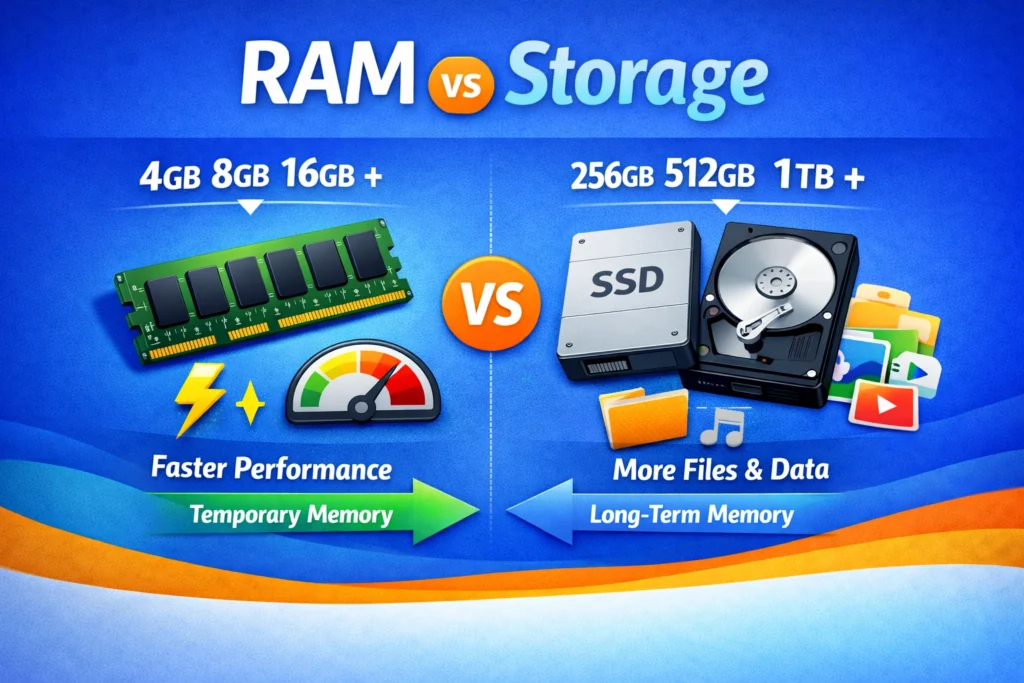
RAM (Random Access Memory) is your device’s short-term working memory.
It determines how smoothly your device handles multiple tasks at once.
RAM affects:
- Having many browser tabs open
- Running multiple apps at the same time
- Switching between programs quickly
- Video calls while multitasking
If your device freezes or slows down while multitasking, insufficient RAM is often the cause.
Many users only require moderate RAM for light use, such as email, browsing, and streaming.
More RAM helps with heavier multitasking or creative work.
More RAM doesn’t make everything magically faster. It mainly helps with multitasking and smoothness.
GB vs TB for Storage
Storage is long-term space. It’s where your files live, including photos, videos, documents, and installed apps or programs.
Storage is measured in:
- GB (Gigabytes)
- TB (Terabytes), where 1 TB = 1,000 GB
More storage means more room for files, but it doesn’t directly make your device faster.
Before choosing storage, consider:
- Do you store lots of videos or high-resolution photos?
- Do you use cloud storage?
- Do you download large files regularly?
Many users overestimate how much storage they truly need.
SSD vs HDD
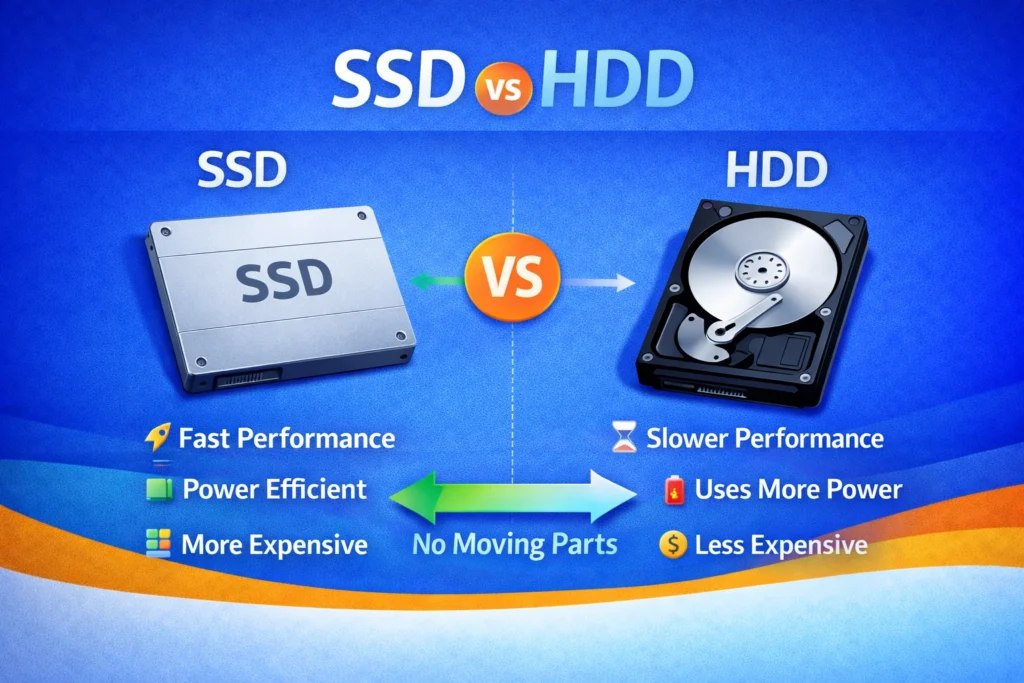
These are two different types of storage drives, SSD and HDD.
SSD (Solid State Drive) is faster, quieter, more durable, and the modern standard.
HDD (Hard Disk Drive) is slower and cheaper, and considered older technology.
If you’ve ever used a computer that “takes forever to start,” it likely had an HDD.
For most buyers today, SSD is strongly recommended. It dramatically improves boot time and overall responsiveness.
Processor
The processor (CPU) is the brain of the device.
It handles calculations, opening programs, running applications, and managing system tasks.
A stronger processor helps with:
- Heavy multitasking
- Video editing
- Gaming
- Advanced software
For everyday tasks like browsing, streaming, email, and office work, you don’t need the most powerful processor available.
Newer processor generations often matter more than slightly higher speed numbers.
Battery Life
Battery life estimates are often listed in hours, but these numbers are best-case scenarios.
Manufacturers test under controlled conditions, often with lower screen brightness, minimal multitasking, and no heavy video streaming.
Real-world battery life depends on:
- Screen brightness
- Video calls
- Streaming
- Background apps
Overusing any of them cause cause a phone’s battery to drain quickly.
If battery life is important to you:
- Look for independent reviews
- Expect slightly less than advertised
- Prioritize efficiency over just raw power
Screen Size & Resolution
These two are related but differ.
Screen Size is measured diagonally in inches.
Larger screens feel more spacious, are better for multitasking, and add weight and reduce portability.
Choose screen size based on:
- Desk space
- Portability needs
- Vision comfort
Resolution determines how sharp the image looks.
Common examples:
- 1080p (Full HD)
- 1440p
- 4K
Higher resolution = sharper visuals. But on smaller screens, the difference may be minimal.
For most everyday users, 1080p is perfectly sufficient.
What Actually Impacts Everyday Performance?
For most beginners, performance is most influenced by:
- Having an SSD
- Having adequate RAM
- Choosing a modern processor generation
Storage size and extreme display specs matter less for basic use.
The Big Picture
Specs aren’t about chasing the highest numbers.
They’re about matching your tasks, comfort, and budget.
When you understand what each spec actually affects, tech shopping becomes much simpler — and much less stressful.
Choosing the Right Smartphone Specs Without Overthinking It
When choosing a phone, consider storage space, battery life, camera quality, and whether it works with your carrier. You don’t always need the newest model. You need the one that fits your daily phone use.
Smartphones are marketed aggressively. Every year promises new and better features. While some users need those upgraded features, most consumers keep it simple.
They use their phones for:
- Texting
- Photos
- Social media
- Browsing
- Streaming
- Maps
- Video calls
Here are some things to consider when choosing phones.
Storage Tiers
Manufacturers sell smartphones in various storage levels, like:
- 128GB
- 256GB
- 512GB
- 1TB
More storage means more room for photos, videos, apps, and downloads.
So, how much storage do you really need?
How to Choose
Ask yourself:
- Do you record a lot of high-resolution video?
- Do you download movies or large games?
- Do you keep thousands of photos stored locally?
If you use cloud storage, such as Google Photos or iCloud, you may not need higher tiers.
Many users are perfectly fine with lower or mid-tier storage. Higher tiers are helpful for heavy photo and video creators, not average users.
Camera Marketing vs Reality
Phone camera marketing focuses on megapixels, AI processing, night modes, and zoom levels
When exploring camera options on smartphones, other factors help produce the best pictures, including image processing software, lens quality, sensor size, and lighting conditions.
For everyday users posting to social media or sharing photos with family, most modern smartphones take excellent pictures.
You only need top-tier camera systems if you:
- Print large-format photos
- Shoot professional content
- Heavily edit images
For most people, mid-range phone cameras are more than sufficient.
Carrier-Locked vs Unlocked
This is one of the most confusing parts of buying a phone. Should you pick a carrier-locked phone over an unlocked one?
Carrier-Locked Phones are tied to a specific mobile carrier, often offered with installment payment plans, and may be restricted from switching carriers immediately.
Unlocked Phones are not tied to any carrier and can be used with most compatible networks. Users purchase them upfront.
What to Consider
Carrier-locked phones can reduce upfront cost, may include promotional deals, and can limit flexibility.
Unlocked phones offer more freedom, make switching carriers easier, and often resell better.
If you plan to stay with your carrier long-term, locked may be fine. If you value flexibility or travel internationally, unlocked is often better.
The Calm Phone Buying Rule
Before upgrading, ask:
- Is my current phone actually limiting me?
- Is battery life the real issue?
- Am I running out of storage?
- Am I upgrading because of marketing pressure?
Most modern phones are very capable. The differences between mid-range and premium models are often noticeable only in edge cases.
Choose based on:
- Storage needs
- Battery life
- Comfort
- Budget
- Flexibility
Not just launch hype.
A Guide to Computer Specs
The right computer depends on what you plan to do, whether that’s browsing, working, video calls, or creative projects. Understanding the difference between basic, mid-range, and high-performance models helps you avoid paying for more power than you need.
Buying a computer feels complicated because there are so many categories, brands, and performance levels.
But most decisions come down to three simple questions:
- Do you need portability?
- What software do you use?
- How demanding are your tasks?
Let’s break it down.
Laptop vs Desktop: Choosing the Right Computer
When picking between a laptop and a desktop, the decision is about lifestyle more than performance.
Laptop
A Laptop is best for:
- Portability
- Working from multiple locations
- Small spaces
- Students
- Flexible home setups
Pros:
- Compact and portable
- All-in-one design
- Lower power consumption
Cons:
- Limited upgrade options
- Smaller screen (unless connected to a monitor)
- Usually more expensive for equivalent power
If you value flexibility and mobility, a laptop makes sense.
Desktop
A Desktop is best for:
- Permanent workspaces
- Maximum performance per dollar
- Easier upgrades over time
Pros:
- More powerful for the same price
- Easier to upgrade (RAM, storage, graphics)
- Larger monitors for comfort
Cons:
- Not portable
- Requires sa eparate monitor, keyboard, and mouse
If you work from one desk and want the most power for your budget, a desktop often offers better value.
Chromebook vs Windows vs Mac: Pros, Cons & Limitations
Picking among a Chromebook, Windows, and Mac depends heavily on the type of work you do and the apps you use.
Here’s a breakdown.
Chromebook
Best for:
- Web browsing
- Google Docs and cloud-based tools
- Students
- Light everyday tasks
Chromebooks rely heavily on internet-based apps.
Pros:
- Affordable
- Simple and secure
- Fast startup
Limitations:
- Limited compatibility with specialized software
- Not ideal for advanced creative work
If most of your work happens in a browser, a Chromebook may be enough.
Windows Computer
Best for:
- General home and office use
- Gaming
- Business software
- Broad compatibility
Pros:
- Widest software support
- Large variety of price points
- Flexible hardware options
Limitations:
- Performance varies by manufacturer
- More vulnerable to malware
- Inconsistent battery life
Windows machines range from basic to extremely powerful.
Mac
Best for:
- Creative professionals
- Users invested in Apple’s ecosystem
- Long device lifespan
Pros:
- Strong build quality
- Smooth performance optimization
- Strong integration with other Apple devices
Limitations:
- Higher upfront cost
- Fewer hardware customization options
Macs are popular among designers, video editors, and users who value an ecosystem that’s simple to use.
How Much RAM, Storage & Battery Life Do You Really Need?
Marketing discusses high-end processors, large amounts of RAM, and dedicated graphics cards.
But most users do not need extreme power.
You probably don’t need advanced power if you:
- Browse the web
- Use email
- Stream shows
- Use Microsoft Office or Google Docs
- Attend video calls
- Do light photo editing
Mid-range systems handle these tasks easily.
You may need more power if you:
- Edit 4K video
- Work with large design files
- Use professional creative software
- Game regularly
- Run virtual machines
- Compile large software projects
In these cases, stronger processors, more RAM, and possibly a dedicated GPU matter.
What is GPU vs CPU?
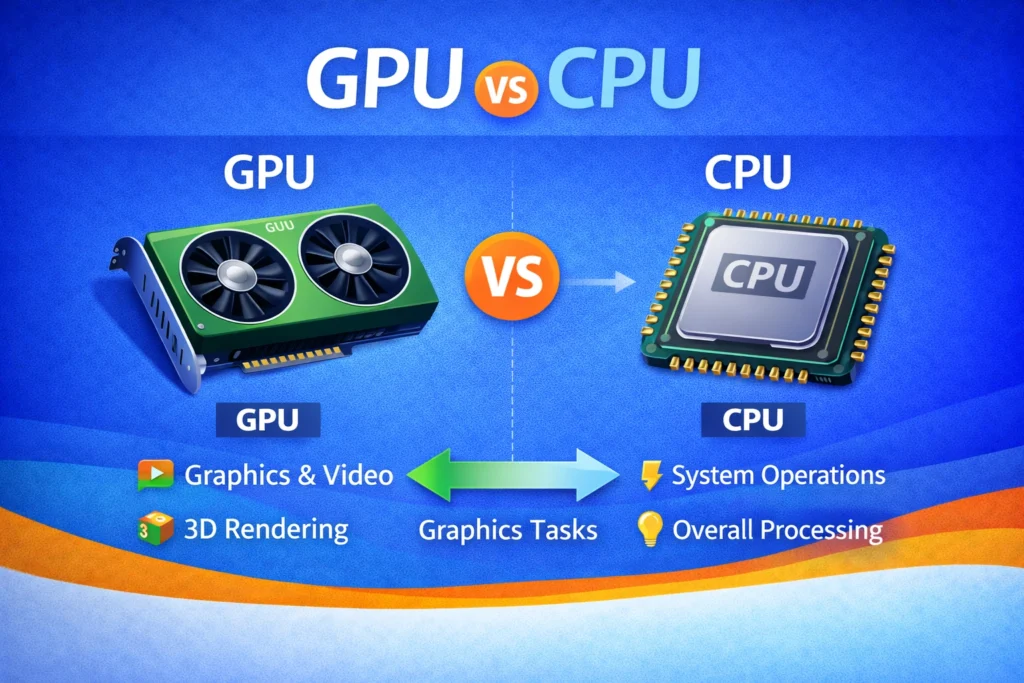
The CPU (Central Processing Unit) handles general tasks. It is the main “brain.” The GPU (Graphics Processing Unit) handles visual tasks, such as graphics, video rendering, and gaming.
If you’re not gaming or editing video, you likely don’t need a powerful dedicated GPU.
The Smart Computer Buying Rule
Don’t buy for edge cases you rarely encounter.
Buy for what you do most often.
Overspending on unused performance is common. Underbuying for demanding work causes frustration.
Match your computer to:
- Your software
- Your workload
- Your workspace
- Your budget
Not just the most impressive spec sheet.
TV & Streaming Device Buying Guide: What to Know
TV shopping often feels more complicated than it needs to be. Between Smart TVs, streaming devices, HDMI ports, and 4K labels, it’s easy to assume you need the “latest and greatest.”
Most people just want a clear picture, easy streaming, a reliable performance, and a simple setup.
Let’s explore your options.
Smart TV vs Streaming Stick
Consumers can access entertainment content in various ways, including Smart TVs and Streaming Sticks.
Smart TV
A Smart TV connects directly to the internet and has built-in apps like:
- Netflix
- YouTube
- Hulu
- Disney+
Pros:
- No extra device needed
- Cleaner setup (fewer cables)
- One remote in many cases
Cons:
- Built-in software can slow down over time
- Updates may stop after a few years
- App selection can vary by brand
Streaming Stick, or Streaming Box
A small device that plugs into your TV’s HDMI port and connects to Wi-Fi.
Streaming stick and box examples include:
- Roku
- Amazon Fire TV
- Apple TV
- Google TV
Pros:
- Often faster than built-in Smart TV systems
- Updated more frequently
- Easy to replace or upgrade
- Can make older TVs “smart”
Cons:
- Requires an HDMI port
- Adds a small extra device
What Most Buyers Don’t Realize
Even if you buy a Smart TV, you can still use a streaming stick later if the built-in system becomes slow.
A streaming device can extend the life of your TV without replacing the entire screen.
HDMI Ports
HDMI is the connection that carries video and audio from a device to your TV.
Common devices that use HDMI:
- Streaming sticks
- Gaming consoles
- Cable boxes
- Soundbars
- Blu-ray players
Before buying a TV, check:
- How many HDMI ports it has
- Whether that number fits your current (or future) devices
Running out of HDMI ports can mean having to unplug devices frequently.
For many households, at least 3 HDMI ports provide flexibility.
4K vs HD
Do You Actually Need 4K?
Resolution affects how sharp the picture looks.
HD (1080p), a common format still, provides a clear picture. It is suitable for smaller screens.
4K provides a sharper image through more pixels. It is best appreciated on larger screens.
On smaller TVs, the difference between HD and 4K may not be noticeable from typical viewing distances.
4K makes more sense when:
- The screen is larger
- You sit closer
- You stream a lot of 4K content
Most new TVs are 4K by default, so the price gap isn’t as large as it used to be.
What Actually Impacts Your Viewing Experience?
For most people, these matter more than advanced technical specs:
- Reliable streaming performance
- Enough HDMI ports
- Good Wi-Fi connection
- Comfortable screen size for your room
Ultra-premium features, such as extremely high refresh rates or advanced display technologies, primarily benefit gamers and home theater enthusiasts.
A Simple TV Buying Filter
Before you buy, confirm:
✔ The screen size fits your room
✔ You have enough HDMI ports
✔ You understand how you’ll stream content
✔ The resolution matches your viewing habits
Most households don’t need the most expensive TV. They need the right size, the right inputs, and smooth streaming.
Printer Buying Guide: Ink, Toner & Print Volume
Printers often look affordable upfront, but the real cost is usually in the supplies.
Before buying, think less about the price of the printer and more about:
- How often you print
- What you print
- How much ink or toner will cost over time
Finding the right printer helps you avoid long-term cost mistakes.
Ink Cost vs Toner Cost
Printers generally use one of two systems, ink or toner.
Ink or Inkjet Printers
Inkjet printers use liquid ink cartridges, are usually cheaper upfront, and are good for photos and color printing.
However, ink cartridges can be expensive. They may dry out if unused, and the cost per page can be higher.
Inkjet printers are often better for:
- Occasional home use
- Photo printing
- Low monthly print volume
Toner or Laser Printers
Laser printers use toner, a fine powder.
They cost more up front, print quickly, and are more efficient for large-volume printing. Laser printers also have a lower cost per page over time
Toner doesn’t dry out, which makes laser printers better for:
- Regular printing
- Business or home office use
- High monthly print volume
The Real Question
Instead of asking: “Which printer is cheaper?”
Ask: “Which will cost less over the next 2–3 years based on how I print?”
The cheapest printer is not always the most affordable in the long term.
Print Volume
Print volume matters more than most buyers realize. How much you actually print helps you pick the right printer.
Manufacturers often list recommended monthly page volume and maximum monthly duty cycle.
You don’t need to obsess over these numbers, just estimate your habits.
Do you print:
- A few pages per week
- School assignments occasionally
- Daily business documents
- Hundreds of pages per month
If you print frequently, a small, entry-level printer may burn through ink quickly, wear out faster, and cost more per page.
If you print rarely, a heavy-duty business printer may be unnecessary.
Match the printer to your realistic monthly usage.
Subscription Ink Plans
Many printer brands now offer subscription ink services, but are they worth it?
These plans:
- Monitor your ink levels
- Automatically ship replacement cartridges
- Charge based on pages printed, not ink used
Benefits
The plans offer several benefits, including convenience, a predictable monthly cost, and a lower risk of running out unexpectedly.
Drawbacks
The plans also have some drawbacks, such as an ongoing subscription commitment. They may cost more for very light users and often require brand-specific cartridges.
Subscription plans can make sense if:
- You print each month consistently
- You want predictable costs
- You dislike monitoring ink levels
They may not make sense if:
- You print rarely
- You prefer buying cartridges as needed
The Smart Printer Buying Rule
Before choosing a printer, ask:
- How often do I print?
- Do I print mostly documents or photos?
- Am I comfortable with subscription services?
- What will supplies cost over time?
Upfront price is only part of the equation.
Long-term supply cost and reliability matter more.
Quick Printer Decision Guide
✔ Rare printing → Simple inkjet may be fine
✔ Frequent document printing → Laser often saves money
✔ Photo-heavy use → Inkjet with good color capability
✔ Predictable monthly printing → Subscription plan may help
Choose based on habits, not just shelf price.
Warranties & Protection Plans: Are They Worth It?
Extended warranties and protection plans can be helpful in some situations, but they aren’t always necessary. Understanding return policies and refurbished options can help you balance savings with peace of mind.
When you buy tech, you’re often offered extended warranties, protection plans, accidental-damage coverage, or store-replacement programs.
These are usually presented at checkout, when you’re already spending money and don’t want to risk your purchase.
Sometimes they make sense.
Others, they don’t.
Here’s how to decide.
Understand the Standard Warranty
Most new electronics already include a limited manufacturer’s warranty, which covers:
- Manufacturing defects
- Hardware failures not caused by damage
- A set time period (often one year)
Before adding extra coverage, check:
- How long the included warranty lasts
- What it already covers
- Whether your credit card adds extended protection automatically
You may already have more coverage than you realize.
When Protection Plans Are Worth It
Protection plans can make sense in various situations, including when they cover expensive, portable devices.
The Device Is Expensive and Portable
Expensive and portable items include laptops, high-end phones, and tablets, which users tend to drop, spill things on, and lose or damage in transit.
Accidental damage coverage can be reasonable here.
Repairs Would Be Very Costly
Some devices have:
- Expensive screen replacements
- Sealed components that are hard to fix
- Limited third-party repair options
If repair costs approach the price of replacement, a protection plan may reduce financial risk.
The Product Has a Known Reliability Pattern
If reviews consistently mention early hardware failure, extended coverage may offer peace of mind.
You Want Predictable Costs
Some people prefer:
- A fixed upfront cost
- Fewer surprise repair bills
That’s a personal financial comfort decision.
When Protection Plans Usually Aren’t Worth It
Here are instances when protection plans are not ideal.
Low-Cost Electronics
If replacing the item would cost about the same as the protection plan, it may not be worth it.
Example:
- A budget accessory
- A small home device
Sometimes it’s cheaper to replace than insure.
Devices That Rarely Move
Desktop computers, monitors, and home TVs are less likely to suffer accidental damage than portable devices.
Short Ownership Plans
If you plan to upgrade in 1–2 years, a long-term protection plan may outlast your usage.
Overlapping Coverage
You may already have:
- Manufacturer warranty
- Retailer return period
- Credit card extended warranty protection
- Home insurance coverage (for theft or damage)
Double-paying for coverage adds unnecessary cost.
A Note on Store Replacement Plans
Some store plans promise:
- Immediate in-store replacement
- Faster service
- “No questions asked” swaps
These can be convenient, but convenience has a price.
Ask:
- What’s the deductible?
- Is accidental damage included?
- How many claims are allowed?
Read the fine print before deciding.
A Simple Warranty Decision Filter
Before buying a protection plan, ask:
✔ Is the device portable and fragile?
lass=”yoast-text-mark” />>✔ Would repair be very expensive?
lass=”yoast-text-mark” />>✔ Do I lack other coverage?
ss=”yoast-text-mark” />>✔ Am I paying a reasonable percentage of the item’s cost?
If you answer “no” to most of these, you likely don’t need the extra plan.
The Calm Buying Rule
Protection plans are about risk tolerance, not fear.
Retail checkout prompts are designed to trigger “what if” thinking.
Instead, make a deliberate decision based on:
- Actual risk
- Actual repair cost
- Your personal comfort level
Confident buying means understanding both the product and the protection it provides.
Refurbished Devices: Smart Savings or Risky Bet?
Refurbished tech can be one of the smartest ways to save money, if you understand what you’re buying.
A refurbished device is not the same as “used.”
Typically, refurbished products:
- Were returned due to minor defects or buyer’s remorse
- Have been inspected and repaired
- Are tested to meet working standards
- Are resold at a discount
But quality depends entirely on the source.
When Refurbished Is Worth It
Refurbished devices can be a great option if:
✔ You buy directly from the manufacturer
✔ The product includes a warranty
✔ The condition grade is clearly stated
✔ The savings are meaningful (15–40% off)
Manufacturer-refurbished devices often include replacement batteries, new outer shells, official testing standards, and limited warranty coverage.
For many buyers, this offers the best balance of value and protection.
When to Be Cautious
Refurbished purchases carry greater risk when sold by unknown third-party sellers, no warranty is included, and return policies are unclear. Be wary if the condition grading is vague and the discount is very small.
If you’re saving only 5–10%, the added uncertainty may not be worth it.
Refurbished vs Extended Warranty
Sometimes a refurbished device already includes a limited warranty.
In that case, an extended protection plan may be unnecessary.
But if the refurbished device only includes 30–90 days of coverage, an extended plan could provide useful peace of mind, especially for expensive items like laptops or tablets.
The Smart Refurbished Rule
Ask three questions:
- How much am I actually saving?
- What warranty is included?
- Would I feel comfortable if this device needed repair in year one?
Refurbished tech isn’t inherently risky. It’s risky when you don’t verify coverage.
Tech Buying FAQs: Answers for Beginners
Buying tech can feel overwhelming. These common questions break down what matters so you can make clear, confident decisions without overthinking every spec.
What should I look for when buying a laptop for everyday use?
For everyday tasks like browsing, email, streaming, and light work, look for at least 8GB of RAM, a solid-state drive (SSD), and 256GB of storage. A mid-range processor and 8–12 hours of battery life are ideal. Prioritize reliability and portability over high-end graphics or gaming features.
How much storage do I really need on a smartphone or laptop?
Most users are comfortable with 256GB of storage on a laptop and 128GB–256GB on a smartphone, especially if they use cloud storage. If you store large video files or photos locally, consider upgrading to higher-capacity storage options.
Is more RAM always better for performance?
More RAM improves multitasking and overall system responsiveness. However, for most everyday users, 8GB–16GB of RAM is sufficient, and anything beyond that typically benefits gaming, editing, or professional workloads.
What is the difference between SSD and HDD, and which should I choose?
An SSD (solid-state drive) is faster, quieter, and more durable than an HDD (hard disk drive). SSDs significantly improve boot times and app performance. For most buyers, choosing an SSD is worth the slightly higher cost.
What processor speed do I need for normal tasks vs gaming or editing?
Everyday users need a modern mid-range processor for smooth performance. Gaming, video editing, and graphic design require a higher-tier CPU and often a dedicated GPU for optimal results.
How important is screen resolution on laptops and TVs?
For laptops, Full HD (1080p) is sufficient for most users. For TVs, 4K resolution is now standard and provides sharper images, especially on screens 55 inches or larger.
What is the best battery life I should expect from a laptop or phone?
A good laptop should provide at least 8–12 hours of battery life under normal use. Smartphones should comfortably last a full day with typical usage.
Should I prioritize storage, speed, or battery life when buying tech?
Prioritize based on how you use your device. Remote workers benefit from long battery life, creatives need speed and performance, and casual users typically need balanced storage and reliability.
What’s the difference between a gaming laptop and a regular laptop?
Gaming laptops include a dedicated graphics card (GPU), faster processors, more RAM, and higher-refresh-rate displays. Regular laptops prioritize portability and everyday productivity over high-performance graphics.
What makes a Chromebook different from a Windows laptop?
A Chromebook runs ChromeOS and relies heavily on web-based apps and cloud storage. Windows laptops support a wider range of traditional software and are generally more flexible for specialized tasks.
Are refurbished devices worth buying?
Refurbished devices can offer significant savings if purchased from reputable sellers that provide warranties and return policies. Always verify the condition, certification, and battery health before buying.
How do warranties work on tech products?
Most tech products include a one-year limited manufacturer’s warranty, covering hardware defects but not accidental damage. Extended warranties may provide additional protection, but should be evaluated carefully for value.
What are the best practices for buying tech online safely?
Buy from reputable retailers, check recent product reviews, and verify return policies before purchasing. Avoid deals that seem unusually cheap and confirm the seller’s legitimacy to prevent scams.
How do I avoid marketing hype?
Focus on real-world performance reviews rather than marketing terms. Compare specs such as RAM, processor generation, and storage type rather than relying on brand slogans or buzzwords.
What’s the average lifespan of a laptop or smartphone?
Most laptops last 4–6 years, while smartphones typically last 3–5 years, depending on usage and software support. Regular updates and proper maintenance can extend device lifespan.
Specs Explained in Plain English
Tech specifications don’t have to feel intimidating. Below is a simple glossary of common terms you’ll see when shopping for computers, monitors, phones, and accessories, explained in everyday language.
CPU (Processor)
The “brain” of your device. The CPU handles instructions and determines how quickly your computer or phone completes tasks.
You don’t need the most powerful CPU unless you’re gaming or editing video.
GHz (Gigahertz)
A measurement of how fast a processor runs.
Higher GHz generally means faster processing, but newer processor designs often matter more than raw numbers.
RAM (Memory)
Short-term working memory.
RAM affects how smoothly your device runs multiple apps at once. If your computer feels slow when multitasking, it may not have enough RAM.
Storage (SSD or HDD)
Long-term file storage.
This is where your documents, photos, and programs live.
- SSD = faster, quieter, modern standard
- HDD = older, slower, but sometimes cheaper
For most buyers today, SSD is the better choice.
GB vs TB
Units of storage size.
- GB (Gigabyte) = smaller unit
- TB (Terabyte) = 1,000 GB
More storage means more room for files, but cloud storage can reduce how much you need locally.
GPU (Graphics Processing Unit)
The GPU handles visuals like:
- Games
- Video editing
- 3D graphics
If you’re not doing graphics-heavy work, you likely don’t need a powerful dedicated GPU.
Resolution (1080p, 1440p, 4K)
How sharp your screen looks.
More pixels = clearer image.
For most people, 1080p is perfectly fine. 4K is helpful for large screens or detailed design work
Refresh Rate (Hz)
Determines how often your screen updates per second.
- 60Hz = standard
- 120Hz+ = smoother motion
Higher refresh rates matter most for gaming and fast video.
Nits (Brightness)
How bright your screen can get.
Higher nits = better visibility in bright rooms or near windows.
HDMI
A cable used to connect your device to a monitor or TV. It carries both video and audio.
USB-A vs USB-C
Different port shapes.
- USB-A = traditional rectangular port
- USB-C = smaller, oval-shaped, newer standard
USB-C often supports faster charging and data transfer.
Thunderbolt
A high-speed connection that may use the USB-C port shape.
It supports:
- Faster data transfer
- Multiple monitors
- Charging and video through one cable
Most basic users don’t specifically need Thunderbolt.
Wi-Fi 5 vs Wi-Fi 6
Different generations of Wi-Fi technology.
Wi-Fi 6 is newer and supports more connected devices more efficiently, but Wi-Fi 5 still works well for most homes.
Bluetooth
Wireless connection for accessories like:
- Headphones
- Keyboards
- Mice
Modern Bluetooth versions are reliable for everyday use.
Battery Life (Watt-hours or Estimated Hours)
Indicates how long a device lasts before needing a charge.
Real-world battery life varies based on:
- Screen brightness
- Apps running
- Video streaming
How to Use This Glossary
You don’t need to memorize every term.
Instead:
- Identify what you’ll use the device for
- Look up unfamiliar terms here
- Focus only on the specs that matter for your needs
Specs are tools, not tests.
Common Buying Mistakes and How to Avoid Them
Buying tech can feel overwhelming, especially when product pages are filled with numbers, buzzwords, and “limited time” promotions. Most people don’t make bad choices because they’re careless. They make them because the information isn’t explained clearly.
Here are the most common mistakes beginners make, and how to avoid them.
Buying Based on the Highest Numbers
It’s easy to assume that more RAM, higher GHz, and bigger storage are better. But higher numbers don’t always equal better performance for your needs.
Instead of asking, “What’s the biggest spec?” ask: “What do I actually use my device for?”
Most everyday users don’t need premium-tier specs.
Paying for Power You’ll Never Use
Gaming processors, high-end GPUs, and 4K displays sound impressive, but if you primarily:
- Check email
- Stream shows
- Browse the web
- Use video calls
You likely don’t need advanced hardware.
Overbuying leads to spending more without noticeable benefit.
Ignoring Compatibility
A common mistake is buying accessories or upgrades that don’t work with your device.
Examples:
- Buying RAM that doesn’t match your laptop model
- Purchasing a monitor without the right ports
- Getting a keyboard that requires Bluetooth when your device doesn’t support it
Always check:
- Port types
- Operating system compatibility
- Device model requirements
Overlooking Return Policies and Warranty
Tech can look perfect on paper, but feel wrong in real use.
Before buying, check:
- Return window length
- Restocking fees
- Manufacturer warranty
A strong return policy reduces buyer anxiety.
Shopping Only by Brand Name
Brand reputation matters, but it shouldn’t be the only factor.
Some mid-range models from trusted brands offer better value than their premium versions. Conversely, lesser-known brands can sometimes offer solid performance for basic needs.
Evaluate:
- Reviews
- Real-world use cases
- Feature-to-price ratio
Not just the logo.
Not Thinking About Longevity
Some buyers focus only on today’s needs.
Consider:
- Will you store more photos over time?
- Will you start working from home more?
- Will your apps become more demanding?
You don’t need top-tier specs, but buying slightly above your minimum requirements can extend the device’s lifespan.
Forgetting About Total Cost
The device price isn’t always the final price.
Consider:
- Accessories
- Extended warranties
- Software subscriptions
- Replacement ink or toner
- Adapters and cables
Sometimes a slightly more expensive model costs less in the long run.
Falling for Urgency Marketing
Marketing departments have a job to do, and they might release campaign messages that state:
- “Only 2 left!”
“Sale ends tonight!”
“Biggest upgrade ever!”
These messages create pressure.
If a device meets your needs today, it will likely still meet your needs tomorrow. Avoid panic purchases.
Ignoring Ergonomics and Comfort
Especially with home office equipment, people focus on specs but ignore comfort.
A powerful laptop doesn’t help if:
- The screen strains your eyes
- The keyboard hurts your wrists
The monitor height causes neck pain
Comfort affects productivity more than raw performance.
Not Reading Real-World Reviews
Spec sheets tell you what a device should do.
Reviews tell you:
- What it’s actually like to use
- Common problems
- Battery performance in real life
- Customer support quality
Reading even 10–15 balanced reviews can prevent regret.
The Simple Buying Rule
The best tech purchase isn’t the most powerful. It’s the one that fits your actual usage comfortably and reliably.
If you:
- Match specs to needs
- Avoid pressure buying
- Think about compatibility
- Plan for realistic longevity
You’ll make confident decisions without overspending.
Common Tech Buying Myths, And What To Do Instead
Tech marketing is loud, pushing upgrades, speed, and power.
Here are common tech myths, and some ways to approach them.
Myth: “The Newest Model Is Always the Best Choice”
New models often come with small improvements rather than dramatic changes.
What to do instead: Look at last year’s version.
It’s usually:
- More affordable
- Still powerful
- Well-reviewed
- Compatible with current software
Unless you need a specific new feature, older models can offer better value.
Myth: “More RAM Automatically Means Better Performance”
More RAM helps with multitasking, but beyond a certain point, you won’t notice a difference.
What to do instead: Buy enough RAM for your usage.
Light use benefits from moderate RAM, while heavy multitasking or creative work requires higher RAM.
Don’t pay for memory you’ll never use.
Myth: “Higher Price Means Higher Quality”
Price can reflect branding, materials, or advanced features, not always performance gains you’ll feel.
What to do instead: Compare.
Complete your due diligence and explore:
- Real-world reviews
- Feature relevance
- Warranty support
- Long-term reliability
Value isn’t about the highest price. It’s about the best fit.
Myth: “Future-Proofing Means Buying the Most Powerful Option”
Many buyers overspend trying to “prepare for anything.”
But software and technology evolve, and today’s top-tier device won’t stay top-tier forever.
What to do instead: Buy slightly above your current needs, not dramatically above them.
Upgrade when your actual usage changes.
Myth: “Specs Alone Tell the Whole Story”
Spec sheets show numbers, not user experience.
A device can look impressive on paper, but feel:
- Loud
- Hot
- Poorly built
- Uncomfortable
What to do instead: Read user reviews and professional evaluations.
Look for comments about daily usability, not just performance metrics.
Myth: “You Need 4K Everything”
Higher resolution sounds better, but on smaller screens, the difference can be minimal.
What to do instead: Choose a resolution based on screen size and purpose:
For everyday tasks, standard resolution is fine.
For large displays or design work, higher resolution makes sense.
Myth: “Sales Are One-Time Opportunities”
Urgency marketing makes buyers feel like they must act immediately.
In reality, sales rotate frequently.
What to do instead: If you’ve done your research and it fits your needs, buy confidently. If you feel pressured, pause.
A good purchase holds up without panic.
Myth: “Brand Reputation Guarantees a Good Experience”
Well-known brands can still release average models.
What to do instead: Evaluate the specific model, not just the brand name.
Even strong brands have:
- Budget tiers
- Mid-range options
- Premium lines
Look at the model’s reviews and specs, not just the logo.
Myth 9: “Bigger Storage Is Always Better”
Large storage is useful, but many people don’t use what they buy.
Cloud storage and external drives reduce the need for massive internal storage.
What to do instead: Estimate realistically.
Explore:
- How many photos you store
- Whether you stream media instead of downloading
- Whether you use cloud backups
Buy storage intentionally, not automatically.
Myth: “If It’s Slower Than My Friend’s, It’s Bad”
Different users have different needs.
A device that feels slow for gaming may be perfect for browsing and email.
What to do instead: Measure performance against your needs, not someone else’s.
The Smart Buying Mindset
When purchasing tech, adopting a smart buying mindset helps consumers make the best decisions for themselves. While some do need to purchase the latest and greatest devices, others do not.
Instead of chasing:
- Highest numbers
- Flashiest upgrades
- Marketing claims
Focus on:
- Comfort
- Reliability
- Compatibility
- Real-world performance
- Long-term value
The goal isn’t always to own the most powerful device.
Instead, aim to own the right one.
Next Steps: Recommended Guides for Smart Tech Buying
Understanding specs isn’t about memorizing numbers. It’s about asking better questions before you make a purchase, such as:
- What do I actually use this device for?
- How long do I want it to last?
- Am I paying for performance I’ll never use?
- Will this age well over 3–5 years?
The right tech purchase solves a real problem, supports your work or lifestyle, and feels future-proof without being overkill.
It reduced friction. It does not create it.
When you understand the specs, you stop buying out of fear of missing out.
You start buying with confidence.
And that shift alone can save you thousands of dollars over time.