Last Updated on May 6, 2026 by Simple Tech Help
Smart device manufacturers have designed their computers, smartphones, tablets, and other devices to connect to Wi-Fi.
Sometimes, a Wi-Fi connection is too slow, or the internet isn’t working at all, so it requires some troubleshooting.
🚀 Slow Internet? Start Here
Still not sure what using you’re having? Try the SimpleTech Help Wi-Fi Speed Fix Tool.
🚀 Speed Up Your Wi-Fi
What seems to be the problem?
Even though most households and smart device owners connect their devices to the internet, beginners may find Wi-Fi confusing.
Our guide walks you through the ins and outs of Wi-Fi and discusses how to stay safe while browsing on any device.
Additionally, we help you troubleshoot Wi-Fi and mobile data issues when they’re too slow or not working as expected.
Quick Internet Fixes That Work in 2 Minutes
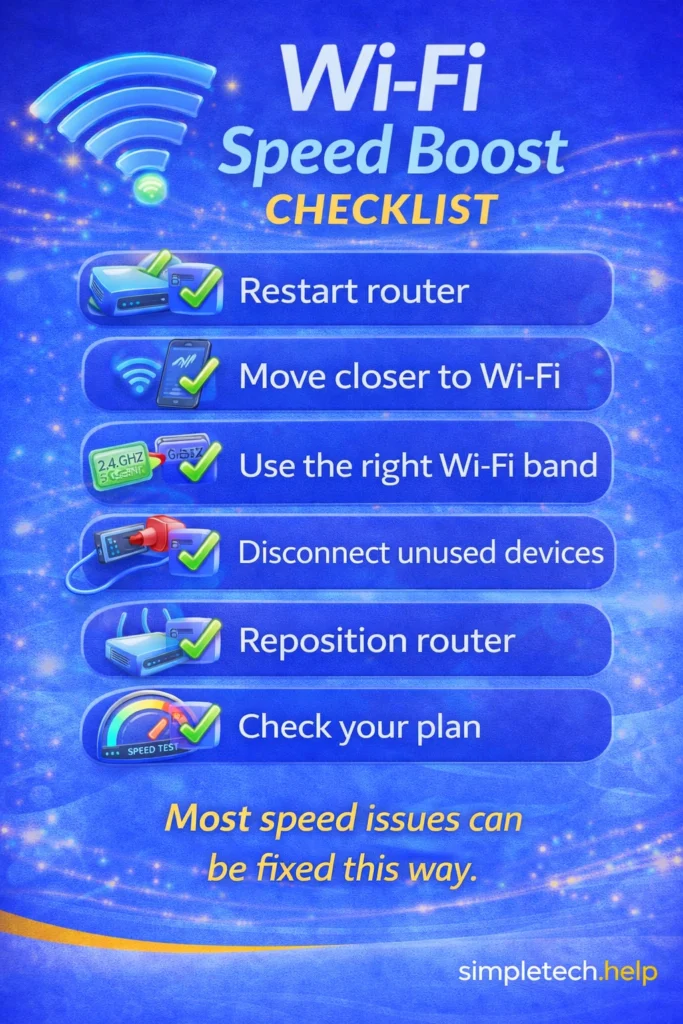
Whether you’re experiencing slow Wi-Fi, internet that keeps disconnecting, or you want to speed up your Wi-Fi, try these quick internet fixes:
- Restart your router
- Move closer to your Wi-Fi router
- Disconnect unused devices
- Switch to 5GHz Wi-Fi (if available)
- Pause downloads or streaming
Restarting your router and your devices fixes most tech issues.
Traffic congestion, large downloads, and streaming can also slow down a Wi-Fi signal, so pause them or disconnect unused devices. Remember, the further your device is from the router, the weaker the signal becomes, so stand closer, and see if that fixes speed and signal issues.
Lastly, 2.4 GHz and 5 GHz each have a purpose. Switch between them when possible to test if the signal and speed improve.
Wi-Fi Speed Calculator
Estimate how much internet speed you need based on your usage.
Why Is My Internet So Slow?
The most common causes of slow internet include:
- Too many devices using Wi-Fi
- Weak signal or poor router placement
- Internet plan limitations
- Network congestion, especially at night
- Outdated router or modem
Each one has easy fixes and once you troubleshoot them, you can prevent them in the future.
How to Increase Wi-Fi Speed Step-by-Step
To increase your Wi-Fi speed, follow the following steps.
1. Restart Your Router: Turn off the router for 30 seconds, then turn it back on. Restarting the router ends all processes, resets the cache, and stops any glitches preventing your Wi-Fi from running faster.
2. Move Your Router: Place the router in a central, open area away from other electronics and furniture that can interrupt the signal and speed.
3. Limit Connected Devices: Too many devices will slow your network, especially if your plan limits the number of connected devices.
4. Upgrade to 5GHz Wi-Fi: 5GHz offers faster speeds at shorter range.
5. Upgrade Your Router: Older routers can bottleneck your speed. Your internet service provider can tell you if there is a newer version of your router.
Test each step to see if your Wi-Fi speed improves.
Fix Your Internet by Problem Type
Not all internet problems are the same. Choose what you’re experiencing to get the fastest fix.
Speed
If your internet feels slow, buffers, or takes too long to load, you have an internet speed issue. Read:
Stability
If your internet keeps disconnecting, dropping, or cutting out, you have an internet stability issue. Read:
Diagnostics
If you’re not sure what’s wrong or want to test your connection, you’ll need to run some diagnostics.
Maybe you’re not having internet speed issues and are here to learn the basics of the internet, Wi-Fi, and mobile data. That’s great. Let’s start with an overview of Wi-Fi.
Wi-Fi Overview
Wi-Fi allows devices to connect to the internet without using cables. It works by sending signals from a router.
The router is in your home or on a public network.
Once connected to Wi-Fi, your internet-enabled device can browse the web, open apps, and download files.
Wi-Fi vs Internet
The internet differs from Wi-Fi.
Wi-Fi is how your device connects to the internet, while the internet is the service itself. You can have Wi-Fi without the internet working.
Internet-enabled devices can connect through various methods, including mobile and Ethernet.
Modem vs Router vs Wi-Fi
Additionally, each piece of equipment that helps you connect to and receive Wi-Fi service differs.
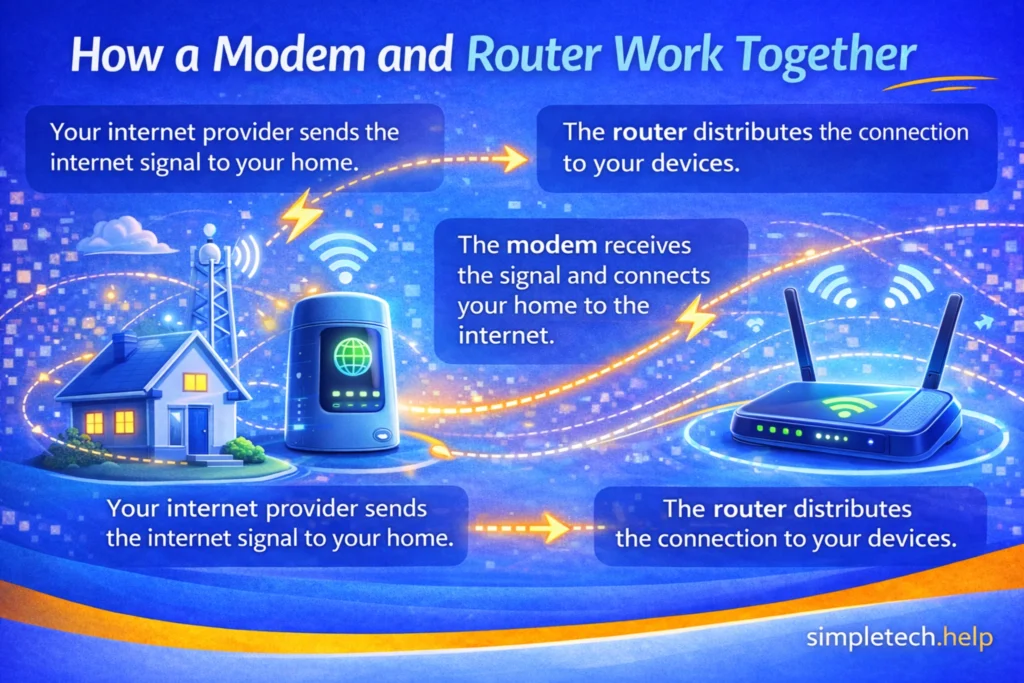
A modem connects your home to your internet provider.
A router shares that connection with your devices.
Wi-Fi is the wireless signal that routers send so devices can connect without cables.
Common Beginner Mistake: Users often restart their phone or computer when the real issue is the internet service, not the device. Checking whether other devices can access websites helps determine whether the issue is Wi-Fi or the internet connection.
How Wi-Fi Works
Wi-Fi sends information via radio waves. Your device receives these signals and uses them to access the internet.
Think of Wi-Fi like a radio station in your home. Your router sends a wireless signal, and your devices “tune in” to it to send and receive information from the internet.
When you open a website or app, your device asks the router for the information, the router gets it from the internet, and then sends it back to your device. This all happens in seconds, without any physical cables connecting your device to the router.
Therefore, your device connects wirelessly to the router, and the router connects to the internet through your service provider.
Common Beginner Mistake: Many beginners assume Wi-Fi automatically means the internet is working. In reality, Wi-Fi can be connected while the internet service itself is offline.
Connecting to Wi-Fi at Home
Connecting to Wi-Fi at home requires some equipment and a service.
What You Need for Wi-Fi at Home
Most households require an internet provider, a modem, and a router. Some homes use a single device that combines both. What you need for your home depends on the equipment you already have.
Your internet service provider may lease you the equipment that you need to connect to Wi-Fi.
Common Beginner Mistake: Beginners may buy a router without realizing they also need internet service from a provider. A router alone does not create internet access.
What Is a Router?
A router sends Wi-Fi signals throughout your home. It connects your devices to the internet.
Where you place the router in your home can affect signal quality.
Where to Place Your Router
Placing your router in a central, open area improves signal strength. Walls and furniture can block Wi-Fi signals, so place it on an elevated, hard surface, such as the top of a bookshelf.
Avoid placing it near microwaves, baby monitors, and refrigerators, as they can disrupt the Wi-Fi signal.
Router Placement Best Practices
Central placement: Placing your router centrally helps evenly distribute the signal throughout your home. It also helps reduce dead zones or areas that do not receive a strong signal.
In many homes, the living room is the most central place, making it ideal for router placement.
Elevation: In addition to placing your router centrally, place it on a shelf or other elevated surface. Your goal is to place it above furniture, so the signal has fewer obstructions.
Avoid placing the router on the floor and on top of other electronics, such as your television.
Avoid basements: Since basements sit below floor level, avoid placing your router there. The thick walls will absorb the Wi-Fii signals, preventing them from traveling up to the floor level.
Multi-floor homes: Multi-floor homes require extra steps when placing the router in the ideal spot.
First, place it in a central location, such as the living room on a shelf. Then, test the signal strength. If the other floors do not receive a strong signal strength, you might need to use signal extenders or repeaters.
Extenders capture your router’s Wi-Fi signal and rebroadcast it.
Repeaters capture your router’s Wi-Fi signal, amplify and rebroadcast it.
Router Placement Checklist
- Central location
- Elevated position
- Open space
- Away from electronics
Common Beginner Mistake: Users sometimes believe Wi-Fi should work immediately after plugging in equipment. Routers and modems often take several minutes to start and fully connect to the internet.
Wi-Fi for Renters vs Homeowners
Most homeowners and renters need Wi-Fi access. Homeowners can set up their Wi-Fi equipment for the long term. Renters may be apprehensive about subscribing to a service, given their one-year leases.
If the place you rent does not provide Wi-Fi service, renters can explore plans that suit them and move with them. For example, some service providers only require customers to update their address, which updates the router’s service area. The flexibility allows renters to move their routers and service with them.
Common Beginner Mistake: Many people confuse the router with the modem and unplug the wrong device when troubleshooting. Knowing which device provides Wi-Fi helps fix problems faster.
Wi-Fi Networks and Passwords
When you attempt to sign in to a Wi-Fi network, your device will display several network names. Your job is to find the network you belong to.
Understanding Your Wi-Fi Network Name (SSID)
The Wi-Fi network name is what you see in the list of available networks. Seeing several network names nearby is normal. Sometimes you’ll see no networks listed, indicating that the area has no Wi-Fi service available.
When you sign up for a Wi-Fi service, your provider will outline your network information, including the password. They may provide you with default information that you can change by accessing your account online or via an app.
Some internet providers let you rename your network, making it easier to find when you log in for the first time.
Understanding Wi-Fi Passwords
Wi-Fi passwords protect your network from unauthorized access. The password is usually printed on the router or set by the owner. Your Wi-Fi password differs from your device’s password.
If the router does not have the network information or Wi-Fi password, your provider will provide them to you.
You’ll need the password when you log into it for the first time on every device. Then you can allow the device to remember the network so it logs in automatically each time thereafter.
Your device automatically connects to known Wi-Fi networks for convenience. If you prefer to sign in to Wi-Fi networks manually each time, open the device’s System Settings and tap Wi-Fi. Next, find the network and tap on it. Finally, toggle Auto-Join off.
Password Strength
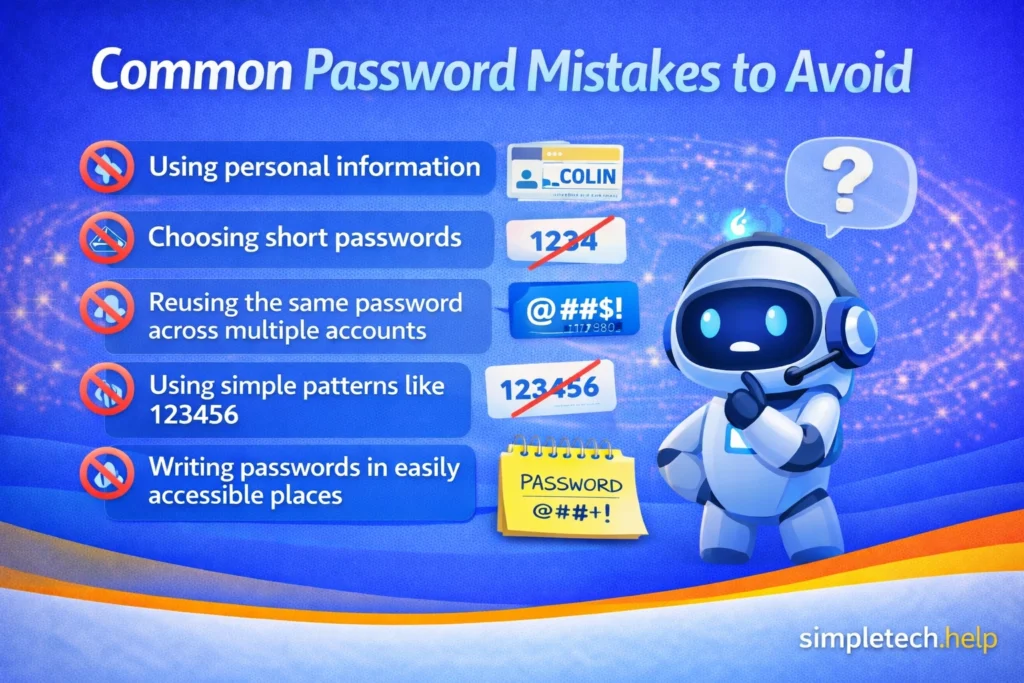
When you pick your Wi-Fi password, follow strong password best practices, such as including a number, a special character, and a capital letter.
A strong password protects your Wi-Fi network, data, and devices.
Common Beginner Mistake: Using short or easy passwords may seem convenient, but it can leave the network vulnerable. Strong passwords help prevent unauthorized access.
Password Safety
After you pick your password, keep it safe and avoid sharing it.
Common Beginner Mistake: People often delay changing passwords after sharing them. Updating passwords helps maintain control over the network.
Connecting to Wi-Fi
Connecting your internet-enabled devices to Wi-Fi requires a few steps.
How to Connect to Wi-Fi
Most devices connect to Wi-Fi networks by opening the Settings app and selecting a network. When you select a private network, you must enter the network’s password. This process applies to most internet-enabled phones, tablets, and computers.
Connecting to Wi-Fi on a Smartphone
Smartphones connect to Wi-Fi through the settings app. The steps are similar on iPhone and Android phones, even though the menu layouts differ.
Common Beginner Mistake: Beginners may forget that Wi-Fi can be turned off in settings. Turning it back on often restores connectivity instantly.
Connecting to Wi-Fi on a Computer
Computers and laptops connect to Wi-Fi using a network icon on the screen. You can also connect to Wi-Fi through the computer’s System Settings.
Common Beginner Mistake: Some users expect the computer to auto-connect everywhere. New networks usually require selecting the network and entering the password manually.
Windows and Mac computers use similar steps, even though the menu layouts may also differ.
Wi-Fi Signal Strength and Speed
The signal strength of your Wi-Fi network determines its performance, including speed.
A strong signal delivers a reliable Wi-Fi network and speeds that can handle streaming and gaming. A weak signal is not reliable and will cause slow speeds, buffering, and connectivity drop-offs.
Several factors affect signal strength.
Common Beginner Mistake: Many people assume slow speeds mean the internet plan is bad. Signal strength inside the home often plays a bigger role.
Wi-Fi Signal Strength Explained
Signal strength shows how strong the Wi-Fi connection is. Being farther from the router usually weakens the signal.
You can see the Wi-Fi network’s signal strength in several places, including on the device connected to it. Wi-Fi icons show between 4 and 5 bars. Icons with all bars lit indicate that your Wi-Fi signal connection is strong. Icons with two or fewer lit bars indicate a spotty connection.
Common Beginner Mistake: Users often rely only on signal bars. Bars show connection strength, not actual internet speed.
Reasons Why Wi-Fi Can Be Slow
Wi-Fi can slow down due to distance, interference, or the number of connected devices. A slow connection does not mean something is broken.
Distance from the Router
The farther you are from the router, the weaker the Wi-Fi signal becomes. Weaker signals often result in slower speeds or dropped connections.
Walls and Obstacles
Thick walls, floors, and metal objects can block or weaken Wi-Fi signals. Large appliances and furniture can also interfere with performance.
Too Many Devices Connected
When many devices use Wi-Fi simultaneously, they share the available bandwidth. Streaming, gaming, and video calls use more bandwidth than basic browsing.
Router Placement
Routers placed in corners, cabinets, or near the floor may not evenly distribute Wi-Fi. Central, open locations usually provide better coverage.
Old or Outdated Equipment
Older routers may not support modern speeds or multiple devices well. Updating your router can significantly improve performance.
Internet Plan Limits
Your Wi-Fi cannot be faster than your internet plan allows. Even with perfect Wi-Fi, a limited plan will feel slow.
Common Beginner Mistake: Beginners may try many fixes at once. Changing one thing at a time makes it easier to identify the real cause.
How Many Devices Can Use Wi-Fi?
The number of devices that can connect to the same Wi-Fi network and run seamlessly varies.
For example, you may sign up for a Wi-Fi service, and your provider may guarantee that 20 devices can connect simultaneously without experiencing lag.
Some public Wi-Fi networks can also handle thousands of people logging in at the same time and live streaming, such as at concerts or sporting events.
However, many private and public networks have limits. Several devices can connect to them simultaneously, but users will not be able to stream, game, or surf the web without lag or other issues. In these cases, too many devices can slow network performance.
Device Limits & Smart Home Devices
When subscribing to a Wi-Fi service, know how many devices you plan to connect. The number of internet-capable devices continues to grow and now includes:
- TVs
- Doorbells
- Thermostats
- Smart speakers
Smart home devices also use Wi-Fi, even when you’re not actively using them. These devices usually use small amounts of data but still contribute to the overall network load.
When to Upgrade Your Wi-Fi Setup
Wi-Fi equipment, like smart devices, ages.
You’ll know that it’s time to upgrade your Wi-Fi setup when you experience:
- Frequent buffering
- Signal drops
- Slow speeds
- Dead zones
If you move to a larger home or start connecting more devices, you may also want to upgrade your Wi-Fi setup.
Some Wi-Fi users upgrade to a mesh Wi-Fi system that uses a router and satellites to optimize the home’s Wi-Fi signal. It eliminates dead zones and provides a seamless experience over a larger area.
Public Wi-Fi and Mobile Data
Sometimes, you’ll need to pick between using public Wi-Fi and mobile data.
Public Wi-Fi Explained
Public Wi-Fi is available in public places like cafés and airports. Additionally, public transportation and retailers may offer it.
Depending on the public Wi-Fi network you choose, you may need to accept the terms before connecting, especially when logging in to networks for cities and libraries. Public Wi-Fi providers attempt to keep their networks safe by asking users to accept specific terms.
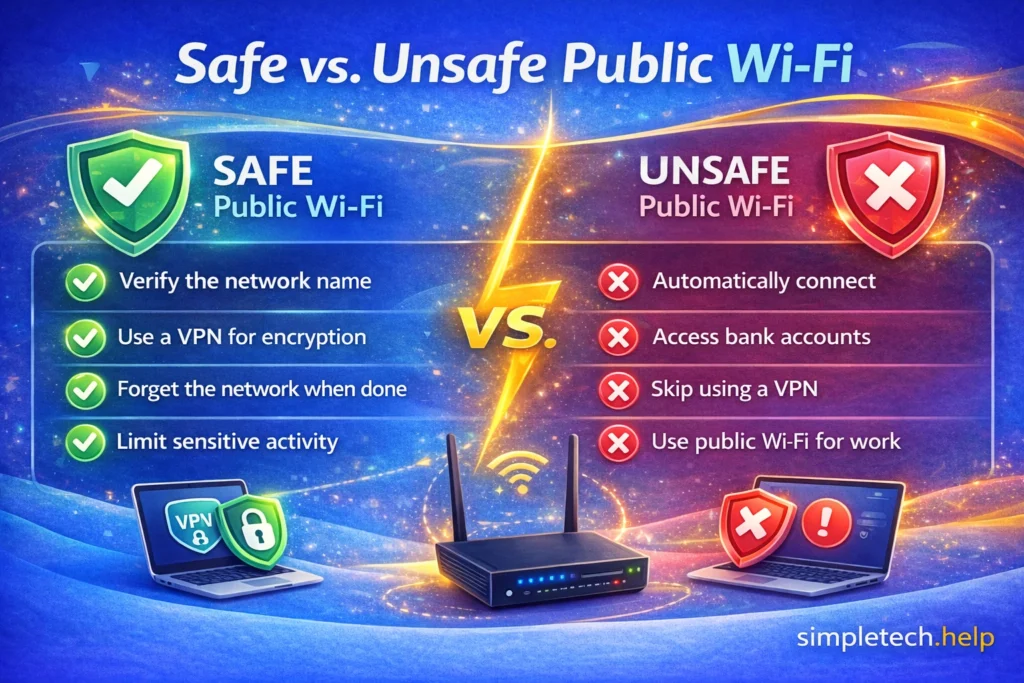
Staying Safe on Public Wi-Fi
When connecting to public Wi-Fi networks, avoid signing in to sensitive accounts. Using caution helps protect personal information.
Public Wi-Fi offers convenience. But it’s better to log in to a secure network, such as a mobile network, when on the go.
What Not To Do on Public Wi-Fi
To stay safe on public Wi-Fi, avoid accessing banking apps, medical portals, or password managers, as attackers can intercept data packets and use them to access other sensitive information.
Instead, wait until you connect to a secure network.
Wi-Fi vs Mobile Data
Wi-Fi uses a local network, while mobile data uses your phone plan. Phones automatically switch between them when needed.
Common Beginner Mistake: Some users assume Wi-Fi is always faster than mobile data. In some locations, cellular data can be more reliable.
Mobile Data Explained
Mobile data, or cellular data, refers to data used on a cellular network rather than Wi-Fi.
Additionally, some smartphones can act as hotspots via cellular data, allowing you to connect devices to them.
Common Beginner Mistake: Beginners may not realize that apps still use data in the background. Monitoring data usage helps avoid overages.
When mobile data is not working, you can troubleshoot it.
Managing Wi-Fi Connections
Sometimes it’s necessary to turn off the Wi-Fi settings on your smart devices, and doing so doesn’t negatively affect them.
Moreover, some users switch between Wi-Fii and cellular data, depending on their internet activities and data usage.
Turning Wi-Fi On and Off
You can turn Wi-Fi on or off in your device settings. Turning it off does not harm your device.
To turn off Wi-Fi on your device, navigate to System Settings and tap Wi-Fi. In the Wi-Fi section, toggle it off. Turning off the Wi-Fi settings means your device cannot connect to the internet via Wi-Fi.
However, you can still connect it to the internet via cellular data if the device has a data plan.
Reasons to turn off Wi-Fi include:
- Conserve battery
- Improve security
- Prevent unwanted connections
Common Beginner Mistake: Users worry that turning Wi-Fi off will damage the device. Turning Wi-Fi on and off is safe and normal.
Switching between Wi-Fi and Mobile Data
Switching between Wi-Fi and mobile data is seamless. After you log in to a Wi-Fi network, your device will automatically connect to it when it is within range and stop using mobile data.
When you are out of range of the known Wi-Fi network, your device disconnects from it and uses mobile data.
If you want to change these settings, you can do so in System Settings. Some people only want their devices to connect to Wi-Fi, so they toggle Cellular Data.
Forgetting a Wi-Fi Network
Forgetting a network removes saved login details. You can reconnect later by reentering the password.
To forget a network, open the device’s System Settings and tap on Wi-Fi. Find the Wi-Fi network you want to forget, then tap it. Then, click on Forget this Network.
Reasons to forget a Wi-Fi network include:
- Declutter
- Unable to log into the network
- Improve security
Why Forget Network Fixes Issues
Software can glitch, and networks can become outdated. Forget Network can fix network connection issues by clearing outdated data or connections whose passwords have changed.
When you reconnect to the Wi-Fi network that has issues, you do so from a fresh start.
Common Beginner Mistake: People worry that forgetting a network will permanently delete something. It only removes saved login details and can be undone by reconnecting.
How to Tell If Wi-Fi Is the Problem
Several factors can cause Wi-Fii connection issues. To fix them, take a calm and logical approach. If you narrow down the cause, you can determine what steps to take to prevent it in the future.
For example, the Wi-Fi is the problem if:
- Wi-Fi icon connected, but pages won’t load
- Some devices work, others don’t
- Works close to the router but not far away
Fixing Common Wi-Fi Problems
There are common Wi-Fi problems that seasoned users face just as much as beginners.
Many Wi-Fi issues are temporary and easy to fix. Restarting devices often solves the problem.
Restarting the Modem and Router Safely
Unplug the modem and router for about 30 seconds. Plug them back in and wait for the lights to stabilize.
Common Beginner Mistake: Unplugging and plugging devices too quickly can cause confusion. Waiting 30 seconds allows the equipment to reset fully.
When Wi-Fi Works but the Internet Doesn’t
When you’re connected to Wi-Fi but the internet doesn’t work usually means the router is working, but the internet service is down. It is a common issue and often resolves quickly.
Explain how to power-cycle equipment safely. Clarify how long to wait.
Advanced Wi-Fi Topics
We have reviewed the basics of Wi-Fi. Here are some Advanced Wi-Fi topics.
Wi-Fi for Guests
Guest Wi-Fi lets visitors use your internet without accessing your personal devices or files. It creates a separate network, keeping your main Wi-Fi more secure.
Moreover, Guest Wi-Fi protects your privacy and prevents guests from accidentally changing your settings. It also keeps your main network less crowded.
Common Beginner Mistake: Sharing the main Wi-Fi password with many people can make it hard to control access later. Guest Wi-Fi is safer for visitors.
How to Set Up Guest Wi-Fi
Most modern routers include a Guest Wi-Fi option in their settings. You can turn it on, name the network, and set a password in just a few minutes.
Common Beginner Mistake: Some users share their main Wi-Fi password with everyone. Using Guest Wi-Fi avoids security risks and makes it easy to change access later.
Beginner Tip: Turn Guest Wi-Fi on only when needed. This keeps your network simple when no guests are visiting.
Changing Your Wi-Fi Name or Password
You can change your Wi-Fi name or password if needed. This step is optional and not required for normal use, but there are some reasons why people do it.
Reasons to Change Your Wi-Fi Name
Some people change their Wi-Fi name to:
- Improve the network’s identification
- Improve security
- Deter unwanted users
- Personalization
Reasons to Change Your Wi-FiPassword
Some reasons to update your Wi-Fi password include:
- Protect against unauthorized access
- Prevent theft
- Improve security
Internet & Wi-Fi Basics: Common Terms You Should Know
Understanding common internet and Wi-Fi terms can increase your confidence when using the tech and troubleshooting issues.
Modem
A modem connects your home to your Internet Service Provider (ISP). It brings internet access into your house from your cable, fiber, or DSL line.
Think of it as the bridge between your home and the wider internet.
Router
A router distributes the internet connection from your modem to your devices, either through WiFi or Ethernet cables.
If you have Wi-Fi in your home, your router creates that wireless network.
Modem vs. Router
- The modem connects your home to the internet.
- The router connects your devices to the modem.
Some devices combine both into a single unit.
ISP (Internet Service Provider)
Your ISP is the company that provides your internet connection.
You pay your ISP for internet access.
Wi-Fi
Wi-Fi is a wireless method of connecting devices (phones, laptops, tablets) to your router.
However, Wi-Fi is not the internet itself. It’s just how your device connects to it.
Ethernet
An Ethernet cable connects a device directly to your router with a physical wire.
Wired connections are often faster and more stable than WiFi.
Bandwidth
Bandwidth refers to how much data your internet connection can handle at once.
More bandwidth allows more devices to stream, browse, and download without slowing down.
Internet Speed (Mbps)
Internet speed is usually measured in Mbps (megabits per second).
Higher Mbps generally means:
- Faster downloads
- Smoother streaming
- Better video calls
Download Speed
Download speed measures how quickly data travels from the internet to your device for streaming, loading websites, and downloading files.
This is the number most people focus on.
Upload Speed
Upload speed measures how quickly data travels from your device to the internet, including video calls, sending files, posting content.
Important for:
- Zoom meetings
- Uploading photos or videos
- Cloud backups
Latency (Ping)
Latency is the delay between sending a request and receiving a response.
Low latency is important for:
- Gaming
- Video calls
- Real-time applications
2.4 GHz vs 5 GHz
These are two WiFi frequency bands:
- 2.4 GHz provides lower but better range (travels farther through walls)
- 5 GHz provides faster but shorter range
Many modern routers support both.
Dual-Band Router
A dual-band router broadcasts both 2.4 GHz and 5 GHz networks, allowing devices to choose the best option.
SSID
The SSID is your WiFi network name — the name you see when selecting a network to join.
Example: “SmithFamilyWiFi”
WiFi Password
The password required to connect to your wireless network.
Strong passwords prevent neighbors or strangers from accessing your internet.
Encryption (WPA3 / WPA2)
Encryption protects your WiFi network from unauthorized access.
WPA3 is the most secure current standard. WPA2 is older but still common.
Mesh WiFi
A mesh WiFi system uses multiple units placed around your home to improve coverage and eliminate dead zones.
Best for larger homes or weak signal areas.
WiFi Extender
A WiFi extender boosts your existing signal to reach farther areas of your home.
It is usually less seamless than a mesh system.
Public WiFi
WiFi networks in places like cafes, airports, or hotels.
Public WiFi is convenient but less secure. Avoid accessing sensitive accounts unless using extra security protections.
Hotspot
A mobile hotspot allows your smartphone to share its cellular internet connection with other devices.
Useful when the home internet is unavailable.
Data Cap
Some ISPs limit how much data you can use per month. This is called a data cap.
Streaming and downloads count toward this limit.
Firmware
Firmware is the internal software that runs your router.
Keeping the router firmware up to date improves security and performance.
Wi-Fi Myths Debunked and What to do Instead
Many Wi-Fi problems are misunderstood or exaggerated. Simple explanations often clear up confusion.
Myth: Wi-Fi and the Internet Are the Same Thing
Wi-Fi is how your device connects to a network, while the internet is the service that the network provides access to.
Keep in Mind: If your Wi-Fi is connected but pages won’t load, check whether your internet service is down. Try restarting your modem and router or contacting your internet provider.
Myth: More Bars Always Mean Faster Internet
Signal bars show how strong the connection is, not how fast the internet will be.
What to do instead: Run a speed test near your router and in different rooms. If speeds drop far from the router, reposition it or consider a Wi-Fi extender.
Myth: Closing Apps Saves Wi-Fi Data
Most apps do not use Wi-Fi unless they are performing a background task.
What to do instead: Check your device’s data or Wi-Fi usage settings to see which apps use the most data. Turn off background app refresh for apps you don’t need to update constantly.
Myth: Public Wi-Fi Is Always Safe
Others can monitor public networks on the same connection.
What to do instead: Avoid logging into sensitive accounts on public Wi-Fi. Use trusted networks or a secure connection, such as a VPN, when possible.
Myth: Restarting the Router Never Helps
Routers can slow down over time and benefit from a restart.
What to do instead: Restart your router by unplugging it for 30 seconds, then plugging it back in. This simple step often fixes speed and connection issues.
Myth: Wi-Fi Signals Only Travel in Straight Lines
Wi-Fi spreads in all directions but weakens when blocked.
What to do instead: Place your router in a central, open area away from thick walls and large appliances. Elevating the router can also improve coverage.
Myth: Paying for Faster Internet Guarantees Fast Wi-Fi Everywhere
Your internet plan is only part of the equation.
What to do instead: Make sure your router supports your internet speed and is up to date. Upgrade your router or add mesh Wi-Fi if you have a large home.
Beginner Reminder: Wi-Fi problems usually have simple causes and simple fixes. Changing one thing at a time helps you find what works.
Beginner Wi-Fi Troubleshooting Guide
Wi-Fi problems are often caused by the environment or setup, not the internet provider. Small changes like moving the router can make a big difference.
When your Wi-Fi signal isn’t strong or failing, here are seven beginner-friendly steps you can take to troubleshoot it.
How to Test Which Wi-Fi Issue You Have
Step 1: Move Closer to the Router
Stand near your router and try loading a website or video. If things are faster nearby, distance or obstacles are likely the problem.
Step 2: Restart Your Router
Unplug the router for 30 seconds, then plug it back in and wait a few minutes. If performance improves, the issue was likely temporary or caused by congestion.
Step 3: Test Speed in Different Rooms
Use a speed test in multiple areas of your home. Big speed drops in certain rooms suggest Wi-Fi coverage issues, not internet problems.
Step 4: Check How Many Devices Are Connected
Turn off Wi-Fi on devices you aren’t using, then test again. If speed improves, too many devices are sharing the connection.
Step 5: Try a Different Device
Test Wi-Fi on another phone, tablet, or computer. If only one device is slow, the issue is likely with that device, not the Wi-Fi.
Step 6: Check for Updates
Make sure your router and device software are up to date. Updates often fix performance and stability issues.
Step 7: Test at a Different Time of Day
Try using Wi-Fi during off-peak hours, like early morning or late evening. Slower speeds at busy times may indicate network congestion.
What Your Results Mean
- Fast near the router, slow far away: Wi-Fi signal coverage issue
- Slow everywhere, all the time: Internet plan or provider issue
- Slow only on one device: Device-specific problem
- Improves after restart: Temporary router or network issue
Common Beginner Mistake: Many users assume slow Wi-Fi means something is broken. Most issues can be identified and improved with simple tests.
Once you know what’s causing the issue, small changes can help. Repositioning the router, upgrading equipment, or adjusting usage habits often solves the problem.
When to Contact Your Internet Provider
If Wi-Fi problems persist, your internet provider may need to assist. Some issues are outside your home.
Learning and Next Steps
By now, you should have a clear understanding of why your internet might be slow and what you can do about it.
The Key Takeaway?
Most internet problems aren’t random. They’re usually caused by a few common issues, such as too many devices, a weak Wi-Fi signal, or router limitations.
Nonetheless, you can fix many of these problems in just a few minutes.
As you grow more comfortable troubleshooting internet, Wi-Fi, and mobile data issues, strengthen your understanding of other issues that affect your devices and personal information online.
- Account Security Basics – Accounts, Passwords & Logins: Prevent lockouts, password errors, and account confusion while securing your online accounts.
- Online Safety: Learn the basics of staying safe online.
- Email Basics: Learn the basics of email and how to protect your accounts.
The more you understand how your device and the internet work, the less overwhelming tech issues feel. And remember: most “Nothing works” moments are temporary and fixable, once you know the steps.