Last Updated on March 17, 2026 by Simple Tech Help
Online safety means that you can enjoy what the internet and electronic devices offer while keeping your personal data and devices safe.
The average digital consumer owns three smart devices, including smartphones, tablets, laptops, and computers.
The majority of digital device owners connect their devices to the internet through wifi, hotspots, and cellular data.
Connecting to the internet offers a wealth of information, convenience, and productivity. However, users must practice caution to keep their data private and secure. With multiple connected devices and constant internet access, even small online mistakes can affect more than one account or device
Our guide walks you through the basics of online safety for beginners.
You don’t need to read everything at once. Use the table of contents to jump to the sections most relevant to you, and come back later as needed.
Understanding Online Privacy and Security
Staying safe online requires taking a few steps to protect online privacy and security.
What Online Privacy Means
Online privacy refers to controlling who can see your personal information. It helps you decide what you share and what you keep private.
Everything you do on your digital device creates data. Everything you store in your contacts, the information you enter in apps and on webpages, and everything you work on also creates information you may or may not want to share.
For example, you may create files for work that you intend to share with coworkers but not the public. You may also create social media posts to share with your followers.
You decide who can access your private online information and your devices. For example, when you connect to your mobile banking or favorite retailer app, you only want to share your information with those institutions, but not the public.
Online privacy means controlling personal information. Security is about protecting accounts and devices from misuse.
What Online Security Means
Online security protects your accounts and devices from unauthorized access. It focuses on preventing misuse and digital threats.
Following online safety and security best practices makes most online risks avoidable, especially if you develop basic habits. These habits do not require any technical skills to stay safe.
For example, avoid clicking on links from unknown senders. You should also avoid opening attachments sent from unknown users.
Why Online Safety Matters
Online safety matters because it prevents the unathorized access to your personal and private information. Anything you would not post on a public forum is considered private and personal information, including your home address, phone number, and email address.
If someone captures your personal and private information, such as your login credentials or Social Security number, they can use it to open unauthorized accounts in your name.
Therefore, you should always stick to online safety best practices.
Personal Information to Protect
The list of personal information that you should protect is extensive. It includes passwords and financial details. Even small details like your mother’s maiden name, first car, and dog’s name count as personal information.
What Counts as Personal Information
Passwords, email addresses, and financial details count as personal information in both real life and online. Even small details can be used in scams, such as the middle school you attended and your partner’s name.
Personal information is any detail that can identify you, locate you, or be used to learn more about you, even if it seems harmless on its own.
Common Examples of Personal Information:
- Full name or maiden name
- Home address or past addresses
- Phone number (mobile or landline)
- Date of birth or age
- Place of birth or hometown
- Photos of yourself or your home
- Voice recordings or video clips
- Usernames or display names tied to you
- Social media profiles or public posts
- Job title, workplace, or work schedule
Less Obvious (But Still Personal) Information:
- Daily routines or commute times
- Travel plans or vacation dates
- Names of family members or pets
- School names (yours or your children’s)
- License plate numbers
- Device information (phone model, operating system)
- Location data or check-ins
Information You Should Avoid Sharing
Avoid sharing sensitive details publicly online. Once shared, information can be difficult to remove. The internet archives everything, and some sites crawl the web for these details.
Therefore, it’s better to think twice before posting personal information that you may want to remove after the fact.
Sharing Information and Identity Theft
Identity theft happens when someone uses your personal information, such as your name, passwords, Social Security number, or financial details, without your permission. This information can be used to open new accounts, make purchases, apply for loans, or access existing accounts in your name.
Identity theft often begins with small pieces of stolen information, such as an email login or phone number, and can escalate if it goes unnoticed.
Common Signs of Identity Theft
Identity theft doesn’t always happen all at once. Often, the warning signs appear gradually. Common signs include:
- Unexpected bills or charges you don’t recognize
- Denied credit applications without a clear reason
- Emails or alerts about password changes you didn’t request
Why Early Detection Matters
Catching identity theft early can limit the damage. The sooner you act, the easier it is to secure accounts, reverse fraudulent charges, and prevent further misuse of your information.
Early detection helps you:
- Stop unauthorized activity before it spreads to other accounts
- Reduce financial loss and recovery time
- Protect your credit history and personal records
That’s why monitoring account alerts, reviewing statements, and paying attention to security notifications are important online safety habits.
Passwords and Account Protection
Understanding that it’s important to protect your personal information online and in your accounts will help. So does using strong passwords.
Here are some simple steps for creating strong passwords.
Creating Strong Passwords
Strong passwords make accounts harder to break into. Using a mix of letters, numbers, and symbols improves safety.
When you create a new account on a website or app, many platforms will show you the strength of the password you create. They will also show you a list of elements to include in them and check them off as you add them, such as a symbol and a capital letter.
Using a Password Manager
A password manager stores and remembers passwords for you. Using one can make online life easier and safer.
An optional tool, a password manager, helps you create, store, and use strong passwords without having to remember them all. When used correctly, they are much safer than reusing passwords or writing them down.
Many users like password managers because they only need to remember one strong master password.
Two-Factor Authentication Explained
Two-factor authentication (2FA) adds an extra step to the sign-in process. It makes accounts much harder to access without permission.
Moreover, two-factor authentication, a security method, requires two different ways to verify a user before they can access an account. Several apps and websites require users to set it up, including online banking and retailers.
Many platforms will send a text message to the phone number associated with the account, in addition to asking users to enter their passwords.
Emails, Messages, and Scams
Most people have received at least one phishing email or text. Phishing and other scams have similar characteristics.
When you feel you have received one, the first step is to slow down before clicking.
Scam Texts and Phone Calls
Scammers also use text messages and phone calls. Legitimate companies rarely demand immediate action.
Scam texts and phone calls follow patterns similar to those of scam emails, such as claiming that your account has a problem or requesting personal information.
Avoid reacting to the text or phone call immediately.
For texts, review the sender’s information. If it does not seem legitimate or contains a false claim, report it as junk.
For calls, record any information that they provide. If the call does not seem legitimate, you can report the phone number as a scam online.
Protecting Your Email Account
Billions of people use at least one email account, making it a target for fraud and scams. Nonetheless, you can protect your email account by using strong passwords and practicing caution with links.
Why You Start Receiving Phishing Messages
Receiving phishing emails, texts, or messages does not mean you did something wrong. Most phishing attempts are sent broadly and rely on probability rather than personal targeting.
Ways to Reduce Phishing Messages
Phishing can’t be stopped completely, but these steps can significantly reduce how many messages you receive and limit your risk.
Beginner Reminder: No method stops phishing entirely. The goal is reduce exposure, recognize scams quickly, and avoid interaction.
Safe Web Browsing
When you surf the web, it’s important to visit trustworthy sites. Safe web browsing means avoiding sites with suspicious links and pop-ups.
How to Tell If a Website Is Safe
Trusted websites usually look professional and familiar. Strange pop-ups and warnings are often signs of trouble.
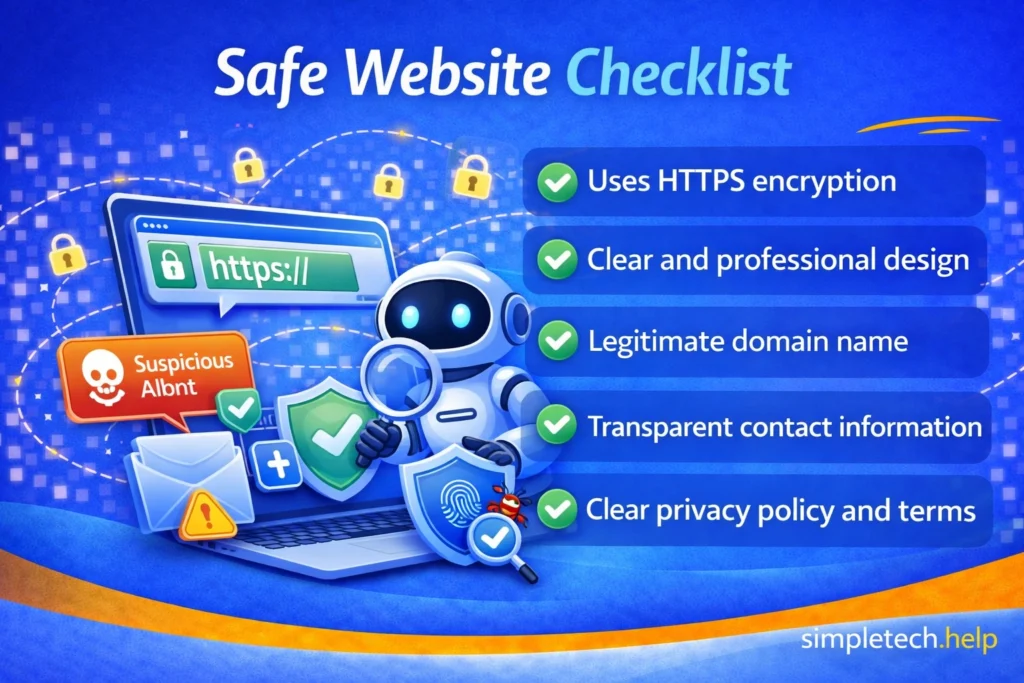
Safe websites share several characteristics, such as:
- Uses HTTPS encryption
- Clear and professional design
- Legitimate domain name
- Transparent contact information
- Clear privacy policy and terms
Beginner Reminder: Even safe-looking websites can be faked. When unsure, pause, check the address carefully, and leave the site.
Clicking Links Safely
You should avoid clicking on links that do not look legitimate. Clicking on suspicious links can lead to unsafe websites. Avoid clicking links from unknown or unexpected sources.
Ways to Stay Safe While Browsing the Web
These simple habits greatly reduce your risk online.
- Keep your browser updated
- Use strong, unique passwords
- Enable a VPN on Public wifi
- Avoid clicking unknown links
- Look for HTTPS and the Lock Icon
Beginner Tip: You don’t need to be perfect. Being cautious already puts you ahead. Slowing down is one of the best online safety tools.
Understanding Website Permissions
Some websites will ask you to grant them permissions or access to your location or camera. When it doesn’t make sense, you can reject the request.
While some permissions are helpful, others can be misused if you allow them without realizing what they do.
Granting permission gives the website ongoing access until you remove it, so it’s important to pause and decide before clicking “Allow.”
Sometimes, allowing all permissions invites abuse, such as browser notifications.
Browser Permissions vs Device Permissions
It’s helpful to understand the difference between browser-level and device-level permissions:
- Browser permissions apply only within your web browser, such as allowing notifications from a website.
- Device permissions apply to apps installed on your phone or computer (such as allowing camera or microphone access).
A website you visit can’t directly access your device like an app can—but browser permissions can still be abused to spam or mislead you.
Good news: Both browser and device permissions can be reviewed and changed at any time in settings.
Avoiding Online Scams
While surfing the web or working on a project online, you may come across pop-ups or ads that have urgent requests. In many cases, they are online scams.
Common Website Scams to Watch For
Online threats evolve as security measures improve. So, you must always remain vigilant when surfing the web.
These scams are designed to look legitimate and create urgency. Knowing the patterns makes them easier to spot.
Common website scams include:
- Fake security alerts
- Fake login pages
- Fake software downloads
- Giveaway and prize scams
Beginner Reminder: Scammers rely on urgency, fear, and surprise. Slowing down and leaving the site is often the safest choice.
App and Device Permissions
App and device permissions refer to the access you grant them, such as location and camera access.
Understanding App Permissions
Apps may ask for access to things like location or the camera. You can deny permissions if they seem unnecessary.
Sometimes, granting apps the permissions that they request makes them function as intended. For example, users who use Google Meet or Zoom must grant the apps access to their device’s camera and microphone. Otherwise, other people in the meeting will not be able to hear or see you.
Other times, granting apps specific permissions optimizes them. For example, allowing service-related apps, restaurants, and retailers to track your location helps them find the nearest ones to you at any time.
Nonetheless, some apps do not require access to your location, camera, or microphone. In those cases, you can deny the permissions. If you grant the permissions, you can always revoke them through the device’s System Settings.
Reviewing Permissions Regularly
Permissions can be changed later in settings. Reviewing them occasionally improves privacy.
For example, you may need to grant an app temporary access to your camera when completing a specific task. Then, you can revoke the access in the device’s System Settings.
Understanding App Downloads
There are several reasons why you’ll need to download an app. When you download apps, they should come from trusted stores, which are safer.
Apps can be helpful, but not all apps are safe or necessary. Knowing what to look for before downloading protects your device and personal information.
To stay safe when downloading apps, remember to:
Use Official App Stores Only
Download apps from trusted sources, such as the Apple App Store, Google Play Store, or Microsoft Store. Avoid downloading apps from random websites or pop-ups
Check the App Developer
Legitimate apps list a clear company or developer name. Be cautious of apps with vague or unfamiliar developer details.
Read Reviews with a Grain of Salt
Reviews can reveal common problems or scams. Watch for patterns, such as repeated complaints or fake-sounding praise.
Watch App Permissions Carefully
Apps often request access to things like location, contacts, or photos. If the request doesn’t match the app’s purpose, deny it or don’t install
Free Apps Still “Cost” Something
Many free apps make money through ads or data collection. Always check what information the app collects before installing
Common Beginner Mistake
Installing apps just because they look useful or are highly rated. Many devices already include the same features built in.
Beginner Tip
If you wouldn’t install it on a friend’s device, don’t install it on yours. Fewer apps usually mean better security.
Social Media Privacy Basics
Social media platforms are designed to share information, but beginners often share more than they realize. Understanding a few core privacy basics helps you stay in control of who sees your posts, profile, and activity.
Here are some social media privacy basics to keep in mind.
Public vs Private Accounts
Public accounts allow anyone to see your posts and profile. Private accounts limit visibility to people you approve.
Beginner Tip: If you’re unsure, start with a private account. You can always switch to public later.
Who Can See Your Posts
Most platforms let you choose who sees your content. Options may include Everyone, Friends, Followers, or Only Me.
What to Know: Past posts may stay public even after changing privacy settings—review older posts too.
Profile information is often public, including:
- Your name, profile photo, bio, and username are usually visible
- Some platforms show your location, workplace, or contact info by default
Remember to only share what’s necessary. You don’t need to list your phone number, city, or workplace.
Common Beginner Mistake: Assuming only friends can see posts without checking privacy settings.
What to Do Instead: Review your privacy settings once and do a quick profile check from a “public view” if available.
Reminder: You don’t need to share everything to enjoy social media. Posting less personal information lowers risk and increases peace of mind.
Common Social Media Privacy Blind Spots
Even if your account is set to private, some settings allow information to be shared in ways beginners don’t expect. Reviewing these areas helps you stay in control of your online presence.
Common Beginner Mistake: Assuming privacy settings only apply to what you post. In reality, tagging, search settings, and connected apps can also share information.
Reminder: Privacy isn’t just about your posts. It’s also about how others can find you, tag you, and connect to your account. A quick review of settings once or twice a year goes a long way.
Protecting Your Devices
Following online safety best practices protects your personal information and devices. You can also protect your devices by using screen locks and keeping apps up to date.
Protecting Your Phone
Since your smartphones contain personal messages and photos, using a screen lock adds basic protection.
If you put your phone on a table or other surface in a public place, anyone nearby can catch a glance at the screen. Using the lock screen hides your private information and prevents anyone who sees the device from opening apps.
Next, remember to update your phone’s apps, which often fix potential security issues.
Protecting Your Computer
Computers store documents and account access. Keeping software up to date improves security and performance.
Therefore, computers also need basic security steps. Keep up with updates and use built-in protection.
If you share your devices with your family, here’s what you need to know about keeping everyone safe.
Privacy Settings You Should Review
Privacy settings control what your device and apps can see, track, and share. Reviewing a few key settings helps protect your personal information without breaking anything.
App Permissions Matter
Apps often ask for access to your location, camera, microphone, photos, or contacts. You can allow access only when needed instead of all the time.
If an app doesn’t clearly need access to something, it’s okay to say no.
Limit Location Access
Many apps request your location even when it’s not necessary. Location access can usually be set to Never or While Using the App.
Maps and delivery apps may need location access; games and shopping apps usually do not.
Camera and Microphone Access
Apps must ask permission to use your camera or microphone. You can turn off access for apps you don’t fully trust
If you don’t remember why an app needs camera or microphone access, remove it.
Tracking and Ad Personalization
Some devices allow apps to track activity across apps and websites. Turning off tracking reduces targeted ads and data sharing,
Turning off tracking does not stop ads. It just makes them less personalized.
Privacy Dashboards Exist for a Reason
Modern devices show which apps recently accessed your data. These dashboards help you spot unusual activity.
The privacy dashboard shows apps using your location or microphone when you weren’t actively using them.
Common Beginner Mistake: Tapping “Allow” on every permission request just to make the app work faster.
Instead, pause and ask: Does this app really need this access right now? You can always change it later.
Reviewing privacy settings will not break your device. Most settings are reversible, and your device is designed to protect you by default.
Public Wi-Fi and Network Safety
Most people connect their internet-enabled devices to wifi. Sometimes it’s necessary to connect to public Wi-Fi networks, which require additional caution.
Using Public Wi-Fi Safely
Public Wi-Fi networks are convenient but less secure than private networks and cellular data. Many public Wi-Fi providers make an effort to keep their networks safe by asking users to create an account or agree to the terms of service.
Nonetheless, some individuals use public Wi-Fi networks to capture others’ private information, especially those that do not require a sign-in.
When you connect to public Wi-Fi networks, avoid logging in to sensitive accounts, such as mobile banking and email.
Home Wi-Fi Security Basics
Protect your home Wi-Fi with a password to prevent unauthorized access.
Your home Wi-Fi network is the gateway to your devices and online activity. Securing it helps protect your personal information. It is a private network meant for people you trust, since anyone with access can potentially see or misuse the connection.
The router, unlike the modem, controls who can connect to your network, unless your device combines both.
When you sign up for your wifi service, change the default wifi name and password to prevent attackers from accessing it. A unique name and strong password improve security instantly. Strong passwords are long with letters, numbers, and symbols. Avoid names, addresses, or common words.
Common Beginner Mistake: Leaving the Wi-Fi network exactly as it was when installed. Default settings are convenient but not always the most secure.
What to Do Instead: Change the Wi-Fi name and password once, then leave advanced settings alone unless you’re comfortable adjusting them.
Beginner Tip: If your Wi-Fi has a strong password and updates turned on, you’re already ahead of most households.
Online Shopping and Payments
Online shopping and payments go hand in hand with technology. However, they also pose several safety risks to users.
Shopping on trusted websites and using secure payment methods can keep the online shopping experience safe and enjoyable.
Shopping Safely Online
Trusted stores are safer for online purchases. They must protect their users, which protects their reputation. Trusted retailers have built-in security functions that make the shopping experience seamless. Plus, they offer support if something goes wrong or stalls.
Avoid deals that seem too good to be true. If you decide to shop at lesser-known online retailers, do some research by reading reviews first.
Protecting Payment Information
Use secure payment methods when shopping online, such as digital wallets, credit cards, virtual credit cards, and prepaid cards. When you check out and are ready to pay for your purchases, trusted stores will list the payment options they accept.
Secure payment methods give you recourse if you are charged the wrong amount or see extra charges, limiting the risks of shopping online.
Avoid sharing payment details through email or messages. If someone intercepts those messages, they can use them to compromise your accounts and financial information.
Updates, Backups, and Maintenance
Updates, backups, and maintenance all play a role in keeping you safe online.
Why Software Updates Matter
Software updates fix security problems and bugs. Installing updates keeps devices safer.
The updates are regular and safe.
Backing Up Your Data
A backup refers to a duplicate of your device, including data, files, and system settings. You can use the backup to restore the device if you lose it or it stops working.
Backups protect important files if something goes wrong. They can be automatic and simple.
Device Maintenance
Regular device maintenance helps keep your information safe and your device running smoothly. Most maintenance tasks are simple and automatic.
Software updates fix security issues and bugs. Then, restart your device occasionally to clear temporary files and help updates finish installing properly.
Remove apps and files you don’t use, as unused apps can still collect data or pose security risks. Fewer apps mean fewer things to keep updated
Watch for storage warnings because low storage can prevent updates and backups. Delete old files, photos, or apps if space is low.
Lastly, review privacy and security settings every few months. Make sure only trusted apps have access to sensitive information
Common Beginner Mistake: Assuming maintenance requires technical knowledge. Most devices handle maintenance automatically when settings are enabled.
Beginner Tip: If your device is up to date, backed up, and restarted occasionally, you’re already doing most things right.
When Something Goes Wrong
Most people have clicked on a link or downloaded a file they didn’t intend to, compromising their accounts. If something goes wrong, there are steps you can take to prevent or minimize the damage.
What to Do If an Account Is Compromised
If you think an account has been hacked, act quickly, but don’t panic. Most accounts can be secured by following these steps.
1. Change the Password Immediately
Change passwords immediately if you suspect a problem. Many services offer recovery options.
Create a new, strong, unique password that follows password best practices. Avoid reusing old passwords or ones used on other accounts.
2. Log Out of All Devices
Many services allow you to sign out everywhere. If available, use that option. Otherwise, you’ll need to manually sign out of your devices.
Logging out of all devices removes access from unknown devices.
3. Enable Two-Factor Authentication (2FA)
Next, enable Two-Factor Authentication to add a second layer of protection.
Even if someone has captured your password, they won’t be able to log in easily thanks to 2FA.
4. Check Account Activity and Settings
Review recent logins, devices, and security settings. You are looking for unfamiliar locations, email changes, and phone numbers.
5. Secure Your Email Account
Since many accounts use an email to log in, someone who has compromised your information could use it to try to log into other accounts.
Email serves as the key to resetting other accounts. Change its password and enable 2FA. Then keep an eye on new emails notifying you of password updates on other accounts. If you did not request the password update, follow the prompts in the email.
6. Scan Your Device for Malware
Use built-in security tools or trusted antivirus software to scan your device for malware.
In many cases, you can use the same tools to remove suspicious apps and browser extensions.
7. Alert the Service Provider
Report the issue through official support channels. Notifying the service provider helps them improve security and log the issue, especially if other users have reported it.
To protect you, they may lock the account temporarily or reverse changes.
8. Monitor for Further Suspicious Activity
Watch for new alerts, password reset emails, or login attempts.
Act quickly if anything unusual appears,
9. Update Passwords on Related Accounts
Finally, change passwords anywhere the same or similar password was used
This prevents a chain reaction of compromised accounts.
Common Beginner Mistake: Waiting too long because you’re unsure if something is wrong. If something feels off, it’s safer to act early.
Reporting Scams or Suspicious Activity
Reporting helps protect others. Many companies provide easy reporting tools. When several users experience the same scam or suspicious activity, it helps companies pinpoint the threat. It also helps them address gaps and improve user security.
Account Recovery Preparation
Ideally, your devices and accounts will never become compromised. You can prepare them for account recovery by
- Keeping recovery email/phone up to date
- Saving backup codes for 2FA
- Knowing where security settings live
Online Safety FAQs for Beginners
The following are some helpful Online Safety FAQs for beginners
Is online safety really necessary for beginners?
Yes. Beginners are often targeted because scammers rely on unfamiliarity, not technical mistakes. Learning a few simple habits early can prevent the most common problems before they happen.
What is the easiest way to stay safe online?
Slow down before clicking links, opening attachments, or responding to urgent messages. Pausing for a moment and checking details prevents most scams.
Can I be safe online without technical knowledge?
Absolutely. Online safety is mostly about habits, not technical skills. Using strong passwords, keeping devices up to date, and being cautious with messages go a long way.
What should I do first if I think I was hacked?
Change the password for the affected account immediately. Then check recent activity and enable two-factor authentication if it’s available.
Online Safety Myths
Staying safe online depends on knowing safety myths and what to do instead, developing good habits, and continuing to learn.
Many online threats are misunderstood, leading to unauthorized access to accounts and private information. Here are seven myths to consider.
Myth: “I’m not important enough to be targeted”
Many people believe scammers only go after wealthy or high-profile individuals. In reality, attackers target everyday users because automated scams work best at scale.
What to do instead: Assume scams are automated, not personal. Use basic protections like strong passwords, keeping software up to date, and exercising skepticism toward unexpected messages.
Myth: “Apple devices and modern phones don’t get viruses”
While Apple devices are more secure by design, no device is immune to scams, phishing, or malicious websites. Most attacks now focus on tricking users rather than breaking the device itself.
What to do instead: Keep your device up to date and avoid clicking on unknown links or pop-ups. Think of security as safe habits, not just device type.
Myth: “If a website looks professional, it must be safe”
Scam websites often copy the design, logos, and language of real companies. A polished appearance does not guarantee legitimacy.
What to do instead: Check the website address carefully and look for spelling errors or unusual domains. When in doubt, navigate to the site manually instead of clicking links.
Myth: “Strong passwords alone keep me fully protected”
Strong passwords are important, but they are only one layer of security. Accounts can still be compromised through phishing, data breaches, or password reuse.
What to do instead: Use unique passwords for important accounts and enable two-factor authentication whenever possible. A password manager can help you keep your passwords safe.
Myth: “Public Wi-Fi is fine as long as I don’t download anything”
Even without downloads, sensitive data like logins can be intercepted on unsecured networks. Simply browsing or signing in can expose information.
What to do instead: Avoid signing into banking, email, or personal accounts on public Wi-Fi. Use mobile data or a secure connection for sensitive tasks.
Myth: “Security warnings are usually false alarms”
Some users ignore browser or device warnings because they appear often. These alerts exist to prevent unsafe actions and should be taken seriously.
What to do instead: Read the warning before continuing. If you’re unsure, close the page or app instead of proceeding.
Myth: “Privacy settings don’t really matter”
Privacy settings control what apps, websites, and companies can access. Ignoring them can lead to unnecessary data sharing and tracking.
What to do instead: Review privacy settings occasionally and limit access to only what apps truly need. Small adjustments can significantly improve privacy.
Beginner Reminder: Online safety isn’t about fear or perfection. It’s about learning a few habits that reduce risk and build confidence over time.
Red Flags to Watch For Online
Recognizing common warning signs can help you avoid scams and unsafe situations online. If something feels rushed, unusual, or confusing, it’s worth slowing down and double-checking.
Unexpected Urgent Messages
Messages that demand immediate action, such as “Act now” or “Your account will be locked,” are often scams. Legitimate companies rarely pressure users without allowing time to verify.
Requests for Personal Information
Any email, text, or call asking for passwords, security codes, or full credit card numbers is a red flag. Trusted companies do not request sensitive information this way.
Links That Don’t Match the Sender
Scam messages often include links that look legitimate but lead to unfamiliar websites. Hovering over a link or checking the web address carefully can reveal inconsistencies.
Misspellings and Poor Grammar
Many scam messages contain spelling errors, awkward phrasing, or unusual formatting. While mistakes happen, repeated errors can indicate a fake message.
Unexpected Attachments
Receiving attachments you weren’t expecting can be risky. These files may contain malicious software or attempt to trick you into sharing information.
Offers That Sound Too Good to Be True
Promises of free money, prizes, or exclusive deals are common scam tactics. Legitimate offers usually come with clear details and do not require upfront information.
Pop-Ups Claiming Your Device Is Infected
Pop-ups warning that your device is infected and urging you to click or call immediately are almost always fake. Real security alerts come from your device’s system settings, not random websites.
Login Pages That Look Slightly Off
Fake login pages often mimic real ones but may look slightly different in color, spacing, or layout. Always check the web address before entering login details.
Beginner Tip: When in doubt, don’t click. Close the message, open a new browser window, and go directly to the official website or app.
Healthy Online Safety Habits for Beginners with Real-World Examples
This section brings together everything you have learned from our Online Safety guide. Here are seven online safety habits to develop, with real-world examples.
Stop Before You Click
Taking a moment before clicking links or opening attachments reduces the risk of falling for scams. Slowing down gives you time to notice warning signs or inconsistencies.
Real-world example: You receive a text saying your package is delayed with a link to “confirm delivery.” Instead of clicking, you open your delivery app directly to check the status.
Use Unique Passwords for Important Accounts
Using different passwords for email, banking, and shopping accounts limits damage if one account is compromised. This habit protects your most sensitive information.
Real-world example: If a shopping website suffers a data breach, your email and bank accounts remain safe because they use different passwords.
Keep Devices and Apps Updated
Updates often include important security fixes. Allowing automatic updates helps protect your devices without extra effort.
Real-world example: Your phone installs an update overnight that fixes a security issue, preventing apps from accessing data they shouldn’t have access to.
Check the Website Address Before Signing In
Looking at the web address helps confirm you’re on the real site. Even a minor spelling error can indicate that a page is fake.
Real-world example: You click a link that looks like your bank’s site, but notice the address is slightly different. You close it and go directly to the bank’s official website instead.
Limit What You Share Online
Sharing less personal information reduces the chances of misuse. Avoid posting details like your full birthdate, address, or travel plans publicly.
Real-world example: Instead of posting vacation dates in real time, you share photos after you return home.
Use Secure Connections for Sensitive Tasks
Logging in to important accounts on trusted networks reduces risk. When in public, use mobile data or wait until you’re on a secure Wi-Fi connection.
Real-world example: At a coffee shop, you avoid checking your bank account and wait until you’re home or use your phone’s cellular data.
Review Privacy Settings Occasionally
Privacy settings control which apps and websites can access your data. Checking them from time to time helps ensure nothing has changed without your knowledge.
Real-world example: You notice a flashlight app has access to your location and turn it off, since it isn’t needed for the app to work.
Beginner Reminder: You don’t need to change everything at once. Even practicing one or two of these habits makes a meaningful difference.