Last Updated on March 28, 2026 by Simple Tech Help
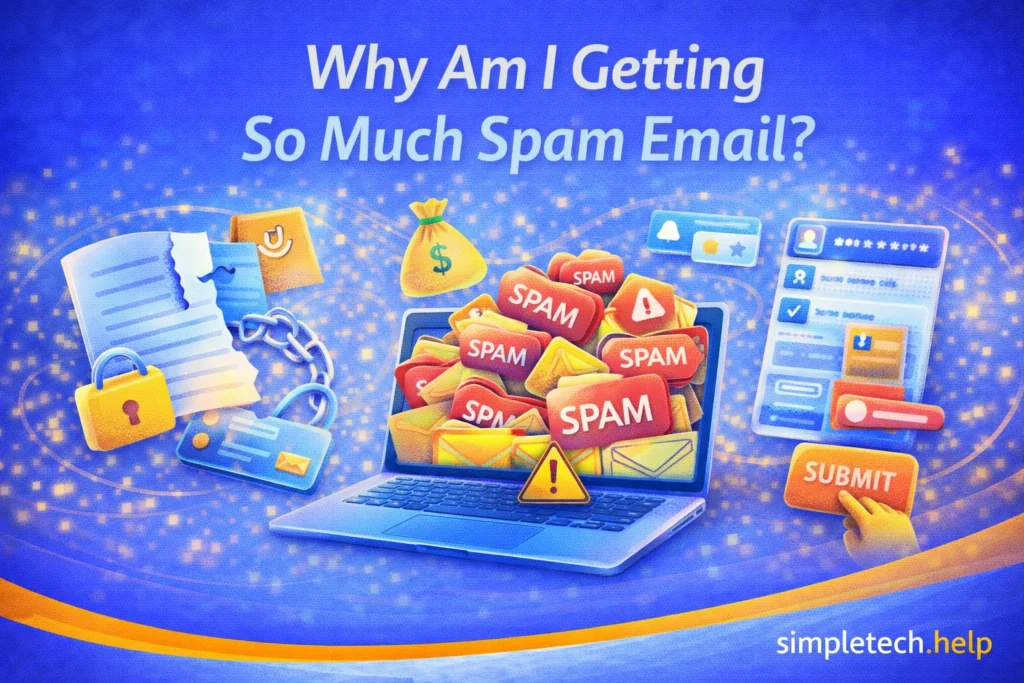
If your inbox suddenly has more spam, you’re not alone. You’re not the only one wondering why you’re receiving so much spam email.
Spam emails are unwanted messages, often ads, scams, or fake alerts, sent to large numbers of people.
Even if you’re careful, your email address can end up on spam lists over time.
Is Spam a Sign Your Account was Hacked?
Getting spam does not usually mean your account was hacked.
Spam is very common and often happens without any problem on your end.
However, check for these warning signs:
- Emails sent from your account that you didn’t send
- Password reset emails you didn’t request
- Login alerts from unknown locations
If you notice any of these, someone may have hacked your email account.
Why Spam Email Starts to Arrive
There are several common reasons you may be receiving so many more spam emails.
Your email was shared or sold. Some websites share email addresses with marketing partners.
You signed up for something. Promotions, newsletters, or downloads can lead to more emails than expected.
Your email was exposed in a data breach. If a company you use gets hacked, your email may be leaked.
Spammers guessed your email. Common email formats are easier to target.
You interacted with spam before. Clicking links or replying can confirm your email is active.
If you decide to sign up for a newsletter or marketing emails, ensure that you sign up from a safe website, which greatly reduces your chances of receiving so much new spam.
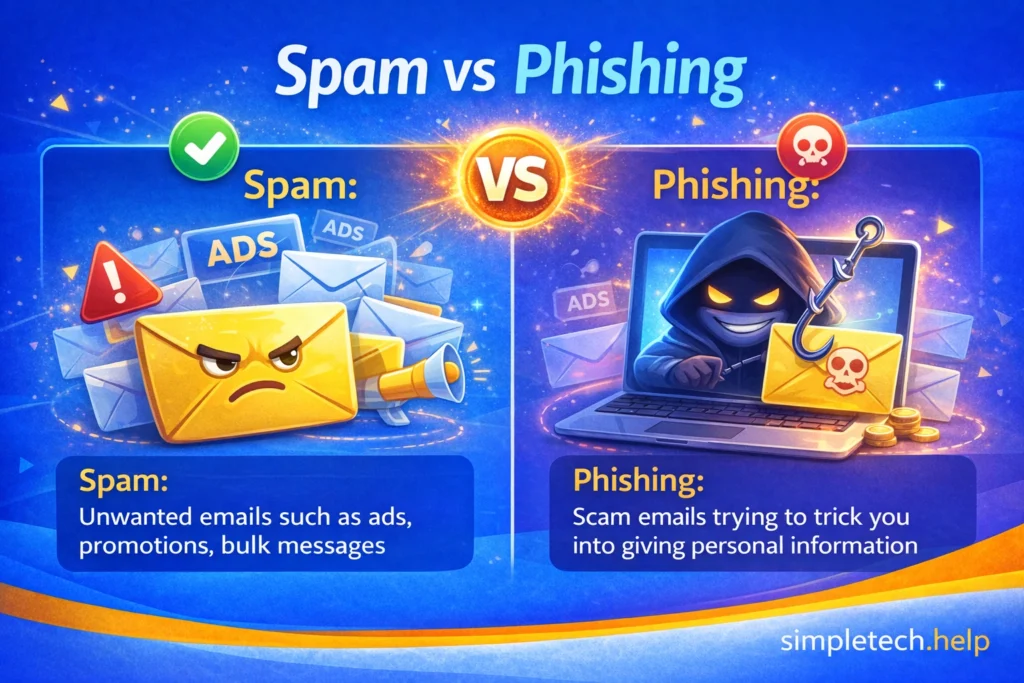
Spam vs Phishing: Differences
Your email inbox may receive spam and phishing emails, which differ.
- Spam: Unwanted emails (ads, promotions, bulk messages)
- Phishing: Scam emails trying to trick you into giving personal information
Not all spam is dangerous, but phishing is. Clicking on a phishing link can lead to fake tech and follow-up scams.
Spam is, in most cases, inconvenient because it clutters your inbox with unsolicited promotional and marketing emails.
How To Reduce Spam
You can’t completely stop spam, but you can reduce it significantly. Start by marking the unsolicited messages as spam.
Mark Emails as Spam
Use your email provider’s “Report spam” or “Junk” button, which helps filter similar messages in the future. As the email filter learns, it will automatically move those messages into the Junk folder.
For example, Gmail has dedicated Spam and Promotion folders and uses AI to filter these messages out of your inbox. When they do reach your inbox, mark them accordingly, which also helps Gmail suspend spamming accounts on its platform.
Unsubscribe When Safe
Since phishing attacks have evolved, scammers disguise their emails as spam to trick recipients into clicking on their links. Before, you could simply unsubscribe from spam emails, but now these emails require more scrutiny.
If the email looks legitimate:
- Scroll to the bottom
- Click Unsubscribe
Avoid unsubscribing from suspicious emails. It may confirm your email is active.
Mistake: Clicking “unsubscribe” on every spam email.
Many people think this will stop spam, but it can sometimes make things worse.
Fix: Only unsubscribe from emails you recognize.
For unknown senders, mark the email as spam instead.
Don’t Click Links or Download Attachments
Spam emails may include links to promotional landing pages. Phishing emails almost always contain a suspicious link or malicious attachments.
When you receive a spam email:
- Don’t click links if you’re unsure
- Don’t download attachments from unknown senders
Some welcome promotional emails from their favorite retailers that may include codes or coupons for discounts. Before clicking on a link, verify that the sender’s email address is legitimate and add it to your safe sender email list.
Don’t Reply to Spam
Replying “stop” can confirm your email is active, which may lead to more spam, not less.
Even though it’s tempting to vent your frustration by replying, the better option is to mark the unsolicited messages as spam and move on from them.
Use Email Filters
Most email apps let you automatically send certain messages to spam or folders. Use the tools to your advantage to help you declutter your inbox.
Moreover, email filters protect you from accidentally opening and clicking on malicious links.
Myth: “If I ignore spam, it will stop.”
Reality: Spam usually continues unless you actively filter or block it. Using spam filters helps reduce it over time.
Keep Your Email Private
In the age of social media, people tend to overshare. Social media and other platforms can help people gain entry into new careers and opportunities, so they must post their contact information online, but do so judiciously.
Avoid posting your email publicly or sharing it on untrusted websites, as others can easily copy and paste it into email lists.
Use a Secondary Email: Optional
Use one email for important accounts and another for sign-ups or promotions. For example, you may create a professional email for work emails and another that receives marketing messages from your favorite retailers.
Opt Out of Marketing Emails and Data Sharing
Opting out of marketing emails and data sharing is one of the easiest ways to reduce spam before it even begins when you sign up for a service.
Many websites ask for permission to:
- Send you marketing emails
- Share or sell your information to partners
This is sometimes referred to as permission-based marketing.
Why This Matters
If you don’t review these options, you may:
- Receive more promotional emails
- Have your email shared with third parties
- See an increase in spam over time
A single signup can lead to multiple future emails. Some retailers send daily emails. Moreover, if you browse an online store and place something in your cart but don’t complete your purchase, you may receive an abandoned cart follow-up email.
What to Look for When Signing Up
When creating an account or making a purchase, look for checkboxes like:
- “Send me promotional emails”
- “Share my information with partners”
- “Receive updates and special offers”
These are often checked by default. Here’s what to do if they are automatically checked.
Uncheck Marketing Boxes
Staying safe online requires some vigilance. It also requires you to pause and review.
Before submitting a form:
- Review all checkboxes
- Uncheck anything related to marketing or sharing
This prevents extra emails from the start.
If you forget to uncheck the boxes, reputable organizations allow you to modify the communications settings afterwards.
For example, you can click the “Unsubscribe” link on one of the messages, which will lead you to a form. Then, review the options. Most retailers do not want to lose their permission to send you messages, so they allow you to reduce the type and number of messages you want to receive.
Limit Data Sharing
Additionally, you can ask the organization not to share your information with third parties.
If given the option:
- Choose not to share your information
- Opt out of third-party marketing
Reputable organizations will honor the request, and you will not see any additional unsolicited marketing offers.
Use a Secondary Email (Optional)
Some people maintain more than one email account, which allows them to filter emails by purpose. So, an email dedicated to marketing emails will only receive those types of messages.
For signups, promotions, or downloads, consider using a separate email address to keep your primary inbox cleaner.
Review Email Preferences Later
Many services allow you to adjust communication settings and turn off marketing emails
You can usually find the communication settings in:
- Account settings
- Email preferences
Even legitimate companies may send frequent emails if you opt in. That doesn’t make them spam, but it can still clutter your inbox.
Key Insight
Spam doesn’t always start with scammers. It often starts with permissions you didn’t realize you gave.
Being selective during signups can dramatically reduce unwanted emails later.
When Legitimate Emails Go to Spam, aka False Positives
Not all emails in your spam folder are actually spam.
Sometimes, legitimate emails get filtered by mistake. This is called a false positive.
Why This Happens
Email providers use automated filters to detect spam, but they’re not perfect.
A normal email might be flagged if it:
- Comes from a new or unfamiliar sender
- Contains links or attachments
- Looks similar to marketing or promotional emails
- Was reported by other users
Even important emails, like receipts, account alerts, or verification codes, can end up in spam.
Additionally, if a retailer emails you daily but you don’t open the emails, your email provider may assume you don’t want those messages. After a specific time, it will start filtering them to your Spam folder.
How To Prevent Important Messages from Going to Spam
Just like you need to monitor your inbox to prevent receiving so much spam email, you’ll need to monitor it to ensure that your email provider does not filter important messages to your Spam folder.
Check Your Spam Folder Regularly
If you’re missing emails, open your spam/junk folder and look for anything important.
This is especially important if you’re expecting:
- Password reset emails
- Order confirmations
- Account notifications
If you find important emails in your Spam folder, mark them as Not Spam.
Mark Emails as “Not Spam”
If you find a legitimate email in the Spam folder, follow these steps.
In Gmail:
- Open the email
- Click “Not spam”
In Outlook:
- Open the email
- Click “Not junk”
This helps your email provider learn what you trust.
Add the Sender to Your Contacts
Save important senders, like banks or services, to your contacts.
This reduces the likelihood that future emails will go to spam.
Move Emails to Your Inbox
Dragging or moving emails out of spam reinforces that they’re safe.
Remember, even if an email looks legitimate, always double-check before clicking links or downloading attachments.
- Look at the sender’s email address carefully
- Make sure it matches the official company
- When in doubt, go directly to the website instead of clicking links
Spam filters are designed to protect you, but they sometimes overcorrect.
A quick check of your spam folder can prevent you from missing important emails.
Safe vs Spam Email and How to Tell the Difference Table
| Feature | ✅ Safe Email | ⚠️ Spam or Suspicious Email |
| Sender Address | Matches the official company domain (e.g., support@company.com) | Looks unusual, misspelled, or uses random characters (e.g., supp0rt@compaany.xyz) |
| Subject Line | Clear, relevant, and expected | Urgent, alarming, or too good to be true (“Your account will be closed!”) |
| Greeting | Personalized (uses your name) | Generic (“Dear user” or “Dear customer”) |
| Content Quality | Well-written, no spelling errors | Poor grammar, awkward phrasing, or strange formatting |
| Links | Match the official website (hover shows real domain) | Suspicious or mismatched links (fake or shortened URLs) |
| Attachments | Expected (invoice, receipt you requested) | Unexpected attachments (especially .zip, .exe, or unknown files) |
| Requests for Information | Does NOT ask for passwords or sensitive data | Asks for login details, payment info, or personal data |
| Branding | Consistent logos and formatting | Low-quality images or inconsistent branding |
| Timing | Matches your activity (recent signup, purchase, reset request) | Random or unexpected messages |
| Overall Feeling | Feels normal and expected | Feels urgent, pushy, or “off” |
If you’re unsure about an email, use this table. Look across the row and ask:
- Does this feel normal?
- Or does it raise red flags?
Even if an email looks safe, never click links blindly. Instead, go directly to the official website and log in from there
If an email checks multiple ‘Spam’ boxes, treat it as unsafe.
Additional So Much Spam Tips
Should You Block Spam Senders?
Blocking spam email is convenient because future emails from that sender will no longer reach your inbox.
Blocking can help, but it has limits:
- Spammers often use new email addresses
- Blocking one sender won’t stop all spam
It’s more effective to:
- Mark emails as spam
- Use filters
Both may prompt your email provider to review those emails, especially if they are sent from their platforms. Moreover, marking them as spam trains your email filter.
If Spam Suddenly Increases A Lot
A sudden spike can mean something changed.
Check for:
- New accounts or subscriptions
- A recent data breach
- Suspicious activity in your email account
If anything looks unusual, consider updating your password.
Why Do Spam Emails Look Personal?
Spam emails are unsolicited advertising and marketing messages.
Some spam emails include your name or details.
This usually means:
- Your information was part of a data breach, or
- It was collected from a website you used
It does not necessarily mean your account was hacked.
How To Prevent Spam Email Problems
While it’s not possible to end spam emails from finding your inbox, you can take several steps to prevent issues.
- Use spam filters regularly
- Avoid sharing your email on unknown sites
- Don’t click links or download attachments
- Don’t reply to spam emails
- Use strong, unique passwords
Teaching your spam filters what is and isn’t unwanted email, and avoiding opening them, will help reduce the number of unwanted emails you see in your inbox.
Will Spam Ever Completely Stop?
No.
Even with good filters, some spam will always get through. The goal is to reduce it and avoid interacting with it.
Quick Summary
- Spam emails are common and don’t usually mean you’re hacked
- They come from sign-ups, data breaches, and shared email lists
- Don’t click, reply, or download anything suspicious
- Mark spam instead of interacting with it
- Good habits can significantly reduce spam over time
Learning & Next Steps
Now that you understand how spam works, the next step is to build simple habits to manage it. You don’t need to eliminate every spam email—just reduce how often it reaches your inbox and avoid interacting with it.
Over time, your email provider will learn what you consider spam, especially if you consistently mark unwanted messages. This makes your inbox easier to manage and less overwhelming.
Bookmark this guide so you can return anytime spam increases or you’re unsure how to handle a message. A few small actions, like marking spam and avoiding suspicious links, can prevent bigger problems.
As you continue building your email safety skills, these guides pair well with what you’ve learned here:
- Securing Online Accounts: How to secure your online accounts to protect your personal information
- Safe Websites: How to spot which websites are safe and which ones are not
- Online Safety: How to stay safe online
- Troubleshooting Basics: How to troubleshoot common tech issues
The more you understand how spam works, the easier it becomes to manage. You don’t need to stop spam completely. You just need to stay one step ahead of it.
Frequently Asked Questions
While you still may receive the occasional spam email, you can take steps to reduce it. The following are some frequently asked questions about receiving so much spam email, with answers.
Why Am I Suddenly Getting More Spam Emails?
You may start receiving more spam emails after signing up for a service, a data breach, or your email being shared. Additionally, signing up for political messages or donating to campaigns during election seasons can also lead to an increase in messages and spam emails.
Can I Stop Spam Completely?
No, but you can significantly reduce spam emails with filters and good habits.
Is It Safe to Open Spam Emails?
Opening a spam email is usually okay, but don’t click links or download attachments. Sometimes you need to open the email to verify that it is spam. Then, you can take the appropriate action to block it.
Why Do Spam Emails Look Real?
Scammers often copy real companies to trick you. It’s how they get you and others to click on suspicious links or open attachments that contain malware.
Should I Delete Spam Emails?
You can delete spam emails, but marking them as spam is more helpful because it trains your filter. Additionally, it raises red flags for that email address that may help block it from continually sending emails.