Last Updated on March 15, 2026 by Simple Tech Help
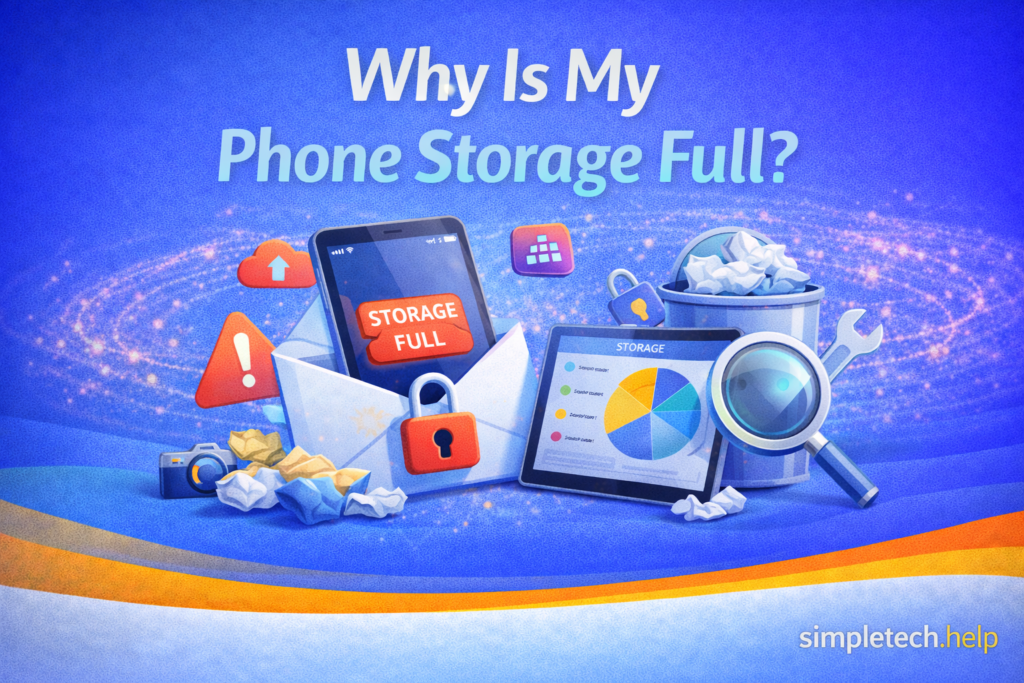
If your phone displays a “phone storage full” message, it means your device no longer has enough storage to install new apps or updates. It also cannot store more photos or videos.
When storage is full, your phone may start to behave differently. You might notice that apps stop updating, photos fail to save, or the device becomes slower than usual.
Fortunately, in most cases, you can solve this problem by removing unnecessary files or moving them to another storage location. You don’t need to delete everything.
Understanding what takes up storage and how to manage it can help keep your phone running smoothly.
Why Your Phone Storage Gets Full
Modern smartphones store many different types of files. Over time, these files accumulate and eventually fill the available space.
On your phone, you can store:
- photos and videos
- apps and games
- downloaded files
- music and podcasts
- cached app data
Your phone also needs space for its system files and operating system.
Photos and videos are often the largest contributors to storage usage, especially if you regularly take pictures or record video.
Apps can also take up significant space, particularly games or social media apps that store large amounts of data.
Additionally, streamers who download movies and television shows will find that each takes up room.
Signs Your Phone Storage Is Full
When storage is nearly full, your phone will usually display a warning notification. For example, if you attempt to update its operating system and there is not enough space to download it, your phone will display a warning.
A phone also displays a notification when you attempt to save a video, but there isn’t enough room.
Full storage isn’t just an issue for saving more content, updates, and files.
You may also notice problems such as:
- apps failing to update
- the camera not saving new photos
- messages or emails not downloading attachments
- the phone running slower than normal
These issues occur because the device needs free storage space to operate properly.
How to Check What Is Using Your Phone Storage
Most smartphones include a built-in storage manager that shows what is using space on your device. The feature is your friend. It breaks down the storage by category so you can understand it at a glance.
Storage categories include:
- apps
- photos and videos
- documents and downloads
- system files
- temporary files
To view your storage usage:
- Open Settings on your phone.
- Look for Storage, Device Care, or General settings.
- Review the storage breakdown.
This overview helps identify which files are using the most space, so you know where to start cleaning up. For example, you may decide that you can delete a season of your favorite show.
How to Free Up Storage on Your Phone
If your phone’s storage is full, several simple steps can quickly free up space.
Delete Unused Apps
Many people install apps they rarely use. The average user installs at least 20 apps but interacts with only 8 to 9 of them each week and month.
Removing these apps can immediately free up storage. It will also declutter it, improving battery life and device performance.
To remove apps:
- Open Settings.
- Go to Apps or Application Manager.
- Select the app you no longer need.
- Tap Uninstall.
You can follow the same process to uninstall games.
Games and large social media apps often use the most storage.
One way to avoid cluttering your phone with apps you infrequently use is to develop a digital app stack.
Remove Old Photos and Videos
Photos and videos are one of the biggest storage users on most phones.
Some people use their phones as storage and intend to keep their photos and videos on them for several years.
Consider deleting:
- duplicate photos
- blurry images
- old screenshots
- long videos you no longer need
You can also move photos to another location rather than permanently delete them, such as the cloud or an external storage device.
Clear App Cache
Some apps store temporary data called cache to load content faster.
Over time, this data can grow significantly.
Clearing the cache removes temporary files without deleting the app.
To clear cache:
- Open Settings
- Select Apps
- Choose an app
- Tap Clear Cache
This process can free up a surprising amount of space.
Delete Downloads and Large Files
Files downloaded from email, messaging apps, or the internet can remain on the phone long after you need them.
Check the Downloads folder and remove files you no longer use.
Large attachments and documents can take up significant space.
Move Files to Cloud Storage
Cloud services allow you to store files online instead of keeping them on your phone.
This can free up space while still keeping your files accessible.
Cloud storage has gained traction with many users because it offers convenience. It can also sync across devices.
Common items to move include:
- photos
- videos
- documents
- backups
Once uploaded, the files can be removed from your device.
Use External Storage
Some phones support external storage options, such as memory cards or storage drives that connect to the phone.
These devices can store:
- photos
- videos
- music
- documents
External storage is useful if you regularly work with large files or record videos.
When you find external storage options that your phone supports, follow the prompts and instructions to install them and transfer your content.
How to Prevent Phone Storage from Filling Up Again
Once you free up storage, you may need to take steps to manage it. For example, if deleting unused apps helps you free up space, you might need to avoid reinstalling several that you won’t use frequently.
After freeing space, a few habits can help prevent storage from filling up again.
Helpful practices include:
- regularly deleting unwanted photos
- removing apps you no longer use
- clearing downloads periodically
- backing up photos to cloud storage
Checking your storage usage every few months can also help you catch problems early.
When You May Need More Storage
Understanding phone specs makes it easier to buy the right tech the first time. Sometimes, experience is the best teacher.
You may buy a phone with 64GB of storage, thinking that’s the right one for you. But, once you have the phone in your hand and you realize its power, you may fill up those 64GB much faster than you thought you could.
If constantly monitoring your phone’s storage has become disruptive, you may need to consider storage alternatives.
Sometimes a phone simply does not have enough storage for the way you end up using it.
People who frequently take photos or install many apps may need more space than their current device provides.
If storage problems happen often, you may want to consider:
- using cloud storage regularly
- adding external storage, if supported
- choosing a phone with more storage in the future
Understanding your storage needs can help you avoid the same issue later.
Conclusion
A full phone storage message usually means your device has run out of available space for new files, apps, or updates. While this can be frustrating, the problem is often easy to fix by removing unused apps, deleting unnecessary files, or moving data to the cloud or external storage.
Regularly reviewing your phone’s storage and clearing out unwanted files can help keep your device running smoothly.
Next Steps
If you frequently run out of storage, you may also want to learn:
- How much phone storage do you actually need
- What to do if your phone starts running slowly
- How to safely back up photos and files
- Troubleshooting basics when nothing seems to work
Understanding these topics can help you manage your phone more effectively and avoid common storage problems in the future.
Frequently Asked Questions
Phones often run out of space gradually, so many people are unsure what caused the problem or how to fix it safely.
The answers below address some of the most common questions people have when they see a full storage message.
Why does my phone say storage is full even after deleting files?
Some apps store temporary files or cached data that still occupy storage. Clearing app caches or restarting the phone may free additional space.
Will deleting photos free up storage immediately?
Yes. Once photos or videos are deleted and removed from the Recently Deleted or Trash folder, the storage space becomes available again.
Does clearing the cache delete important data?
No. Clearing cache removes temporary files but does not delete your account information, photos, or messages.
Can a full phone slow down the device?
Yes. Phones need some available storage space to operate properly. When storage is nearly full, apps and system processes may run more slowly.