Last Updated on April 13, 2026 by Simple Tech Help
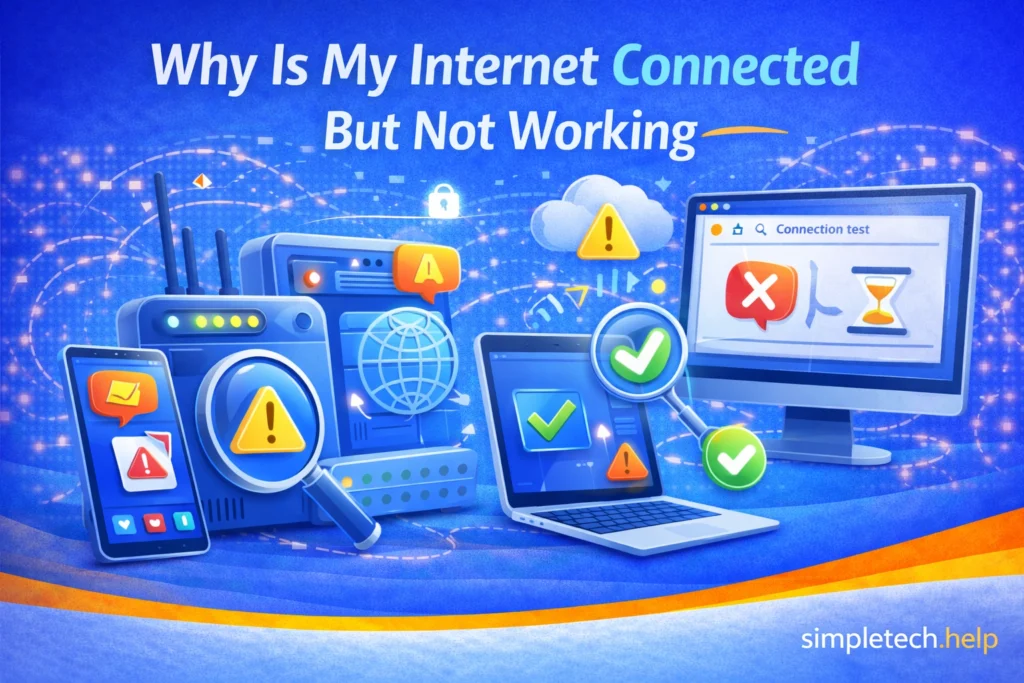
Internet connected, but not working?
It can be confusing when your device shows it is connected to Wi-Fi, but websites will not load, or apps cannot access the internet.
⚡ Internet Connected but Not Working? Start Here
Try these quick fixes first. Most issues are solved in minutes.
- Restart your router or modem: Unplug it for 30 seconds, then plug it back in
- Check for an outage: Your internet service provider may be down in your area
- Test another device: This helps determine if the issue is your device or the network
- Forget and reconnect to Wi-Fi: Remove the network and reconnect with your password
- Check your router lights: Look for red or blinking warning indicators
👉 Still not working? Follow the step-by-step fixes below.
In many cases, the connection between your device and the router is working, but the router itself cannot reach the internet.
What “Connected But No Internet” Means
When your device says it is connected, it usually means it has successfully connected to your local Wi-Fi network.
However, this does not always mean the router is connected to the wider internet.
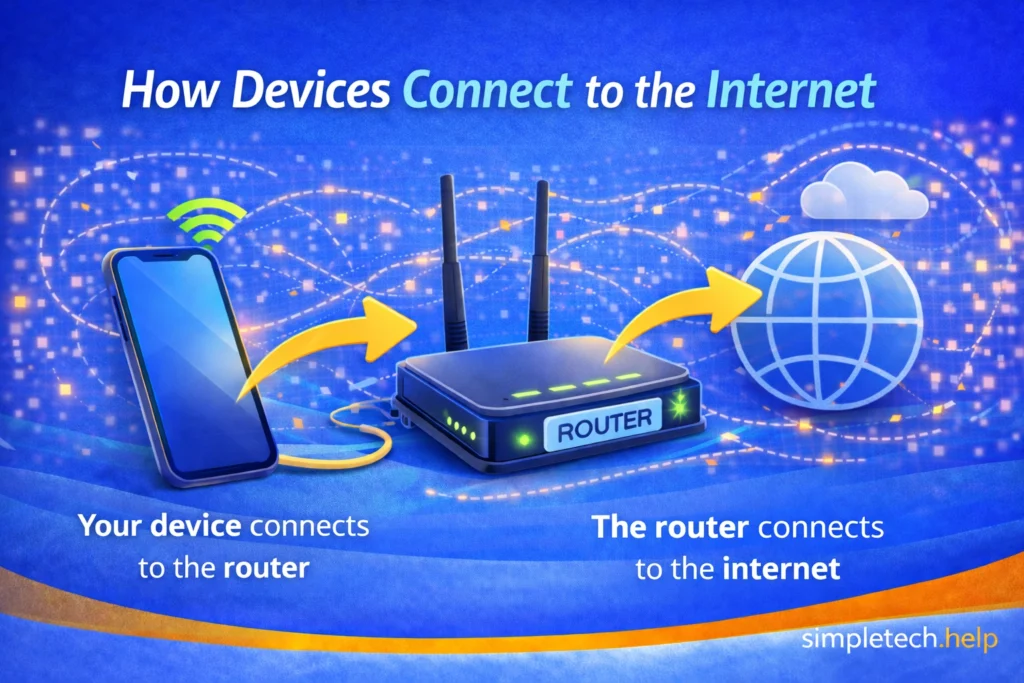
Think of it this way:
- Your device connects to the router
- The router connects to the internet
If the router loses its internet connection, your device may still show as “connected,” but online services will not work.
Common Myth: If Wi-Fi shows “connected,” the internet should always work.
Reality: Being connected to Wi-Fi only means the device is connected to the router. The router still needs an active internet connection.
If your internet works but is just slow, try this: How to increase Wi-Fi speed
Common Reasons the Internet Is Connected but Not Working
Several issues can cause devices to appear connected to the internet but not work.
Router or Modem Issues
The most common cause of a device connected to the internet but not working is router or modem issues. Usually, the equipment glitches, so its processes stop working.
Internet Service Provider Outages
Sometimes the problem is not inside your home network. If your internet service provider is experiencing an outage or network disruption, your device may still connect to the router but cannot reach the wider internet.
Temporary Network Errors
Sometimes the problem is not inside your home network. If your internet service provider is experiencing an outage or network disruption, your device may still connect to the router but cannot reach the wider internet.
Devices Software Glitches
Sometimes your device may appear connected to the internet, but a temporary software bug is preventing it from actually loading anything. Restarting your device or updating its software can often fix these hidden issues quickly.
Incorrect Network Settings
If your network settings are misconfigured, your device may connect to Wi-Fi but still be unable to access the internet. Resetting network settings or reconnecting to the network can usually resolve this problem.
DNS Problems
The Domain Name System (DNS) translates website names into the numerical addresses that computers use to locate servers. If the DNS service is not responding or is misconfigured, your device may connect to the network but cannot find the websites you are trying to visit.
Identifying the cause helps determine the best solution.
Other Common Internet Issues
- Just slow? Troubleshoot slow Wi-Fi
- Keeps disconnecting? Fix Wi-Fi connection drops
- Mobile data not working? Troubleshoot mobile data issues fast
Fixes for Internet Connected but Not Working Common Causes
Now that you have some insight into common causes of a connected internet that is not working, here’s how you can fix them.
Restart Your Router and Modem
One of the most effective fixes is simply restarting your networking equipment.
Routers and modems occasionally develop temporary errors that interrupt internet access.
To restart them:
- Unplug the router and modem from power.
- Wait about 30 seconds.
- Plug the modem back in first.
- After it reconnects, plug the router back in.
Wait a few minutes for the connection to fully restore.
In many cases, this resolves the issue.
Beginner Mistake: Assuming the internet provider is the problem immediately.
How to fix it: Restart the router and modem first. Many connection issues are caused by temporary network glitches that can be resolved with a quick restart.
Check If Your Internet Provider Is Experiencing an Outage
Sometimes the issue is not inside your home but with your internet provider.
Internet outages can occur due to network maintenance, equipment failures, severe weather, and regional service disruptions.
If all devices in your home show connected but no internet, your provider may be experiencing an outage.
You can check this by:
- visiting your provider’s website
- checking outage reports online
- contacting customer support
Any information you gather helps you narrow down why you cannot use the internet on your device. For example, a reported outage in your area means that your equipment is running as expected, but you’ll have some downtime before you can use your provider’s internet service.
Test Another Device
Testing a second device can help determine whether the problem is with your device or the network.
For example:
- If your phone says connected but has no internet, try connecting to the internet on a laptop.
- If both devices cannot access the internet, the issue likely involves the router or the internet connection.
If only one device has the problem, restarting that device or reconnecting to the network may fix it.
Forget and Reconnect to the Wi-Fi Network
Occasionally, saved network settings may cause connection issues.
Removing and reconnecting to the Wi-Fi network can refresh those settings.
To do this:
- Open your device’s Wi-Fi settings.
- Select the network you are connected to.
- Choose Forget Network.
- Reconnect by entering the Wi-Fi password again.
This process resets the connection between the device and the network.
Check the Router Lights
Most routers have indicator lights that show the connection status.
While designs vary, many routers use lights to indicate:
- power
- Wi-Fi activity
- internet connection
If the internet light is off or flashing, the router may not be receiving service from your internet provider.
Checking these indicators can provide clues about the cause of the problem.
Various devices can show the internet as connected but not working, including:
- phones
- laptops
- tablets
- smart TVs
- gaming consoles
Fortunately, many of the common causes are easy to troubleshoot.
Why the Internet May Be Connected but Not Working on a Phone
Sometimes the issue appears only on a specific device.
For example, if your phone is connected to Wi-Fi but the internet is not working, the cause may include:
- a temporary software glitch
- background apps using too much bandwidth
- outdated system software
- incorrect network settings
Restarting the phone often resolves temporary connection issues. If it does not, run a scan to determine whether any software is causing the internet connection to fail.
Additionally, double-check that the device’s operating system is up to date. Often, installing recommended updates resolves connectivity issues.
Why the Internet May Be Connected but Not Working on a Laptop
If your laptop is connected to Wi-Fi but cannot access the internet, the problem may be due to its network configuration.
Possible causes include:
- outdated operating system updates
- incorrect network settings
- temporary software errors
Restarting the laptop and reconnecting to the network may restore connectivity. If it does not, ensure that its operating system is up to date. Additionally, run a scan to ensure that there are no software errors.
When to Contact Your Internet Provider
If none of the troubleshooting steps resolve the issue, the problem may be related to your internet service.
You may need to contact your provider if:
- all devices show connected, but no internet
- the router indicates a connection problem
- the issue persists for several hours
Your provider may be able to detect network issues or remotely reset your connection.
Help your provider by writing down anything you notice about your connection issue. For example:
- When did it start?
- Is the connectivity issue ongoing or intermittent?
- What have you already tried that has not resolved the issue?
Your service representative will walk you through several troubleshooting steps, depending on what the diagnostics tell them on their end. The more prepared you are for the call, the smoother it will go and the faster you can reconnect to the internet.
Learning and Next Steps
If your device shows it is connected to Wi-Fi but the internet is not working, the problem is usually due to the router, your internet provider, or temporary network issues.
Restarting your router, checking for outages, and reconnecting your device to the network can often restore internet access quickly.
If the issue continues, your internet provider may be able to help diagnose the connection problem.
You may also find these guides helpful:
- Online Account Security: Secure your online accounts easily
- Email Basics: Explore the basics of email accounts
- Troubleshooting Basics: Learn how to troubleshoot other tech issues
Learning how these devices and systems work together can make it much easier to identify and fix internet problems when they occur.
Frequently Asked Questions
Connection problems can occur for many reasons. These frequently asked questions address common situations people experience when their internet appears connected but does not work.
Why does my Wi-Fi say connected, but nothing loads?
This usually means your device is connected to the router, but the router cannot reach the internet.
Can a router cause connected but no internet problems?
Yes. Routers can occasionally develop temporary errors that interrupt the internet connection.
Why does only one device have this problem?
If only one device cannot access the internet, the issue may be due to software or network settings on that device.
Will restarting the router fix this problem?
Restarting the router resolves many connection issues by resetting the network connection.