Last Updated on March 16, 2026 by Simple Tech Help

Technology problems can feel frustrating, especially when something suddenly stops working. It’s almost always an inconvenience. When you need to troubleshoot technology, you need the right mindset.
Whether it’s a phone that won’t charge, Wi-Fi that won’t connect, or an app that keeps crashing, many people are unsure where to start, which adds to whatever they’re feeling at the moment.
The good news is that most tech problems follow common patterns. Instead of guessing randomly, you can use a simple troubleshooting framework to narrow down the cause of the issue.
This approach helps you work through problems step by step so you can identify what is wrong and often fix it yourself.
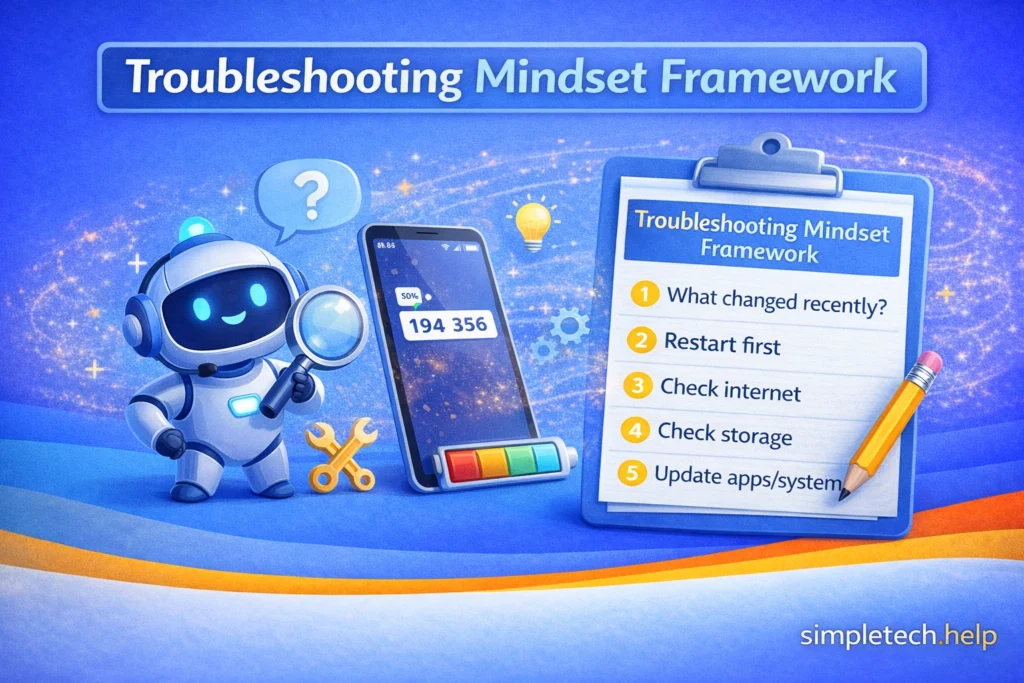
The SimpleTech Troubleshooting Mindset
Approaching tech problems step by step makes them easier to solve. Checking what changed recently and trying simple fixes first builds confidence.
Thinking through tech problems means taking specific steps, such as asking:
- What changed recently?
- Restart first
- Check internet
- Check storage
- Update apps/system
This process builds independence.
Ask: What Changed Recently?
Before assuming something is broken, think about what changed. Did you install a new app, update software, or change settings? Identifying recent changes often points directly to the cause of the issue.
For example:
- A phone starts running slowly after installing several new apps.
- An app begins crashing after a recent software update.
- A printer stops working after being moved to a different Wi-Fi network.
If a problem appeared shortly after something changed, that change may be the source of the issue.
Restart
Many problems, frozen screens, unresponsive apps, and slow performance can be fixed by simply restarting your device. Always try this first; it’s quick, safe, and often solves the problem without losing data.
For example:
- A phone screen becomes unresponsive and stops accepting touch input.
- An app freezes or refuses to open.
- A computer begins running unusually slowly.
Restarting clears temporary processes and often restores normal performance.
Check Internet Connection
If your device seems slow or apps aren’t working, verify your Wi-Fi or mobile data connection. Switch networks, toggle Airplane Mode, or restart your router to rule out connectivity issues.
For example:
- A streaming app refuses to load videos.
- A website will not open even though the device appears connected to Wi-Fi.
- Messages fail to send in a messaging app.
In these cases, checking the Wi-Fi connection or switching to mobile data may reveal that the issue is related to connectivity.
Check Storage
Low storage can prevent apps from running or saving files. Check your device’s storage, delete unnecessary files, clear caches, or move data to the cloud to free up space.
For example:
- A phone cannot download new apps or updates.
- A camera app cannot save photos.
- An app crashes when trying to save a document.
If the device storage is full, deleting unused apps, photos, or files can often resolve the issue.
Update Apps and System
Outdated apps or software often cause crashes or glitches. Make sure apps, your device’s operating system, and any critical firmware are up to date.
For example:
- An app crashes because it no longer supports the current operating system.
- A device cannot connect to certain services because its software is outdated.
- A bug affecting an app has already been fixed in a newer version.
Updating apps and the device’s operating system can often resolve these issues.
Following this framework keeps troubleshooting manageable and stress-free.
The Three Core Troubleshooting Checks
After identifying the problem, you have the information you need to check the most common causes of tech that fails to work as expected.
The troubleshooting mindset helps you slow down and think through what might be happening.
Once you have considered questions like what changed recently or whether restarting helps, the next step is to check the most common technical causes of device problems.
Troubleshoot Three Key Technology Areas
When technology stops working, check three key areas:
connection → power → device or software
Checking the three key areas applies to different types of technology, including:
- phones and computers
- internet connections
- apps and software
- printers and other devices
By working through these areas in order, you can often quickly identify the cause of the problem.
Step 1: Check the Connection
Many technical issues occur because something is not properly connected.
Connections may involve:
- charging cables
- USB cables
- Wi-Fi networks
- Bluetooth connections
- ports or adapters
For example, if a device will not charge, the charging cable or adapter may be loose or damaged.
If an app cannot access the internet, the device may not be connected to Wi-Fi.
Before trying more complicated solutions, always confirm that connections are secure and working properly.
Step 2: Check the Power Source
If the connection appears correct, the next step is to check the power source.
Some devices stop working simply because they are not receiving enough power.
Examples include:
- a wall outlet that is not working
- a faulty power adapter
- a battery that is completely drained
Trying a different outlet, charger, or power source can often reveal whether power is the problem.
Step 3: Check the Device or Software
If the connection and power source appear to be working, the issue may involve the device or the software itself.
Devices and applications sometimes experience temporary errors, including:
- software glitches
- overheating
- outdated software
- background processes interfering with performance
Simple actions such as restarting the device, updating the software, or closing unused apps may resolve the issue.
Checking these areas in order helps you quickly narrow down the cause of the problem.
For example:
- a loose cable may interrupt a connection
- a drained battery may prevent a device from turning on
- a software glitch may cause apps to freeze or crash
By checking these three areas step by step, you can often identify the source of the problem without guessing.
Why Restarting Often Fixes Tech Problems
Restarting a device may seem simple, but it is one of the most effective troubleshooting steps.
When a device restarts, it clears temporary processes that may be causing conflicts.
Restarting can help fix issues such as:
- apps freezing or crashing
- slow performance
- network connection problems
- devices not responding
Because of this, restarting is often one of the first steps recommended in troubleshooting guides.
Example: Using the Framework When a Device Won’t Charge
If your phone or tablet will not charge, you can apply the troubleshooting framework to narrow down the cause.
Connection
- Check the charging cable.
- Inspect the charging port for dust or debris.
Power
- Try a different outlet or charger.
Device
- Restart the device.
- Allow the device to cool if it is overheating.
By working through these steps, you can often determine whether the problem involves the charger, the outlet, or the device itself.
Example: Using the Framework for Wi-Fi Problems
If your internet connection is not working, the same framework can help identify the issue.
Connection
- Make sure the device is connected to the correct Wi-Fi network.
Power
- Check that the router and modem are powered on.
Device
- Restart the device or reconnect to the network.
This process helps determine whether the issue involves the device, the router, or the internet service.
Example: Using the Framework for Printers
Printers can also be diagnosed using the same troubleshooting steps.
Connection
- Check the USB cable or Wi-Fi connection.
Power
- Confirm the printer is powered on and connected to an outlet.
Device
- Check for paper jams or error messages.
Following these steps can help identify the cause of common printer problems.
When Troubleshooting May Not Solve the Problem
Some issues require professional repair or replacement parts and go beyond the troubleshooting steps.
For example:
- damaged charging ports
- failing hardware components
- internal device failures
If you have checked connections, power, and the device itself, and the problem continues, the device may require professional assistance.
Next Steps
Technology problems can be frustrating, but many issues have simple explanations.
By following a structured troubleshooting process and checking connections, power sources, and the device itself, you can often identify and resolve common problems quickly.
This troubleshooting mindset can help you approach technology issues with more confidence and reduce the guesswork when something stops working.
Now that you have the right mindset to troubleshoot technology issues, you might encounter, go into more depth with our troubleshooting articles, like:
- Why Is My Wi-Fi So Slow
- Phone Storage Full
- Device Won’t Charge
- Internet Connected But Not Working
Frequently Asked Questions
Troubleshooting technology problems can feel overwhelming at first. These common questions explain how the troubleshooting framework can help simplify the process.
Why do most troubleshooting guides start with simple fixes?
Many technology problems are caused by simple issues such as loose connections, temporary software glitches, or power interruptions.
Checking these first can save time and prevent unnecessary repairs.
Does this framework work for all devices?
While not every problem follows the exact same pattern, many technology issues involve connections, power sources, or software errors.
This framework helps narrow down the possible causes.
Why is restarting often recommended?
Restarting resets many temporary processes that may interfere with normal operation, which is why it often resolves common technical issues.