Last Updated on April 12, 2026 by Simple Tech Help
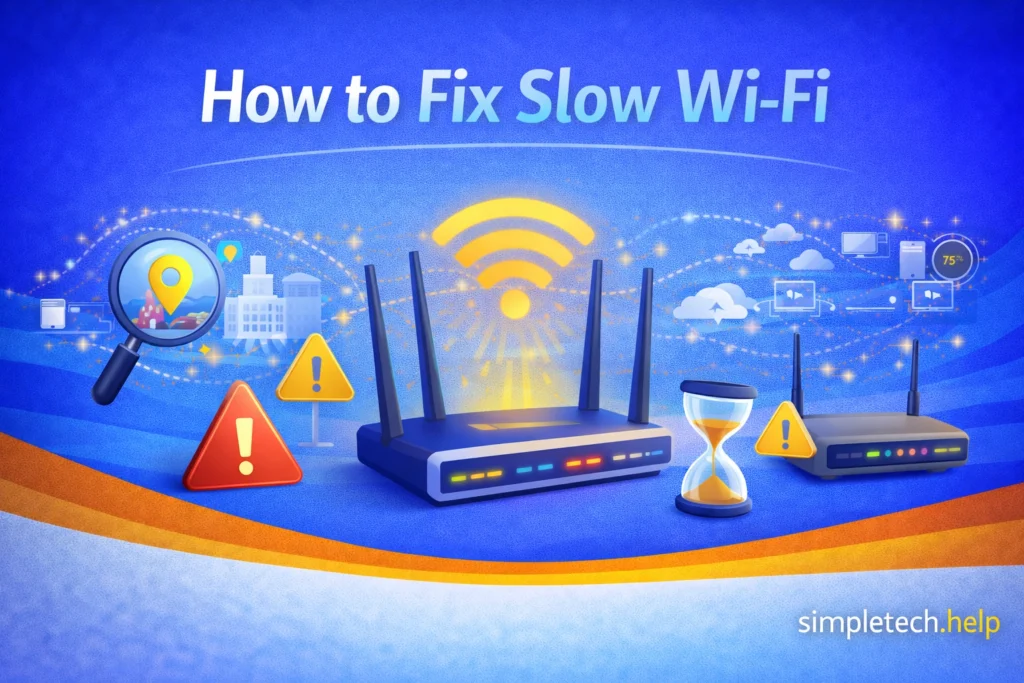
Slow Wi-Fi is one of the most frustrating tech problems. Videos buffer. Pages won’t load. Video calls freeze. And it always seems to happen at the worst time.
If you’re asking, “Why is my Wi-Fi so slow?”, the good news is that most causes are common and fixable.
Fix Slow Wi-Fi Fast
-
- Just slow? Speed up your Wi-Fi
- Keeps disconnecting? Fix connection drops
- Not working at all? Internet connected but not working
Before diving in deeper, establish if the problem is your Wi-Fi or the internet.
First: Is It Your Wi-Fi or Your Internet?
Troubleshooting technology, including a slow Wi-FI connection, is always about narrowing down what’s causing the problem.
Test this:
- Move close to your router.
- Run a speed test.
- Compare the result to your internet plan speed.
If speeds improve when you’re near the router, it’s likely a Wi-Fi signal issue.
If speeds are slow everywhere, it may be your internet connection.
Your issue might be something else. Here’s an overview of the 11 common causes of slow Wi-Fi with fixes.
11 Common Causes of Slow Wi-Fi with Fixes
| Problem | Quick Fix |
|---|---|
| You’re Too Far From the Router | Move closer to the router |
| Too Many Devices Are Connected | Disconnect unused devices |
| Your Router Needs a Restart | Restart the router |
| Your Router Is Outdated | Check in with your internet service provider |
| Network Congestion | Switch to the 5 GHz band |
| Using the 2.4 GHz Band Instead of 5 GHz | Each has a purpose — toggle between the two |
| Background Apps Are Using Bandwidth | Check for system updates running in the background |
| Malware on a Device | Run a security scan on affected devices |
| Your Internet Plan Is Too Slow | Check in with your internet service provider |
| Poor Router Placement | Elevate the router |
| Your Device Is the Problem | Restart the device |
Next, we dive deeper into the common causes of slow Wi-Fi and their fixes to help you troubleshoot the issue and prevent it from happening again.
How to Fix the Common Causes of Slow Wi-Fi
Most common causes of your slow Wi-Fi speed have easy fixes.
1. You’re Too Far From the Router
Wi-Fi signals weaken over distance and when passing through walls, floors, and furniture. You might be trying to use Wi-Fi too far away from the router.
How to Fix It
Move closer to the router. When you’re using your Wi-Fi-connected device next to the router, it should display full or mostly full bars, which indicates the signal strength. If you walk away from the router, you’ll notice fewer highlighted bars, indicating a lower signal strength.
Place your router in a central, open location. Physical objects can disrupt a signal.
Avoid placing it inside cabinets or behind TVs. The walls of cabinets and televisions obstruct Wi-Fi signals. Instead of placing the router inside the cabinets or behind TVs, place it on top of a cabinet and away from TVs.
Consider a Wi-Fi extender or mesh system for larger homes. A Wi-Fi signal can reach about 150 feet indoors and 300 feet outdoors, without obstructions. Depending on the size of your home, where you place the router, and where you will connect, you may need to add Wi-Fi extenders or a mesh system.
2. Too Many Devices Are Connected
Every phone, laptop, smart TV, and smart home device shares bandwidth, and they can degrade signal quality if you do not have a plan that supports multiple connected devices.
If multiple devices are:
- Streaming
- Gaming
- Downloading large files
- Video conferencing
Your speed will drop.
How to Fix It
Disconnect unused devices. To improve the quality of your Wi-Fi, disconnect devices connected to it but not currently in use.
Pause large downloads. Large downloads require a lot of bandwidth. If the download is not urgent, pause it to improve your signal quality.
Upgrade your internet plan if your household has heavy usage. Review your current internet plan and speak with a representative for your provider. You might need to upgrade your plan.
Restart your router to clear inactive connections. In many cases, restarting your router can improve your Wi-Fi’s speed.
3. Your Router Needs a Restart
Routers are small computers. They slow down over time, just like smartphones, computers, and tablets.
Restarting a router clears the cache, ends processes, including those that could be slowing Wi-Fi, and reduces network congestion. Then, it forces the router to establish a fresh connection.
How to Fix It
To restart your router:
- Unplug the router.
- Wait 30 seconds.
- Plug it back in.
- Wait 2–3 minutes for a full restart.
This fixes a surprising number of speed issues.
4. Your Router Is Outdated
Older routers may not support modern speeds or newer Wi-Fi standards. Technology continues to evolve, improving the user experience, but it requires updates and equipment to support it.
If your router is more than 4–5 years old, it could be the bottleneck.
How to Fix It
Check your router model online. The easiest way to manage your internet plan is online, with an account that your provider can help you set up. Then, you can see the details of your plan and equipment.
Ensure it supports current Wi-Fi standards. After you find your router model online, search to see whether it can handle the demands of current Wi-Fi standards. Your provider can also help you determine if you need to upgrade to a new router model.
Upgrade if necessary. If you need a new router model, make the upgrade, especially if your provider lets you swap it out.
Consider a dual-band or mesh system for better coverage. Some households require upgrading to a dual-band or mesh system for better coverage. Your internet service provider can help you make the right decision.
5. Network Congestion, Especially in Apartments
If you live in an apartment or dense neighborhood, nearby networks may interfere with yours.
This is especially common on the 2.4 GHz band.
How to Fix It
Switch to the 5 GHz band if available. 5 GHz has a shorter range than the 2.4 GHz band and offers faster speeds, which suits gaming and streaming. In an apartment setting, it could be a better option.
Change your Wi-Fi channel in your router’s settings. Changing the channel can help reduce inference from nearby networks.
Move the router away from walls shared with neighbors. Remember to place your router in a central location, away from any walls you share with neighbors.
6. You’re Using the 2.4 GHz Band Instead of 5 GHz
Routers use two radio frequencies to transmit Wi-Fi signals, 2.4 GHz and 5 GHz.
2.4 GHz is better for longer ranges, slower speeds, and more interference.
5 GHz is better for shorter ranges, faster speeds, and less interference.
How to Fix It
Connect to your 5 GHz network if available. Then, check to see if you notice a difference.
Rename bands separately in router settings for clarity. This will help you switch between them when troubleshooting in the future.
Use 2.4 GHz only for devices at a distance. Use 5 GHz for a shorter one.
7. Background Apps Are Using Bandwidth
Cloud backups, system updates, and streaming apps can quietly consume bandwidth. Apps running in the background can make Wi-Fi signal quality feel slow.
How to Fix It
Check for system updates running in the background. You may discover that a system update is running in the background. If that’s the case, pause it or let it complete.
Pause cloud backups temporarily. If the cloud is backing up, pause it to see if it improves your Wi-Fi signal quality.
Close unused streaming apps. If you have streaming apps open but are not using them, close them.
Check the task manager or Activity Monitor for high usage. You can also use your device’s Task Manager or Activity Monitor to verify what apps or processes are using the most energy and data. Then, close or restart them.
8. Malware on a Device
In rare cases, malicious software can use your internet connection. Take the following steps to find out.
How to Fix It
Run a security scan on affected devices. A security scan reveals if your device has any malware.
Remove suspicious software. If the security scan finds malware or suspicious software, remove it.
Change your Wi-Fi password if concerned. Finding malware on your devices is never good. After removing the software, change your Wi-Fi password.
9. Your Internet Plan Is Too Slow
Sometimes your Wi-Fi isn’t slow. Your internet plan is.
For example, 25 Mbps may struggle with multiple 4K streams.
Large households may need higher speeds. More devices connecting to the router simultaneously require more bandwidth.
How to Fix It
Compare your speed test results with your plan. When you sign up for a specific plan, you expect to receive that service quality. If you believe your Wi-Fi service is slow, test the speed and compare the results to your plan.
Contact your internet provider. If there is a discrepancy between the speed test results and your plan, contact your internet provider.
Upgrade if necessary. Based on the conversation with your internet service provider representative, you may need to upgrade the plan or make other adjustments.
10. Router Placement Is Poor
Router placement affects signal strength. Furniture and nearby electronic devices can impede it.
Avoid placing routers:
- On the floor
- Inside cabinets
- Behind metal objects
- Near microwaves or cordless phones
How to Fix It
Elevate the router. Instead of placing the router on the floor, elevate the router and place it on top of a cabinet.
Place it centrally. Additionally, place the router in a central location so that the Wi-Fi signal can spread throughout the home or space.
Keep it away from electronics that cause interference. Lastly, avoid placing the router near other electronics because they can interfere with the signal.
11. Your Device Is the Problem
Sometimes, only one device has slow Wi-Fi. Follow a couple of steps to test the device.
How to Fix It
Restart the device. Restart the device experiencing the slow Wi-Fi issue. Restarting will terminate any processes that could be blocking or slowing the Wi-Fi signal.
Forget and reconnect to the network. Forget the Wi-Fi network, then reconnect to refresh it.
Update the device’s operating system. Ensure that the device’s operating system is up to date.
Test another device to compare speeds. Next, test it against another device connected to the same Wi-FI network.
If only one device is slow, the issue is likely not your router.
Becoming comfortable with the basics of troubleshooting, especially when it feels like nothing works, will help you spot glitches before the turn into problems.
Bonus: Your Internet Service Provider (ISP) Is Having Issues
Outages or temporary slowdowns happen, and sometimes they stem from your internet service provider. If they experience outages or service disruptions, so will you.
How to Fix It
Restart your modem and router. Start by restarting your modem and router, which clears their caches, terminates running processes, and establishes a fresh connection.
Check your provider’s outage page. Next, follow up with your provider by visiting their outpage online. If you create an online account, use it as a source for updates.
Call customer support if speeds remain low. Finally, call your internet service provider and speak with a representative who can provide additional information.
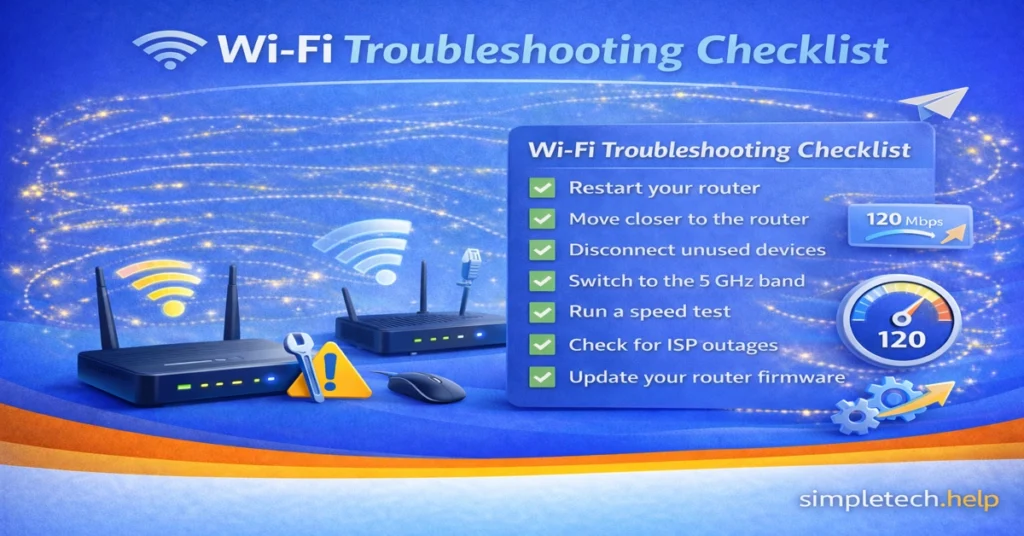
Quick Slow Wi-Fi Troubleshooting Checklist
If you want a fast fix, try these steps in order:
- Restart your router.
- Move closer to the router.
- Disconnect unused devices.
- Switch to the 5 GHz band.
- Run a speed test.
- Check for ISP outages.
- Update your router firmware.
Most slow Wi-Fi problems are solved within the first three steps.
When to Consider Upgrading Equipment
Since technology continues to evolve rapidly, hardware can become outdated more quickly. Sometimes, the issue with a slow Wi-Fi connection is the hardware.
You may need new equipment if:
Your router is more than 5 years old. Since internet service providers continue to expand and improve their services, they also improve their hardware. Check in with your provider to ensure that you have the right equipment.
You have dead zones in multiple rooms. If you have dead zones in your home, you can buy equipment to minimize them.
Speeds never match your internet plan. When you agree to an internet service plan, you pay to receive a specific level of service. If the speeds do not match your plan, contact your provider and discuss your options.
You experience frequent disconnects. Wi-Fi is not designed to drop frequently. If you experience frequent disconnects, have your equipment checked and replace it as necessary.
Modern routers and mesh systems provide better coverage and stability.
Final Thoughts
Slow Wi-Fi is frustrating, but it’s usually fixable.
In most cases, the cause is one of these:
- Distance from the router
- Too many connected devices
- Outdated equipment
- Network congestion
Start with simple fixes like restarting your router and moving closer. If problems persist, work through the troubleshooting checklist step by step.
With a little testing, you can usually restore your Wi-Fi speed without needing a technician.
Learning and Next Steps
As you get more comfortable troubleshooting slow Wi-Fi, it helps to understand the common causes behind connection and device performance issues.
- Phone Storage Full: Understand how low storage can slow down apps and internet performance
- Troubleshooting Framework: Follow a simple step-by-step process to solve almost any tech problem
- Internet and Wi-Fi Basics: Learn more about connecting to the internet, setting up your equipment, and securing your signal.
The more you understand how your internet and devices work together, the easier it becomes to fix slow speeds and avoid frustration. And remember: most “slow Wi-Fi” problems are caused by a small number of common issues. Once you know what to check, they’re usually quick to fix.