Last Updated on March 27, 2026 by Simple Tech Help
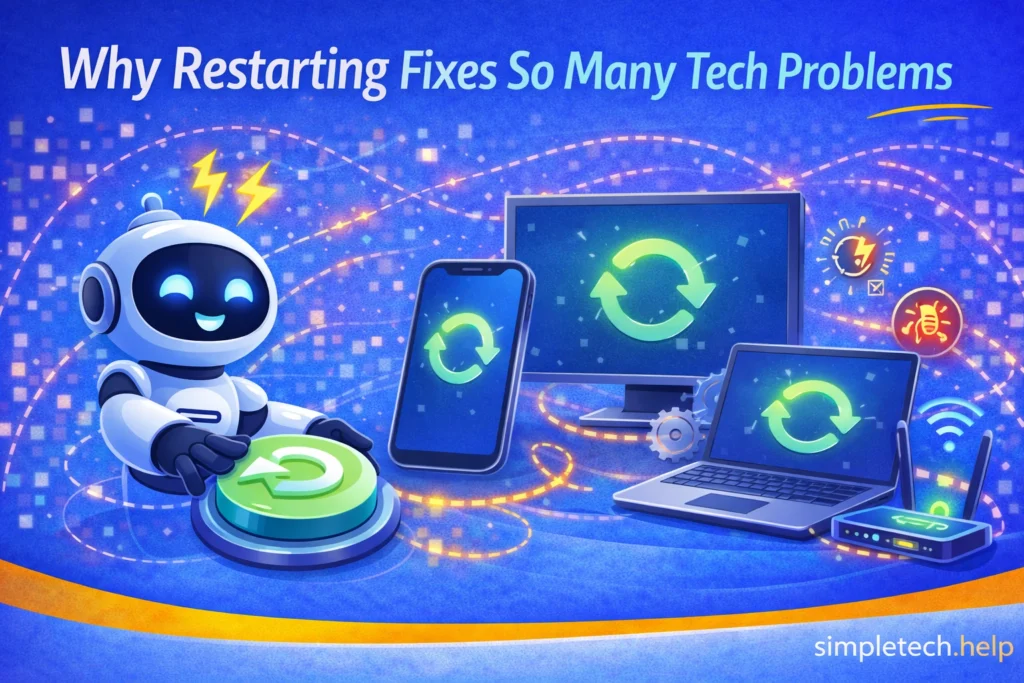
If you’ve ever been told to “restart your device,” it might feel like a simple or even frustrating suggestion. But restarting works surprisingly often, and for good reason.
Whether your phone is slow, apps are crashing, or nothing is loading, restarting your device is one of the most effective first steps for troubleshooting.
What Happens When You Restart a Device?
When you restart your device, including your phone, computer, tablet, or smart TV, it:
- Shuts down all running apps and processes
- Clears temporary memory (RAM)
- Stops background tasks
- Reloads the operating system
In simple terms, it gives your device a fresh start. Restarting shuts down apps and processes and clears memory, including any cached data. It reloads the operating system, causing it to reboot, which may also refresh any apps that stopped operating as intended.
Why Devices Run Into Problems
Over time, devices can become overloaded or confused. Apps cache data, and if you have installed several apps, they can bog down the device’s operating system, especially if you are low on storage.
Common causes why devices run into problems include:
- Too many apps running
- Background processes piling up
- Temporary software glitches
- Memory (RAM) being overused
These small issues can build up and cause noticeable problems, such as apps crashing, nothing loading, nothing working, and a device that connects to the internet but doesn’t work.
Myth: “Restarting doesn’t actually fix anything.”
Reality: Restarting clears temporary issues that cause many common problems.
It solves many software-related problems, thereby improving how the hardware works.
How Restarting Fixes Common Problems
Restarting clears many of these temporary issues at once.
Fixes Slow Performance
When your device is slow, it’s often because too many processes are running simultaneously. Some people clutter their phones with too many apps, which slows them down.
Example: Your phone feels laggy or takes a long time to open apps.
A poor Wi-Fi signal, full phone storage, and an outdated operating system can also slow a phone down.
Restarting clears memory and improves performance, which can help with those problems, since something may be blocking them.
Stops App Crashes
Apps can freeze or crash due to temporary glitches. Sometimes an update does not install correctly or encounters an error, causing the app to crash.
Example: An app won’t open or keeps closing unexpectedly.
Restarting resets the app environment, which can cause the problematic app to finish installing correctly.
Resolves Internet and Loading Issues
Sometimes the issue isn’t your connection. It’s your device, which doesn’t load anything.
Example: Websites or apps won’t load even though your device is connected to Wi-Fi.
Restarting refreshes network connections, so that your phone starts working again as expected.
Fixes Freezing or Unresponsive Screens
Devices can freeze when overwhelmed. If you download and install over 50 apps on your device, they eat up storage space, battery power, and computing power.
Example: Your screen won’t respond, or apps stop running, making it seem like nothing is working on your phone.
Restarting forces the system to reset, which can resolve issues affecting your phone or other device.
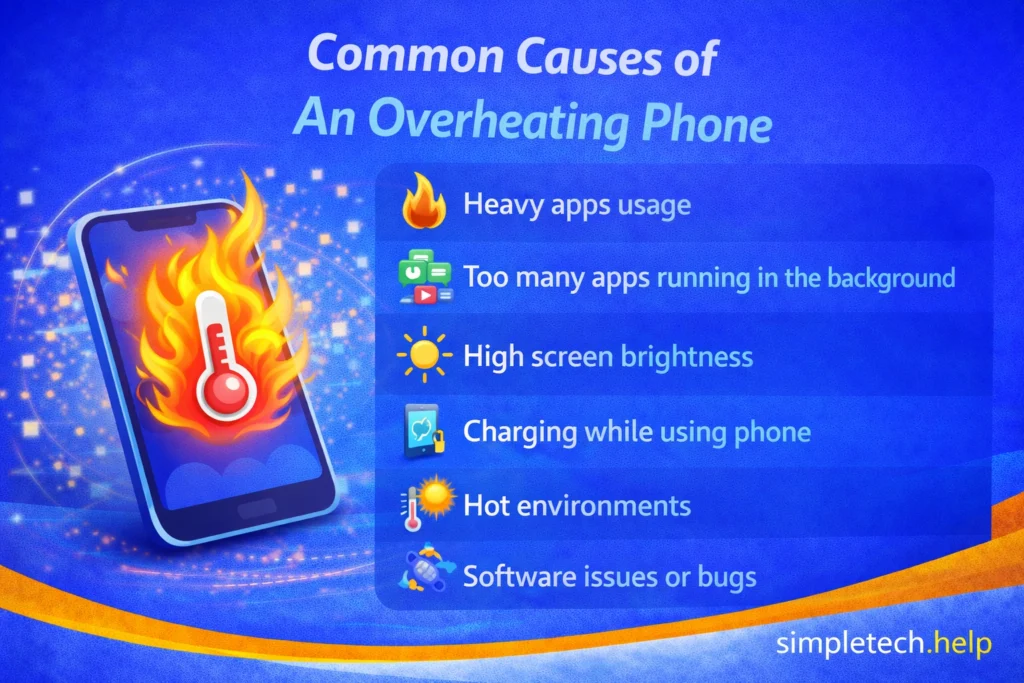
Helps with Battery and Overheating Issues
Background activity can drain your battery and generate heat. Sometimes an app or operating system update downloads automatically, but it does not install correctly. The update continues trying to fix itself, but it works so hard that it overheats your device.
Example: Your phone battery drains quickly or feels hot.
Restarting stops unnecessary processes. It can also help cool down the device.
Devices That Benefit from Restarting
Restarting isn’t just for phones.
You can also restart:
- Smartphones
- Tablets
- Laptops and desktop computers
- Smart TVs and streaming devices
- Wi-Fi routers
Almost any device can benefit from a restart.
Mistake: Ignoring restart as a simple fix
Example: Trying multiple complicated fixes before restarting
Why it’s a problem: You may waste time troubleshooting issues that a restart could fix immediately
Fix: Start with a restart before trying advanced steps
How to Restart Different Devices
Restarting most devices is simple, but the steps can vary slightly depending on what you’re using.
Use this quick guide to restart common devices.
How to Restart an iPhone
To restart most iPhones, you’ll follow four steps:
- Press and hold the side button + volume button
- Slide to power off
- Wait a few seconds
- Press and hold the side button to turn it back on
If you’re trying to restart a frozen iPhone, you’ll need to Force Restart it by:
- Quickly press and release Volume Up
- Quickly press and release Volume Down
- Press and hold the side button until the Apple logo appears
Once your iPhone finishes restarting, test the app or check for any other issues to see if they have been fixed.
How to Restart an Android Phone
To restart most Android devices, you will:
- Press and hold the power button
- Tap Restart or Power Off, and then turn it back on
If you’re attempting to restart a device with a frozen screen, you will Force Restart it by:
- Press and hold the power button for 10–20 seconds
- The device should restart automatically
After the Android device restarts, test the issue that was causing it to fail to ensure it is fixed.
How to Restart a Computer
How you restart your computer, including a laptop, depends on the type you own. You do not restart Windows and Mac computers the same way.
To restart a Windows computer:
- Click the Start menu
- Select Power
- Click Restart
To restart a Mac computer:
- Click the Apple menu (top left)
- Select Restart
If your Windows or Mac computer is frozen:
- Press and hold the power button until it shuts down
- Wait a few seconds, then turn it back on
👉 Only use Force Restart if a normal restart isn’t working, as it could damage your computer over time.
How to Restart a Wi-Fi Router
Restarting your router can fix internet issues, such as a weak signal, a signal that disconnects, or one that prevents your device from connecting.
Restart a Wi-Fi router by:
- Unplug the router from power
- Wait 30–60 seconds
- Plug it back in
- Wait for the connection to fully restore
If your devices are experiencing a slow Wi-Fi connection, connection drops, or cannot connect, restarting the router can clear up what may be causing them.
Restarting Other Devices
Many Wi-Fi-enabled tech devices experience similar issues and require the occasional restart to clear their caches and refresh their connections.
You can also restart:
- Tablets
- Smart TVs
- Streaming devices
Usually, you can restart them by:
- Hold the power button
- Select Restart or Power Off
- Turn it back on
Reminder::
- Restarting is safe and doesn’t delete your data
- Use force restart only if your device is unresponsive
- Restarting regularly can prevent issues before they start
How Often Should You Restart?
You don’t need to restart constantly, but doing it regularly helps.
General guideline:
- Once every few days for heavy use
- Once a week for normal use
- Anytime something isn’t working properly
Think of restarting as basic maintenance for your device.
When Restarting Is NOT Enough
Restarting works for many issues, but not all.
If problems continue after restarting, the cause may be:
- Low storage space
- Outdated apps or software
- Internet connection issues
- Hardware problems
In these cases, you’ll need to troubleshoot further.
Simple Troubleshooting Rule
When something goes wrong:
- Restart your device
- Check the most obvious issue (apps, internet, storage)
- Follow a step-by-step troubleshooting process
Restarting is your first step, not your only step.
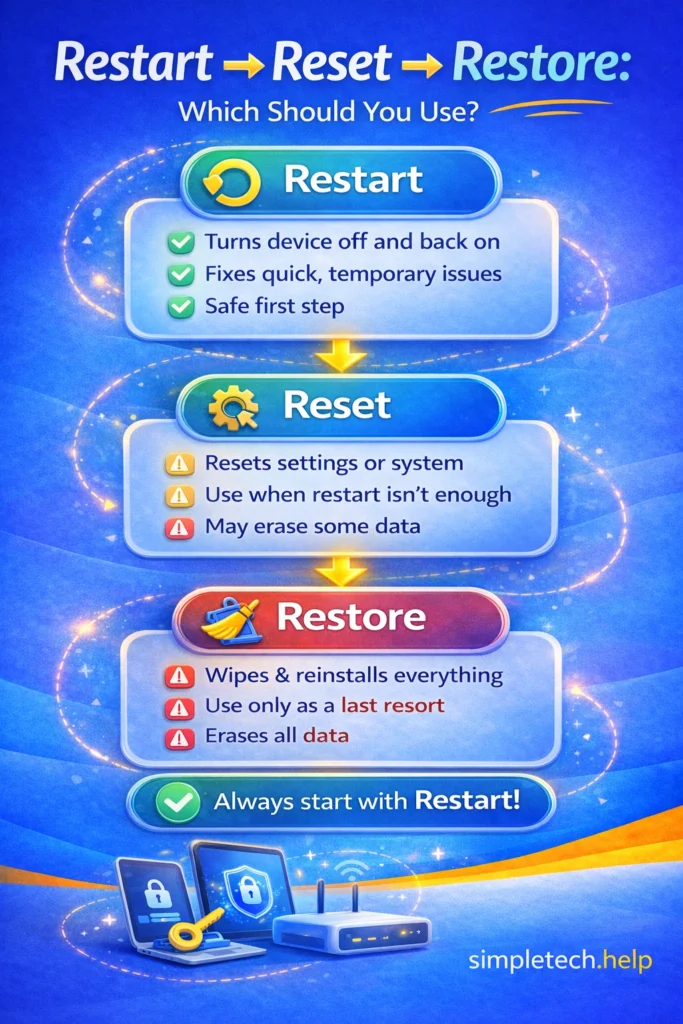
Restart vs Reset vs Force Restart: What’s the Difference?
These terms sound similar, but they mean very different things. Understanding the difference helps you choose the right action without risking your data.
Restart: Safe and Recommended First Step
A restart turns your device off and back on.
Restart:
- Closes apps and background processes
- Clears temporary memory (RAM)
- Refreshes the system
Use Restart when:
- Your phone is slow
- Apps are glitching
- Something isn’t loading
Restart is the safest and most common fix.
Force Restart When Your Device Is Frozen
A force restart forces your device to shut down and then restart, even if it’s unresponsive.
Force Start:
- Immediately resets the device
- Bypasses frozen screens or unresponsive apps
Use Force Start when:
- Your screen is frozen
- Your device won’t respond to touch or buttons
- A normal restart isn’t working
Think of Force Start as an emergency restart.
Reset (Use With Caution)
A reset restores your device or settings.
There are different types of resets, Settings and Factory.
Settings Reset:
- Resets things like Wi-Fi, Bluetooth, or system settings
- Does not delete your personal data
Factory Reset or Full Reset:
- Erases everything on your device
- Restores it to original factory settings
When to use a reset:
- Serious or ongoing problems
- Preparing to sell or give away your device
A factory reset should be a last resort, not a first step.
Simple Way to Remember
- Restart = Refresh (safe, everyday fix)
- Force Restart = Emergency refresh (when frozen)
- Reset = Start over (advanced, last resort)
Before doing a factory reset, make sure your data is backed up and understand that everything will be erased.
If you’re unsure, try restarting first or follow a step-by-step troubleshooting guide.
Learning & Next Steps
Now that you understand why restarting works, the next step is using it as part of your regular troubleshooting routine.
When something feels off, such as slow performance, apps not working, or connection issues, start with a restart before trying anything more complicated.
This simple habit can save time and reduce frustration.
Bookmark this guide so you can return anytime your device isn’t working as expected.
These guides pair well with what you’ve learned here:
You can also take a look at:
The more you understand how your device works, the easier it becomes to fix problems quickly. And remember: restarting isn’t a shortcut. It’s a proven solution.
Frequently Asked Questions
Restarting a device can help resolve several issues. Here are answers to some frequently asked questions about restarting a device.
Why Does Restarting Fix so Many Problems?
Restarting a device fixes so many issues because it clears temporary memory, stops background processes, and resets the system.
Should I Restart My Device Every Day?
Not necessarily. Restarting once a week or when issues appear is usually enough.
Does Restarting Delete Anything?
No. Restarting does not delete your files, apps, or data.
What’s the Difference between Restart and Shutdown?
Restart turns the device off and back on automatically. Shutdown requires you to turn it back on manually.
Why doesn’t restarting fix everything?
Because some problems are caused by storage issues, outdated software, or hardware, not temporary glitches.