Last Updated on April 14, 2026 by Simple Tech Help
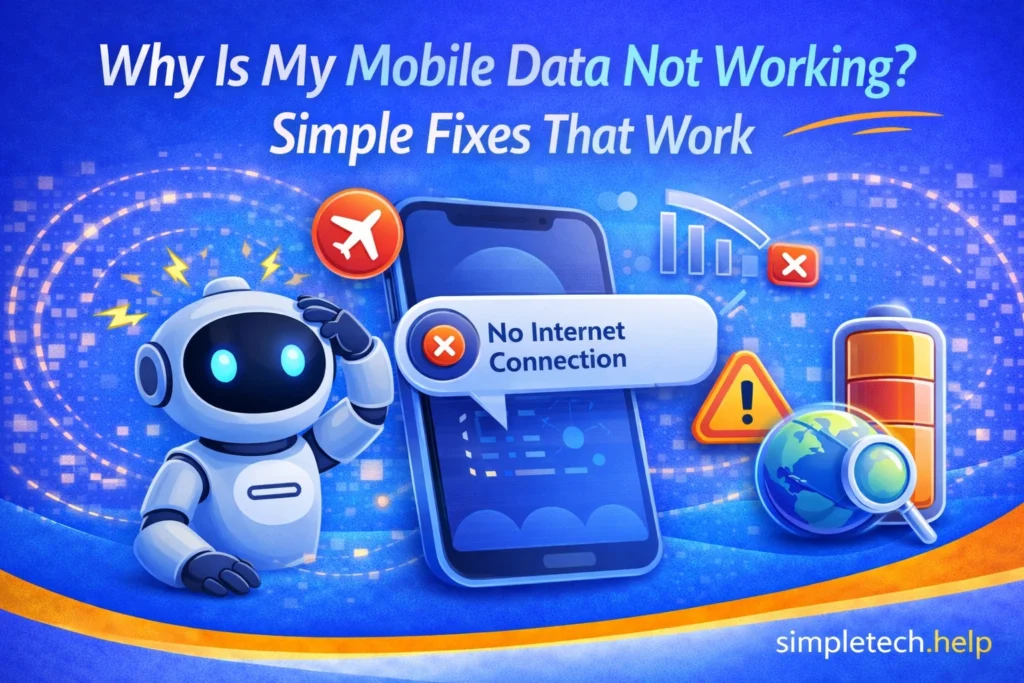
If your mobile data is not working, you might notice that websites won’t load, apps won’t refresh, or messages won’t send unless you connect to Wi-Fi.
Sometimes mobile data does not work, but it’s easy to fix.
Before assuming something is wrong with your phone or plan, go through a few simple checks. Many data problems can be resolved in just a few minutes.
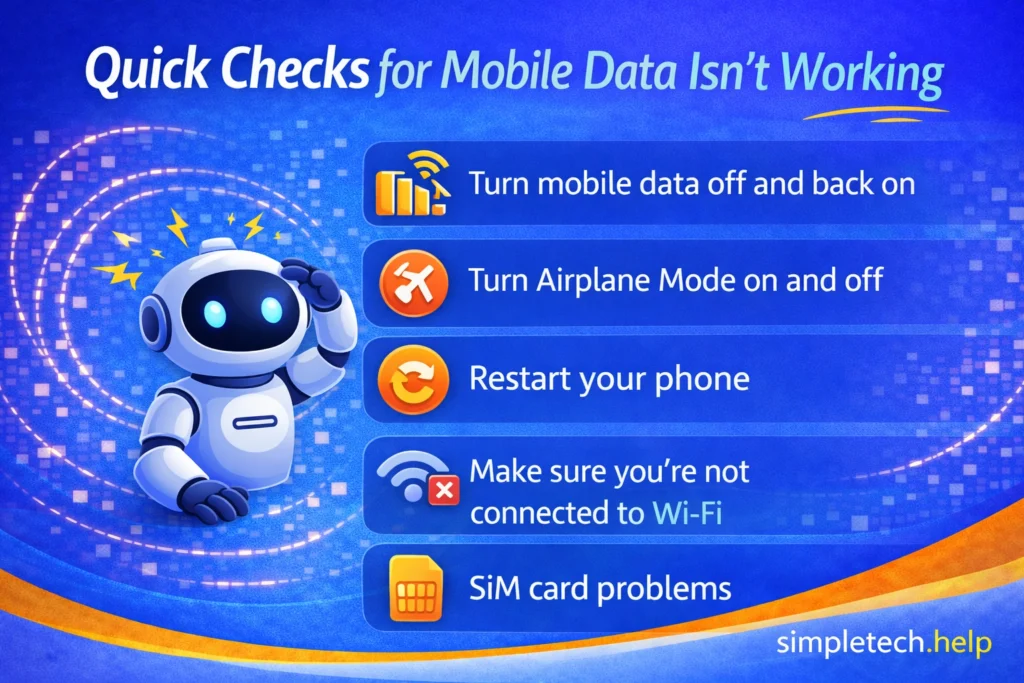
Quick Checks for Data Not Working
Before troubleshooting further, try these quick checks:
- Turn mobile data off, then back on
- Turn Airplane Mode on, then off
- Restart your phone
- Make sure you’re not connected to Wi-Fi
These quick steps often restore your connection right away. For example, your mobile data might be stuck. Restarting the service could stop the process causing it to fail and allow it to reconnect.
What “Data Not Working” Usually Means
When mobile data isn’t working, you may experience:
- No internet connection without Wi-Fi
- Apps stuck loading or not refreshing
- Messages not sending
- Slow or inconsistent connection
This guide will help you identify the cause and fix it step by step.
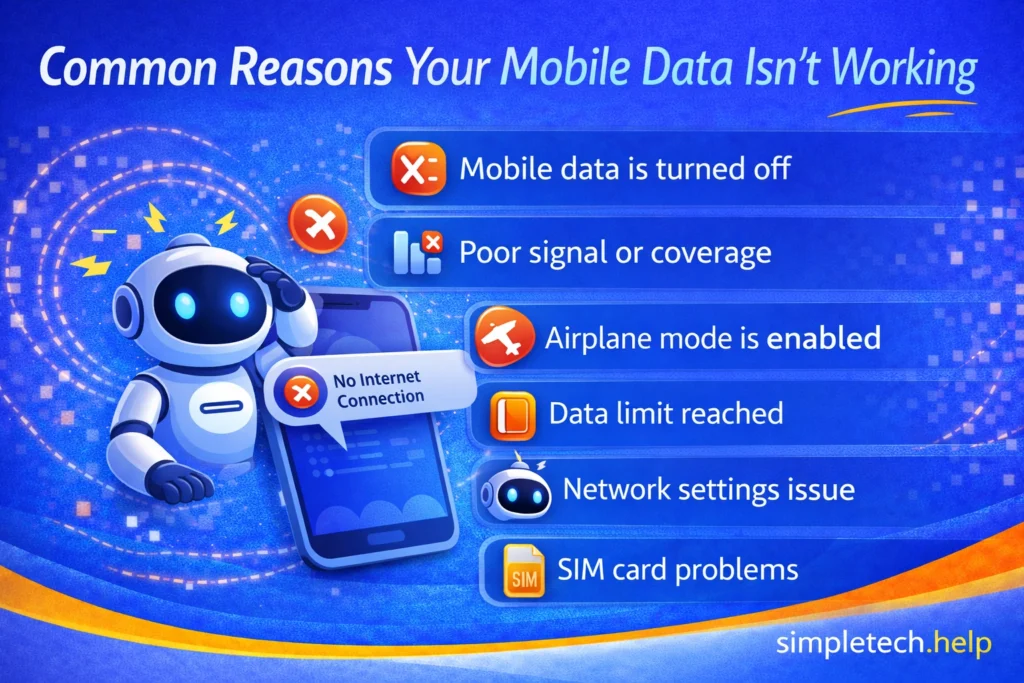
Common Reasons Your Mobile Data Isn’t Working
When your mobile data fails to connect, knowing the common causes helps you troubleshoot it now and in the future.
Mobile Data is Turned Off
It sounds simple, but this is one of the most common causes. Sometimes, people accidentally turn off their mobile data. Since cellular data can show up in the widgets area, it’s easy to accidentally toggle it off when adjusting your phone’s volume or brightness.
What to do:
- Go to your phone’s settings
- Make sure mobile data is turned on
If your mobile data is not on, toggle it back on. Give your phone a few seconds to re-adjust to the setting and try opening a web page or app.
Poor Signal or Coverage
If you’re in an area with a weak signal, your phone may struggle to connect. Although internet service providers have invested in equipment that extends cellular signals farther, some areas still lack reliable cellular data service.
What to do:
- Move to a different location
- Go outside or closer to a window
- Check if others nearby have signal
Weather and other circumstances can also cause your mobile data connection to fail, even in areas that normally have a strong signal. For example, severe weather storms and construction can disrupt signals.
When you travel by train, and the train goes underground, it disrupts your data signal. Once the train resurfaces, your phone will attempt to reconnect, but if it happens often, it will eventually fail until you restart the device, which helps it reboot.
Pro Tip: If your phone cannot connect to cellular data, toggle Wi-Fi off and try again. Sometimes, the Wi-Fi signal competes with a phone’s ability to connect to mobile data.
Wi-Fi vs Mobile Data: What’s the Difference?
When something isn’t working on your phone, it’s important to know whether the issue is with Wi-Fi or mobile data. While both connect you to the internet, they rely on different systems and fail for different reasons.
Wi-Fi vs Mobile Data Quick Comparison
| Feature | Wi-Fi | Mobile Data |
| Connection type | Router (home, work, public network) | Cellular network (your carrier) |
| Requires signal from | Wi-Fi router | Cell towers |
| Works without internet plan? | Yes (with Wi-Fi access) | No |
| Common issues | Slow router, weak signal, network outages | No signal, data limits, carrier issues |
| Where it works best | Indoors, near router | On the go, outdoors |
How to Tell Which One Is the Problem
If you’re not sure what’s causing the issue, try this quick test:
- Turn Wi-Fi off, then try using mobile data
- Turn Wi-Fi back on, and compare performance
If one works and the other doesn’t, you’ve found the source of the problem.
Beginner Mistake: Assuming mobile data and Wi-Fi are the same. Many users don’t realize that turning off Wi-Fi doesn’t automatically fix mobile data issues.
Fix: Check both connections separately
Make sure:
- Wi-Fi is off (to test data properly)
- Mobile data is turned on
Airplane Mode is Enabled
Airplane Mode disables all wireless connections, including mobile data. Additionally, Airplane Mode shows up in the widgets area. Therefore, it’s easy to accidentally turn on the setting.
What to do: Turn off Airplane Mode in your settings
After you turn it off, try opening a web page or app to see if you found the problem.
Data Limit Reached
Some mobile plans include data limits. If you exceed your limit, your data may slow down or stop.
What to do:
- Check your mobile plan
- Look for usage alerts from your carrier
Additionally, if you need more data than your current plan provides, consider speaking with your carrier to see if they offer a plan that better suits your needs.
Network Settings Issue
Sometimes your phone may have trouble connecting to your carrier’s network.
What to do:
- Toggle mobile data off and on
- Restart your phone
- Reset network settings (if needed)
If that does not work, check with your carrier.
Sometimes your phone may have trouble connecting to your carrier’s network due to issues on their end. One app you should download and install on your phone is your mobile carrier’s app.
The major carriers provide important account information and updates regarding their service. So, if your phone cannot connect to mobile data, it may be due to a network issue on your carrier’s end.
Software or System Glitches
Temporary bugs can interfere with connectivity, especially if you have not updated the phone’s operating system, files, and apps. Outdated apps become incompatible with your phone’s operating system, and an outdated operating system has less support from its manufacturer.
What to do:
- Restart your device
- Check for system updates
- Update apps
Restarting your phone forces all apps and processes to stop, close, and reset. When you turn it back on, it restarts everything, which could fix software and system glitches that prevented your phone from connecting to mobile data.
Myth: “If data isn’t working, my phone is broken.”
Reality: Most mobile data issues are caused by signal, settings, or temporary glitches—not hardware problems.
SIM Card Problems
Your SIM card connects your phone to your mobile network.
What to do:
- Remove and reinsert the SIM card (if possible)
- Check if the SIM is damaged
If everything looks fine, reinsert the SIM card and restart your phone.
How To Tell if It’s Your Phone or the Network
There are two main reasons why your phone cannot connect to mobile data: the phone or the network.
Ask yourself:
- Do other people nearby have signal?
- Does your phone connect to Wi-Fi normally?
If others also have no signal → it may be a network issue.
If only your device is affected → it may be a phone issue.
What If Mobile Data Isn’t Working on Other Devices?
Mobile data issues don’t just affect phones. Other devices that rely on cellular connections, like tablets and smartwatches, can run into similar problems.
The causes are often the same, but how they appear may be slightly different.
Tablets with Cellular Data
Some tablets, like iPads or Android tablets with SIM cards, can connect to mobile networks just like a phone.
If mobile data isn’t working on a tablet, it may be due to:
- A disabled cellular setting
- An inactive or missing SIM card
- A data plan that isn’t active
- Weak signal in your area
These are similar to why a phone might not connect to data.
What to try:
- Check that Cellular Data is turned on
- Restart the tablet
- Confirm your data plan is active
In most cases, one of these three basic troubleshooting steps will work.
Smartwatches with Cellular (LTE)
Smartwatches with cellular support can send messages, make calls, and use apps without a phone, but only if the connection is working properly.
If data isn’t working on a smartwatch, common causes include:
- The watch is not connected to your carrier plan
- Being out of cellular range
- Sync issues with your phone
If your smartwatch is experiencing one of these issues:
- Check your watch’s cellular status in settings
- Make sure it’s linked to an active plan
- Restart both the watch and your phone
Like smartphones, data connection issues usually stem from glitches that can be fixed by restarting. Otherwise, the issue stems from the smartphone or your data plan provider.
Why This Happens Across Devices
Even though devices look different, they rely on the same core systems:
- Carrier networks
- SIM or eSIM connections
- Signal strength
👉 If mobile data isn’t working on one device, similar issues can affect others on the same network.
Simple Way to Think About It
- Wi-Fi problem → issue with your internet source (router/network)
- Mobile data problem → issue with your carrier or signal
Understanding this difference helps you troubleshoot faster, no matter what device you’re using.
When Mobile Data Issues May Be More Serious
If your data still doesn’t work after trying multiple fixes, it could be due to:
- SIM card failure
- Carrier issues
- Account or billing problems
In these cases, contacting your mobile provider may be necessary.
How To Prevent Mobile Data Problems
After you find the reason your mobile data was not working, you will know how to fix the issue if it happens again.
Maintaining and troubleshooting technology requires the right mindset and good habits. You can prevent your mobile data from malfunctioning by:
- Keeping your phone updated
- Monitoring your data usage
- Restarting your phone occasionally
- Avoiding areas with poor signal when possible
These simple habits can help maintain a stable connection.
Quick Summary
Here are key things to remember about mobile data issues:
- Mobile data issues are common and usually easy to fix
- Start with simple steps like restarting and toggling settings
- Check signal, data limits, and SIM card
- Most issues are not serious
Learning & Next Steps
Now that you understand why your mobile data may not be working, the next step is to identify whether the issue is related to your connection, your device, or your network.
Start with the simplest fixes, like restarting your phone or checking your settings, before moving on to more advanced steps.
Bookmark this guide so you can return anytime your data stops working. Connectivity issues are common, and knowing what to check can save time and frustration.
As you continue troubleshooting, these guides can help:
- Why Is Nothing Loading on My Phone?: Fix apps and websites that won’t load
- Why Is My Wi-Fi So Slow?: Understand connection issues at home
- Internet Connected but Not Working: Solve confusing connection problems
- Troubleshooting Framework: Follow a step-by-step process for any issue
The more you understand how your phone connects to the internet, the easier it becomes to fix problems quickly. And remember: most data issues are temporary—you just need to know where to look.
Frequently Asked Questions
When mobile data isn’t working, there are several ways to fix it. In addition, here are some frequently asked questions about data not working.
Why is my mobile data on but not working?
A poor signal, network issues, or incorrect settings can cause your mobile data to connect but not work.
Why does my data work sometimes but not always?
Sometimes data does not work due to a weak signal or network congestion in your area.
Should I reset network settings?
You can try resetting the network settings if the basic steps don’t work, but it will remove any saved Wi-Fi networks and passwords.
Why is my data so slow?
Slow data can be caused by poor signal, network congestion, or reaching your data limit.
When should I contact my carrier?
If your data still doesn’t work after troubleshooting, your carrier can check for account or network issues.