Last Updated on May 6, 2026 by Simple Tech Help
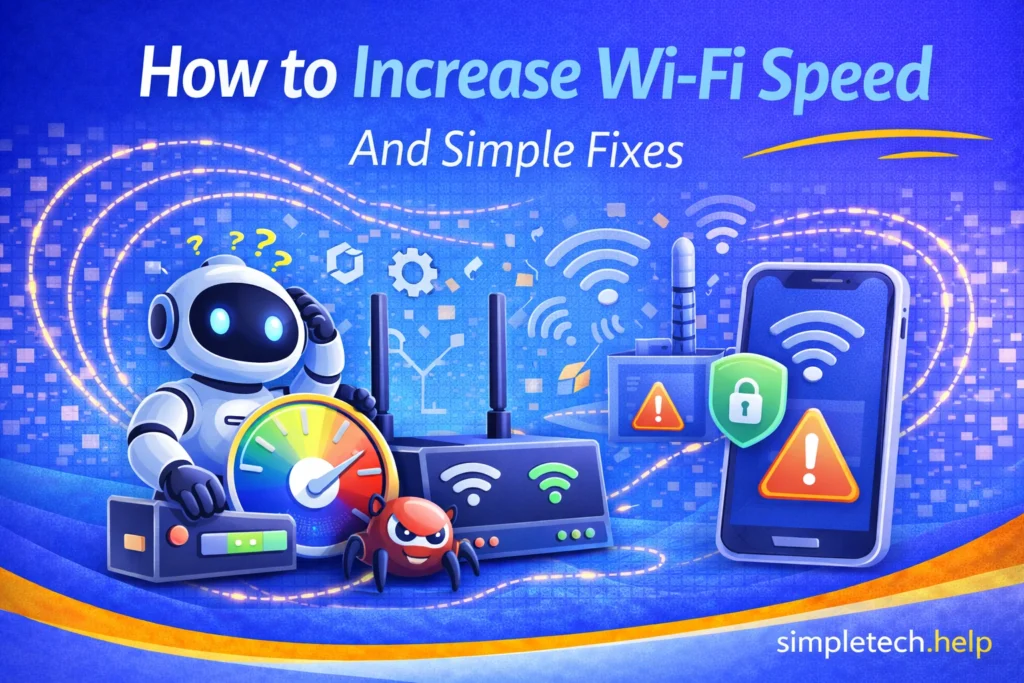
An internet speed that doesn’t meet your needs can be frustrating, especially when videos buffer, apps don’t load, or everything feels delayed. Many times, you can increase your home Wi-Fi speed by following a few simple steps.
Not Sure What’s Causing the Wi-Fi Slowdown?
Start here →
Why is my Wi-Fi slow?
Once you understand the causes of slow Wi-Fi, you can often increase your Wi-Fi speed with a few changes.
Quick Fixes to Increase Wi-Fi Speed
Before diving deeper, try these simple steps:
- Restart your router
- Move closer to your Wi-Fi source
- Disconnect unused devices
- Switch between 2.4 GHz and 5 GHz
These simple steps often fix speed issues immediately. Taking just a few minutes to restart your router, reposition it, and disconnect unused devices can lead to noticeable improvements.
If you’re searching for more information, this guide will walk you through:
- How to increase Wi-Fi speed step-by-step
- How much Wi-Fi speed you need
- Why your Wi-Fi might be slow
- How to improve performance across all your devices
Then, you’ll have the knowledge to maintain the Wi-Fi speed.
How to Increase Wi-Fi Speed Step-by-Step
When increasing home Wi-Fi speed, start by restarting the router.
Restart Your Router
Restarting the router clears temporary issues and refreshes your connection.
Glitches, slow-running processes, and the need for updates can bog down a router, like a smartphone, causing it to perform poorly.
What to do:
- Unplug your router
- Wait 30 seconds
- Plug it back in
After the router restarts, wait one minute, then test the connection. Try opening an app that was crashing or streaming a show or movie. If either one works, your internet speed has increased.
Example: If your Wi-Fi suddenly slows down, restarting the router often fixes the speed issue.
Mistake: Restarting only your device and not the router.
An internet speed issue often stems from the network, not the device.
Fix: Restart your router first, then your device. Restarting resolves many speed issues and other issues.
Move Closer to Your Router
Distance affects signal strength. A home Wi-Fi can extend 150 feet indoors and 300 feet outdoors with no obstructions. The further away your device is from the router, the weaker the signal becomes.
What to do:
- Stay within range
- Avoid walls or obstacles
When you need a fast Wi-Fi speed, stand near the router.
Example: Your phone works fine near the router, but slows down in another room.
If you cannot avoid using your connected device away from the router, you may need to setup a extenders or a Wi-Fi mesh system.
Myth: “Paying for faster internet always fixes slow Wi-Fi.”
Reality: Speed issues are often caused by signal strength, interference, or device overload, not just your plan.
Switch Wi-Fi Bands: 2.4 GHz vs 5 GHz
Most people turn on their routers without knowing whether they are connected to the 2.4 GHz or 5 GHz band. Each one has a purpose.
- 2.4 GHz: Longer range, slower speed
- 5 GHz: Faster speed, shorter range
When you need to connect and use your home Wi-Fi on your smartphone in a room away from the router, use 2.4 GHz. Gamers and streamers should use 5 GHz in the same room as the router.
Example: Use 5 GHz when close to the router for faster speeds.
Disconnect Unused Devices
When you use public Wi-Fi in crowded places, such as sporting events, train stations, or theme parks, you may notice the Wi-Fi signal degrading. Too many devices sharing the same home Wi-Fi connection can do the same.
What to do:
- Turn off unused devices
- Disconnect old or unknown devices
Turn off or disconnect unused devices from your home Wi-Fi to relieve network congestion. Next, disconnect old or unknown devices.
Reposition Your Router
Router placement matters more than most people think.
Although an indoor Wi-Fi signal can reach 150 feet, and an outdoor signal can reach 300 feet, both are sensitive to obstructions. Buildings, furniture, and electrical devices can block the internet signal from reaching your devices.
What to do:
- Place the router centrally
- Keep the router elevated
- Avoid corners or behind furniture
The best place to put a router in your home is on top of a shelf, away from electrical devices such as television sets.
Example: A router hidden behind a TV may reduce signal strength and speed.
Update Your Router
Like tech devices, routers need updates to improve performance and security. Your internet service provider releases firmware updates. You just need to ensure that the updates installed correctly. Otherwise, they might slow down your internet signal.
When necessary, restart the router to ensure it completes the firmware updates correctly.
Reduce Background Usage
Most users install more apps than they interact with regularly. Those apps and their updates may use bandwidth without you noticing.
What to do:
- Pause downloads
- Close unused apps
You can increase home Wi-Fi speed by pausing downloads and closing unused apps.
You can also unclutter your phone by creating a digital app stack.
Upgrade Your Equipment If Needed
Older routers may struggle with modern usage.
Professionals recommend updating routers every three to five years.
Example: If your router is several years old, upgrading can significantly improve speed.
Visit your internet service provider and speak with a representative who can provide additional guidance on your options. It’s also a good time to discuss your Wi-Fi speed needs.
Check Your Internet Plan
Sometimes the issue isn’t your Wi-Fi. Instead, it’s your plan. In some cases, your plan does not provide the internet speed you need, and upgrading can help.
What to do:
- Run a speed test
- Compare with your plan
If speeds are lower than expected, contact your provider.
Why Someone Would Want to Increase Wi-Fi Speed
Wi-Fi speed affects almost everything you do online.
In any given household, someone may use the internet to work remotely as a freelancer and video conference, another may need it to complete their schoolwork, and others may use it to check their email.
The Pew Research Center found that 78% of adults subscribe to an internet service, such as high-speed broadband. They connect several devices to their internet, including smartphones, smart TVs, and other smart devices, such as their thermostats.
A high Wi-Fi speed ensures that all the devices run optimally. Moreover, some people need higher speeds for streaming, gaming, and connecting multiple devices.
Otherwise, slow Wi-Fi can cause:
- Buffering when streaming videos
- Lag during video calls
- Slow downloads and uploads
- Apps crashing or not loading properly
- Devices disconnecting or freezing
A poor internet connection makes it difficult to complete your tasks. It also makes your device work harder and can lead to other issues, such as a phone battery draining quickly or a phone overheating.
Real-Life Examples of Slow Wi-Fi
An internet connection that does not provide the speed you need may cause:
- Your phone won’t load apps or videos
- Your computer struggles during work calls
- Your smart TV buffers while streaming
- Your game lags or disconnects
Faster Wi-Fi = smoother, more reliable experience.
Additionally, Wi-Fi speed varies with the number of connected devices, distance from the router, and network congestion.
How Much Wi-Fi Speed Do You Need?
Use this quick calculator to estimate the right speed for your home.
Wi-Fi Speed Calculator
Estimate how much internet speed you need based on your usage.
If your speed seems high but your internet is still slow, let’s explore the common causes.
Do People Need Different Wi-Fi Speeds?
Yes. Not everyone needs the same speed.
One person checking email does not need the same Wi-Fi speed as a family streaming, gaming, and making Zoom calls.
So, what Wi-Fi speed do you need?
Wi-Fi Speed “Tiers”
The following tiers can help you determine the optimal speed for your Wi-Fi needs.
Basic Use (10–50 Mbps)
Good for:
- Browsing websites
- Social media
Example: One person on a phone or laptop checking email and surfing the web.
Moderate Use (50–200 Mbps)
Good for:
- Streaming HD video
- Video calls
- Multiple devices
Example: Small household with several connected devices. The household streams in HD and makes video calls.
Heavy Use (200–500+ Mbps)
Good for:
- 4K streaming
- Online gaming
- Smart home devices
- Multiple users at once
Example: Families or power users who rely on connected and smart devices, such as video doorbells, thermostats, and security systems. The families have members who connect their devices to home Wi-Fi simultaneously, stream 4K video, and enjoy online gaming.
Ultra / Power Users (500 Mbps–1 Gbps+)
Good for:
- Large households
- Content creators
- Heavy downloads/uploads
This tier suits professional content creators who frequently download and upload. It also suits households with several members who connect to home Wi-FI simultaneously.
Keep in Mind: Most people don’t need faster internet. They need a better Wi-Fi setup.
Common Reasons Your Wi-Fi Is Slow
Understanding the causes of slow Wi-Fi helps you fix it and make it faster.
Weak Signal. If you’re far from the router, your connection weakens.
Network Congestion. Too many devices using Wi-Fi at once slows everything down.
Interference. Walls, furniture, and other electronics block signals.
Outdated Equipment. Older routers may not support faster speeds.
Internet Plan Limits. Your internet provider may cap your speed.
Most common causes of slow Wi-Fi at home are easy to fix. Here’s how.
How Increasing Internet Speed Affects Different Devices
When you increase your home’s internet speed, you should notice improved performance on your connected devices.
Phones & Tablets may experience faster app loading and smoother browsing and streaming.
Computers may support better video calls and faster downloads.
Smart TVs will experience less buffering and higher-quality streaming.
Gaming Devices may see reduced lag and more stable connections.
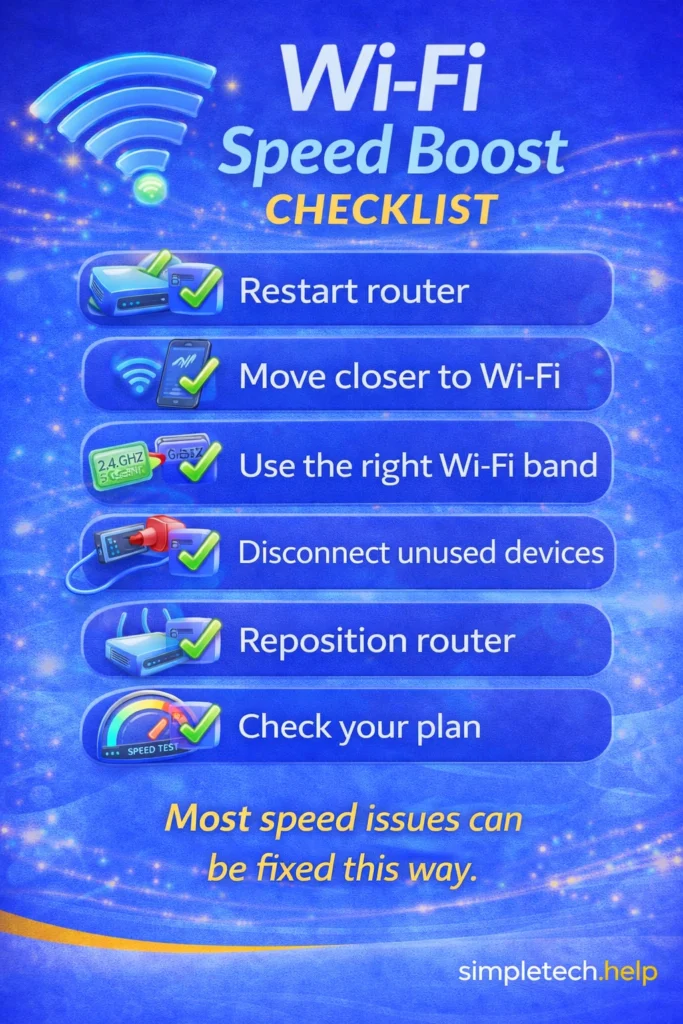
Quick Wi-Fi Speed Checklist
Keep this checklist handy when troubleshooting your home’s Wi-Fi speed.
- ✅ Restart router
- ✅ Move closer to Wi-Fi
- ✅ Use the right Wi-Fi band
- ✅ Disconnect unused devices
- ✅ Reposition router
- ✅ Check your plan
These steps fix most issues.
Learning & Next Steps
Now that you know how to improve your Wi-Fi speed, the next step is to understand why problems happen and how to fix them quickly when they return.
Start simple:
- Restart your router regularly
- Keep your setup organized
- Monitor how many devices are connected
Wi-Fi performance isn’t just about speed. It’s also about stability and consistency.
Bookmark this guide so you can return anytime your internet slows down.
As you continue improving your setup, these guides provide additional useful information:
Fix Related Issues
- Why Does My Internet Keep Disconnecting? Learn why your device keeps disconnecting from the internet.
- Internet Connected but Not Working: Explore why your device shows as connected to the internet, but the connection does not work.
Build Your Foundation
- Internet Basics: The basics of the internet, including changing your Wi-Fi’s password.
- Troubleshooting Basics: The basics of troubleshooting tech issues, such as slow devices and what to do when updates don’t work.
As technology continues to improve and evolve, staying up to date on the basics helps you use it with confidence.
Frequently Asked Questions
If your Wi-Fi speed is slow, there are steps you can take to speed it up.
Why is my Wi-Fi so Slow all of a Sudden?
It may be due to network congestion, interference, or temporary router issues. Restarting your router often helps.
Does Restarting the Router Really Help?
Yes. It clears temporary problems and refreshes your connection.
How Can I Make My Wi-Fi Faster for Free?
Move closer to the router, disconnect unused devices, and switch Wi-Fi bands.
Should I Upgrade My Router?
If your router is old or struggles with multiple devices, upgrading can improve speed and performance.
What’s the Difference Between Wi-Fi Speed and Internet Speed?
Internet speed comes from your provider, while Wi-Fi speed depends on your setup and environment.