Last Updated on April 14, 2026 by Simple Tech Help
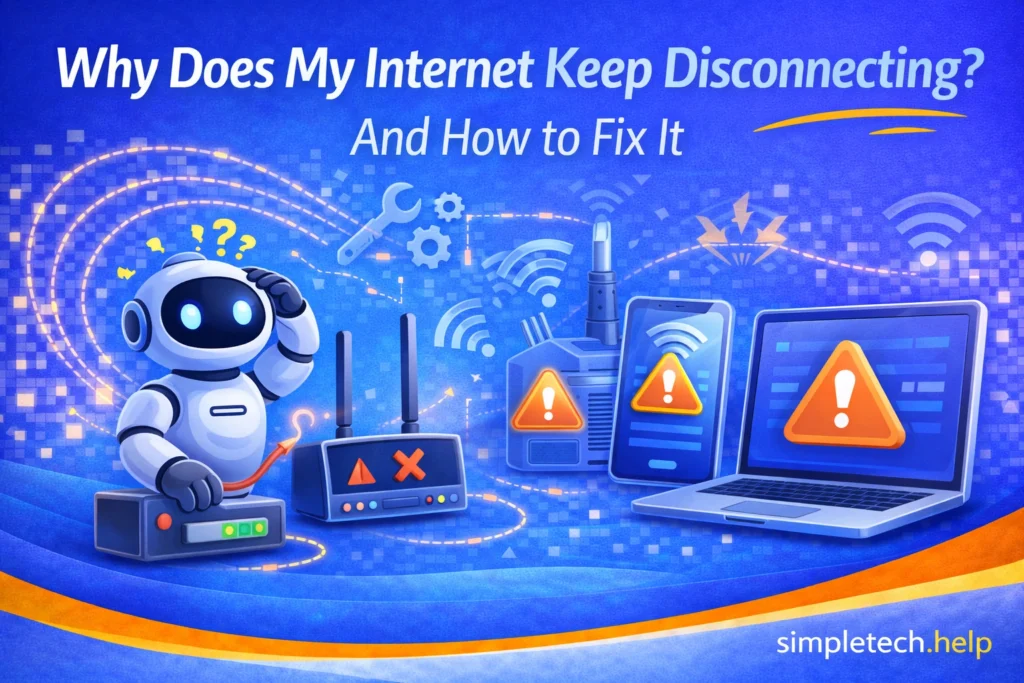
If your internet keeps disconnecting, working one moment and dropping the next, it can be frustrating.
This issue is very common and is usually caused by signal issues, device settings, or network interruptions, not by a broken device.
If your issue is speed (not disconnecting), go here: Speed up your Wi-Fi
Most causes are easy to fix once you know where to look.
Quick Fixes to Try First
Before diving deeper, try these troubleshooting steps:
- Restart your device
- Restart your router
- Move closer to your Wi-Fi source
- Turn Wi-Fi off and back on
These simple steps often fix temporary connection drops.
For example, a device or the router can become bogged down with cached data, too many connected devices, or several apps running in the background. Restarting clears up cached data, ends processes, and fixes glitches.
Essentially, restarting refreshes your devices, signal, and router.
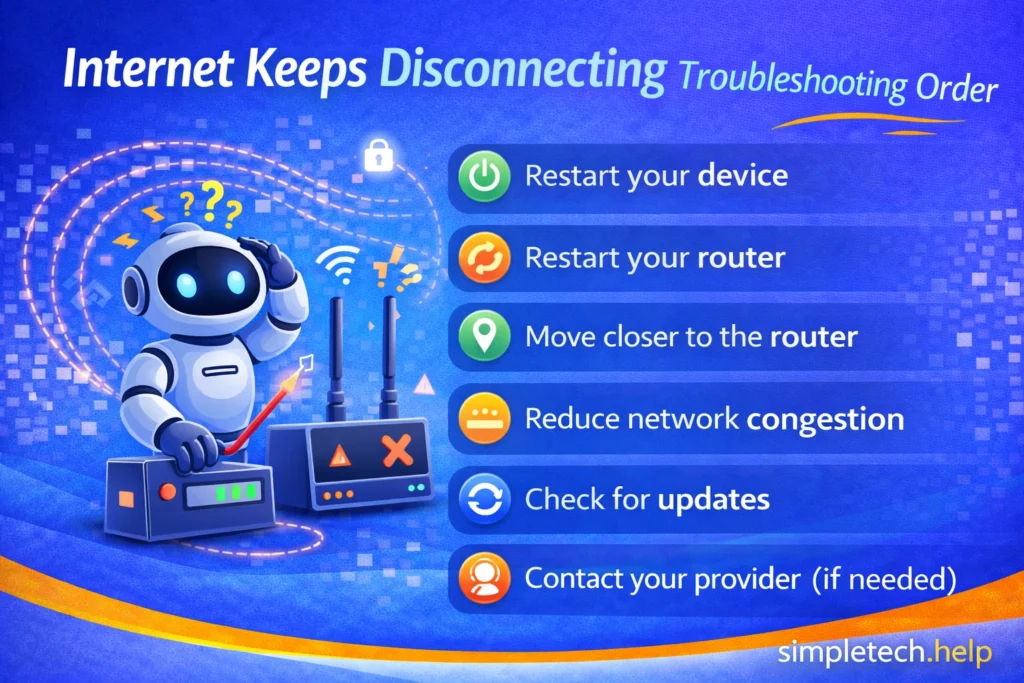
Simple Troubleshooting Order for an Internet Signal that Keeps Disconnecting
If your internet keeps disconnecting, follow these troubleshooting steps:
- Restart your device
- Restart your router
- Move closer to the router
- Reduce network congestion
- Check for updates
- Contact your provider (if needed)
Start simple and work step by step.
What “Internet Keeps Disconnecting” Means
To troubleshoot the issue of the internet disconnecting, let’s first define it.
An internet signal that keeps disconnecting typically looks like:
- Wi-Fi connects, then disconnects repeatedly
- Video calls freeze or drop
- Streaming buffers or stops
- Apps suddenly lose connection
- Pages load, then stop working
Unlike “connected but not working,” an internet connection that does not stay connected signals a stability issue rather than a complete failure.
Common Causes of an Internet Signal That Keeps Disconnecting and How to Fix Them
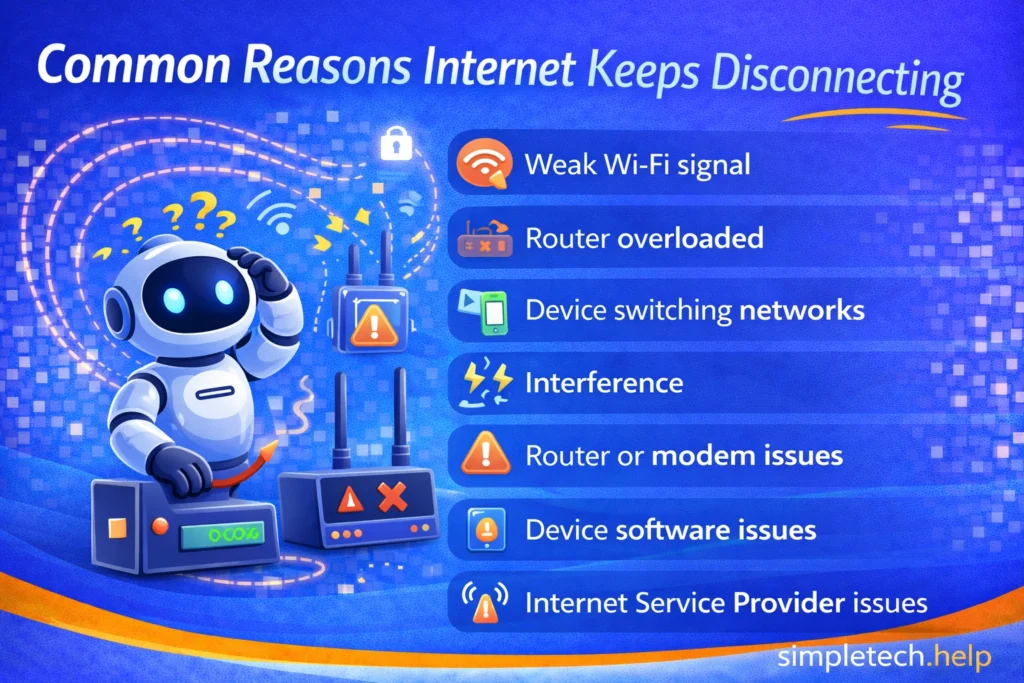
Understanding the causes of an internet signal drop, such as a weak Wi-Fi signal, makes the fix much easier to identify.
Weak Wi-Fi Signal
If you’re too far from your router, your connection may drop.
Wi-Fi signals are sensitive to interference, blockages, and location. The further away from the router or modem you hold your device, the weaker the signal becomes.
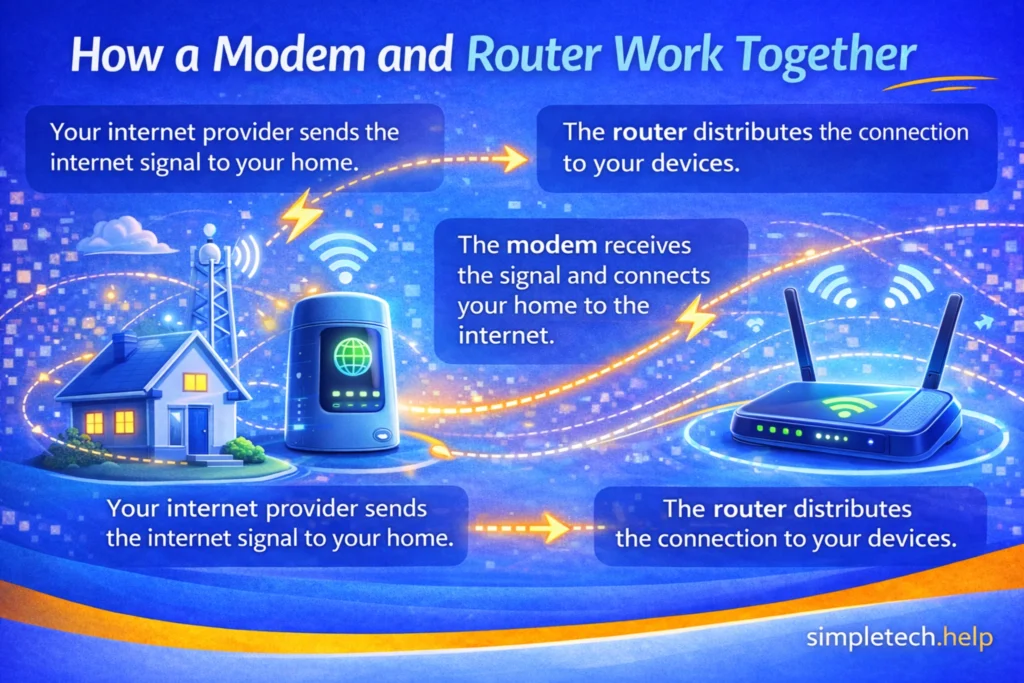
If you have a separate router and modem, they should sit within six feet of each other. Then, the router can send the signal up to 150 feet if there are no obstructions in its path.
Fix a weak Wi-Fi signal by:
- Move closer to the router
- Avoid walls or large obstacles
- Switch to 2.4 GHz for better range
Example: If your phone disconnects when you go to another room, it means the signal is too weak. Move closer or switch bands.
Router Overload
Too many connected devices can overwhelm your network. When you sign up for a home Wi-Fi service, your internet service provider discusses the details of your plan with you.
Some plans can support 20 connected devices with simultaneous streaming and gaming with no signal degradation. Others cannot.
If the router is overloaded, fix it by:
- Disconnect unused devices
- Restart your router
- Upgrade your router if needed
Example: Your smart TV buffers when multiple people are on Wi-Fi, indicating your network may be overloaded.
When your internet cannot handle multiple connected devices, you’ll need to pick which ones can stay connected and disconnect the rest. Additionally, if this happens frequently, contact your internet service provider to see if you can upgrade to another plan that fits your needs.
Mistake: Blaming the device immediately
Example: Assuming your phone is broken when Wi-Fi keeps dropping
Why it’s a problem: The issue is often the network, not the device
Fix it by checking:
- Other devices
- Router performance
- Signal strength
In this case, look at the bigger picture, which requires a troubleshooting mindset. You can also use the SimpleTech Troubleshooting Framework.
Device Switching Networks
Your device may switch between 2.4 GHz and 5 GHz networks. It is trying to optimize your signal, but it instead causes the signal to drop.
Fix a device that switches networks by:
- Manually connect to one network
- “Forget” weaker networks
Example: Your laptop briefly disconnects while you move around your home. It may be switching networks automatically.
Many modern devices support automatic switching between 2.4 GHz and 5 GHz networks, so you don’t have to switch them manually. Both 2.4 GHz and 5 GHz networks have specific purposes: 5 GHz supports streaming, gaming, and video calls near the router, while 2.4 GHz supports smart home devices that are not installed near the router.
Whenever possible, especially for smartphones, computers, tablets, and smart TVs, it’s best to keep them within range of the router. Otherwise, you may need to set up a Wi-Fi mesh system or use signal extenders.
Interference
A home Wi-Fi signal is sensitive to interference, and other devices can disrupt it.
Common sources of home Wi-Fi interference include:
- Microwaves
- Bluetooth devices
- Nearby networks
Fix interference that disrupts your Wi-Fi by:
- Move the router to an open space
- Keep it away from electronics
Your router should sit in an open space, above furniture, and away from other devices that emit waves, such as your microwave. You should also keep it away from other electronics, such as your television, since the signals can cross.
Myth: “If Wi-Fi disconnects, my internet is down.”
Reality: Disconnecting is often caused by signal issues, interference, or device glitches rather than a full outage.
Router or Modem Issues
Sometimes, your home internet keeps disconnecting because the router and modem are having issues.
Your router may need to be reset or updated to fix the glitch.
Fix router and modem issues by:
- Restart your router
- Check for firmware updates
- Replace older equipment
Example: All devices disconnect simultaneously. In this case, the issue is likely your router, not your devices.
Restarting the router can help install firmware updates correctly, which may fix glitches that prevent it from providing a stable signal.
In some cases, the router cannot handle new updates because it is too old. Modern routers have a lifespan of three to five years. So, if your falls into this window, check in with your internet service provider. They may suggest swapping it for a newer model.
Device Software Issues
Outdated software can cause instability for routers and devices. All technology requires updates as manufacturers and developers improve features and security.
As a user, it’s up to you to keep your devices up to date as soon as updates become available. Otherwise, your devices, such as your phone and router, may have trouble communicating with each other.
Outdated software can cause devices to work harder, and older devices cannot handle the new features offered by the latest software. Therefore, it’s a constant balance.
Fix device software issues by:
- Update your device
- Update apps
- Restart regularly
Example: Your tablet disconnects often, but other devices work fine. The issue may be device-specific.
Run a scan on the device with the issue and download and install any available updates. Additionally, update any apps that require updating. Finally, restart the device so that the updates install correctly.
Internet Service Provider (ISP) Problems
Sometimes the issue isn’t in your control. Most internet service providers take pride in providing clients with internet service that rarely falters.
However, ISPs must maintain their equipment so it runs optimally at all times. Maintenance can disrupt internet connections. So can extreme weather events, local construction, and accidents.
Fix internet service provider problems by:
- Check for outages
- Contact your provider
- Restart the modem/router
Example: Your internet disconnects at the same time every day. You may be experiencing an ISP issue.
Downloading your internet service provider’s app or visiting their website helps you stay up to date on outages affecting your service. If no one in your area has reported an issue, report it, which may start a chain reaction. Reports alert your ISP to issues and help them fix the issues faster.
Lastly, remember to restart the modem and router, especially if your ISP pushes out a software update to fix the problem.
How An Internet Signal that Keeps Disconnecting Affects Different Devices
When the internet signal keeps disconnecting, most devices react similarly.
Here’s a closer look by device.
Phones may disconnect from the internet when you move between rooms.
If your home Wi-Fi is having a problem, switch between Wi-Fi and mobile data to see if mobile data works better.
Computers may drop the connection during video calls. They may also disconnect due to sleep or power settings.
To reconnect, troubleshoot the router. Then, troubleshoot the computer.
Tablets act similarly to phones, and internet connectivity issues are often signal-related. Some may disconnect from the internet due to inactivity.
To reconnect the tablet to the internet, wake it up and wait a few seconds. If it does not reconnect, try restarting the router and the tablet.
Smart TVs buffer or disconnect while streaming. They require a strong signal, so a weak signal or network congestion will impact streaming quality.
Restart the router and wait for the smart TV to pick up the signal and try to reconnect.
Learning & Next Steps
Now that you understand why your internet may keep disconnecting, the next step is to identify whether the issue is caused by your device, your network, or your internet provider.
Don’t try to fix everything at once. Start with the most likely cause, like signal strength or router performance, and work step by step.
Bookmark this guide so you can return anytime your connection becomes unstable. Issues like this are common, and knowing what to check can save time and frustration.
As you continue troubleshooting, these guides can help:
Fix related issues
- Why Is My Wi-Fi So Slow?: Troubleshoot a slow Wi-Fi signal
- Internet Connected but Not Working: Troubleshoot why your device shows as connected to the internet, but nothing is working
Build your foundation
- Internet Basics: Learn the basics of the internet
- Accounts Security: Learn how to secure your online accounts to protect your personal information
The more you understand how your Wi-Fi and devices interact, the easier it becomes to quickly fix connection problems. And remember: most disconnection issues are temporary. You just need to know where to look.
Frequently Asked Questions
Understanding why your internet keeps disconnecting allows you to troubleshoot and fix it, relieving a lot of frustration. The following are answers to frequently asked questions about an internet connection that disconnects.
Why does my internet keep disconnecting randomly?
This is usually caused by a weak signal, interference, or issues with the router.
Why does my Wi-Fi disconnect when I move around?
Your device may be losing signal or switching between networks.
Can too many devices cause Wi-Fi disconnections?
Yes. Too many connected devices can overload your network and cause instability.
Why does my internet disconnect during video calls?
This can happen due to a weak signal, network congestion, or bandwidth limitations.
When should I contact my internet provider?
If all devices disconnect frequently and basic fixes don’t work, the issue may be with your provider.