Last Updated on April 5, 2026 by Simple Tech Help
At least one of the common technical issues will affect your device in its lifetime.
If you’ve ever felt like your phone, computer, or internet just isn’t working right, you’re not alone. Most tech problems fall into a handful of common, fixable issues.
The good news is that you don’t need to be an expert to fix them. You just need to understand them to troubleshoot them.
This guide will walk you through the most common technical problems, what they usually mean, and what to do next.
What “Common Technical Issues” Really Means
Most devices run into similar problems over time. Modern tech devices have lifespans that range from
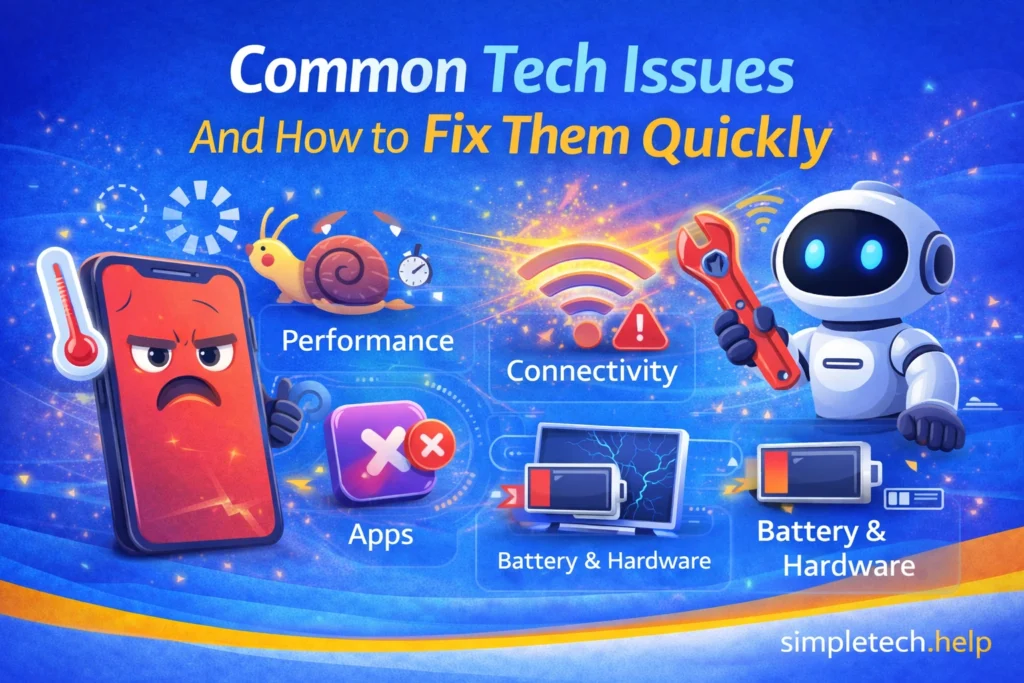
These problems usually involve:
- Performance (slow or frozen devices)
- Connectivity (Wi-Fi or data issues)
- Apps (crashing or not working)
- Battery and hardware behavior
Once you recognize the pattern, fixing the issue becomes much easier.
Myth: “If something goes wrong, my device is broken.”
Reality: Most technical issues are temporary and caused by software, apps, or connectivity, not hardware failure.
The Most Common Technical Issues and What to Do
Tech devices, including phones, computers, tablets, smartwatches, and streaming devices, experience common technical issues because their components age, they require updates, and maintenance.
Slow Device (Phone or Computer)
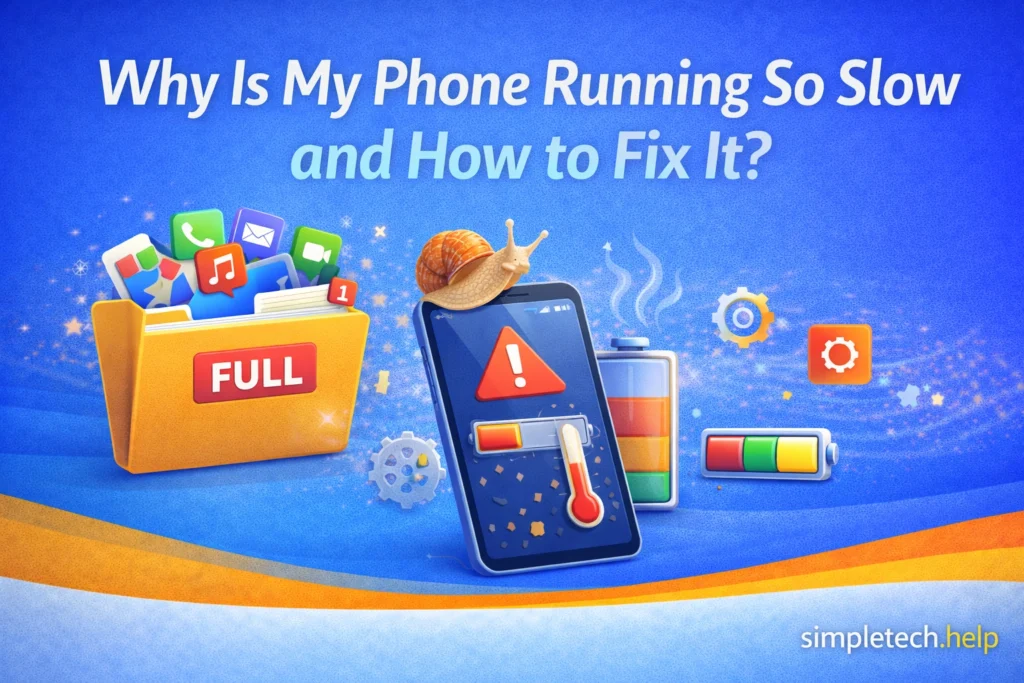
A device might slow down due to age, too many open apps, and low storage. It doesn’t provide an optimal experience.
What a slow device feels like:
- Apps take forever to open
- Scrolling is laggy
- Everything feels delayed
Devices that work at normal speed, open apps almost immediately, and allow you to scroll seamlessly without delays. A slow phone feels like it drags or like it won’t load anything.
Example: Your smartphone takes several seconds to open apps, and switching between them reloads them. On a computer, you might notice your browser freezing when multiple tabs are open.
What usually causes a slow device:
- Too many apps running
- Low storage
- Outdated software
Even devices with enough RAM and storage can slow down if the number of apps running simultaneously
What to do to fix a slow device:
- Restart your device
- Close unused apps
- Free up storage
Restarting a device is a tried-and-true fix for many common tech issues, including slow-running devices. It will close unused apps and stop any glitches affecting the device’s performance.
If restarting doesn’t improve performance, free up storage, which you can do without deleting everything.
Internet Not Working
Possibly the most common and most frustrating issue is when the internet is not working. There are a few sides to this issue that you’ll need to troubleshoot.
What internet not working feels like:
- Websites won’t load
- Apps say “no connection”
- Videos won’t play
Your device might say connected to the internet, but nothing is working, such as websites not loading and apps failing to operate.
What usually causes the internet not to work:
- Weak Wi-Fi signal
- Router issues
- Network outages
Several factors may cause the internet to fail, such as a weak signal or router issues. In some cases, your internet equipment is fine, but your internet service provider is having problems.
Example: Your smart TV shows it’s connected to Wi-Fi, but Netflix or YouTube won’t load. On your computer, websites won’t open even though you’re connected.
What to do when the internet isn’t working:
- Restart your router
- Switch between Wi-Fi and mobile data
- Move closer to your router
The best fix for an internet that isn’t working depends on whether you are using mobile data or your home Wi-Fi. In both cases, you’ll need to jumpstart the connection by restarting your phone or your router. Restarting the router may fix a slow Wi-Fi connection.
Then, you’ll test the connection by opening apps or webpages on your device. If necessary, switch between mobile data and Wi-Fi to determine whether the issue is with one or the other.
Internet Keeps Disconnecting
When the internet keeps disconnecting, it means you’re too far away from the signal source.
What it feels like:
- Wi-Fi drops randomly
- Calls or videos cut out
- Connection comes and goes
Random Wi-Fi drops are to be expected when using public Wi-Fi networks. They can also happen with home Wi-Fi, which is easier to troubleshoot.
Example: Your laptop keeps dropping Wi-Fi during video calls, or your phone disconnects and reconnects repeatedly while you’re browsing.
What to do:
- Restart your router
- Check for interference
- Update your device
If your device connects to the internet but continually disconnects, stand closer to the router. You may be standing too far away from it, or obstructions may be disrupting the signal.
Sometimes, an outdated operating system cannot support Wi-Fi, or a device update glitch prevents it from connecting to the internet. Update your device and apps. Then, try connecting again.
Apps Crashing or Not Opening
Apps crash or fail to open for several reasons. Sometimes, it’s your device. Other times, it’s the app.
What apps crashing or not opening feel like:
- Apps close suddenly
- Apps won’t launch
- Errors appear
Misbehaving apps will either close suddenly or fail to launch at all. If they do open, they may not operate as intended and show you an error message.
What usually causes apps to crash or not open:
- App bugs
- Outdated apps
- Software conflicts
Bugs can cause apps to fail. So can software conflicts. If you haven’t updated the app, it may also experience issues.
Example: An app on your tablet closes immediately after opening, or a social media app on your phone keeps freezing and restarting.
What to do:
- Update the app
- Restart your device
- Reinstall the app
First, update the app and your device’s operating system. Next, restart the device.
If these two steps do not work, uninstall and reinstall the app to remove the glitch causing the failure.
Nothing Is Working on Your Device
When your phone feels broken because nothing is working, there are ways to troubleshoot the device.
What it feels like:
- Apps won’t open
- Nothing loads
- The device feels completely broken
The device seems broken because apps won’t open, and nothing loads.
Example: Your phone won’t load apps, websites won’t open, and everything feels stuck. On a computer, multiple programs stop responding simultaneously.
What to do:
- Restart your device
- Check your internet
- Close apps
In this case, restart the device. Once it restarts, try opening an app and a few webpages.
If the device still does not seem to work, check whether it has connected to the internet. Restart the router to refresh the Wi-Fi connection at home, which could jumpstart the device.
Closing and restarting apps can also fix any glitches the device is experiencing.
Battery Draining Too Fast
Every device battery holds less charge as it ages. One-year-old batteries hold 80% of their charge on average, and it continues to drop, especially for those who use their devices often and heavily.
However, a battery draining too fast is cause for concern.
What a battery draining too fast feels like:
- Battery drops quickly
- Device dies unexpectedly
Even with heavy use, your battery should hold a charge for some time before you see a significant drop. Your device should not die unexpectedly, unless it’s an older model.
What usually causes a battery to drain too fast:
- Background apps
- High brightness
- Aging battery
Several apps running in the background and frequently using high brightness can cause your device’s battery to experience significant drops in charge and die suddenly.
Example: Your smartphone battery drops from 80% to 40% within a few hours, even with light use, or your smartwatch needs to be charged much more often than usual.
What to do:
- Close unused apps
- Lower brightness
- Check battery usage
Prevent the device’s battery from draining too quickly by lowering the brightness and closing unused apps. Then, check your battery usage.
Device Overheating
Devices, including phones, can overheat for various reasons, including their environment and too many apps running in the background.
What it feels like:
- Phone or laptop feels hot
- Performance slows down
Devices can feel warm while charging, but they should not overheat as it can damage the device.
Example: Your tablet gets hot while streaming videos or gaming, or your laptop’s fan runs loudly, and the bottom feels very warm after extended use.
What to do:
- Stop heavy usage
- Remove case
- Let it cool down
Most modern phones stop charging if they start to overheat, especially if you leave them on soft surfaces like pillows and blankets.
Devices also overheat from heavy usage, such as streaming and gaming.
When your device overheats, stop the heavy usage and let it cool down. If necessary, remove its case.
Mobile Data Not Working
Mobile data differs from Wi-Fi, and it sometimes doesn’t work.
What it feels like:
- No internet without Wi-Fi
- Apps won’t load on data
When mobile data does not work, your device cannot connect to the internet via a cellular network.
Example: You’re not connected to Wi-Fi, but your phone still won’t load websites or apps, even though you have signal bars.
What to do:
- Toggle airplane mode
- Check data settings
- Restart your device
To restart your mobile data, toggle the airplane mode on and off a few times. You want to ensure that airplane mode is not on. Next, check the device’s data settings. You want to make sure that they are on.
Finally, restart the device. Glitches can prevent a device from connecting to mobile data. Restarting the device can fix them and your mobile data connection.
Security Concerns
Although technology makes completing tasks more productive and efficient, using tech also carries several risks, including security concerns.
What it feels like:
- Strange behavior
- Pop-ups
- Suspicious activity
Hackers target tech devices because they can build digital tools to gain access to them. If you click on a suspicious link, you may give them access to your online accounts and devices. When they gain access to your device, you’ll notice strange behavior, pop-ups, and suspicious activity.
Example: You notice unfamiliar pop-ups on your computer, receive suspicious login alerts, or your phone starts acting strangely after clicking a link.
What to do:
- Remove unknown apps
- Update your phone
- Change passwords
If your phone was hacked, you need to take immediate action to prevent damage to your device and unauthorized access to your online accounts.
Removing unknown apps, updating your phone, and changing passwords minimizes the damage.
Additionally, check your email accounts for unauthorized activity, such as messages you did not send.
A Simple Way to Diagnose Any Tech Problem
It’s easy to panic when a tech device doesn’t work as expected, especially when it costs several hundred dollars. However, it’s easy to troubleshoot the common technical issues that most tech devices experience.
If you’re not sure what’s wrong with your device, ask yourself:
- Is my device slow or frozen?
- Is the internet not working?
- Are apps crashing?
- Is this happening all the time or just once?
Start with the most obvious issue and work from there.
Mistake: Trying too many fixes at once.
Why it’s a problem: If you try too many fixes at once, you won’t know which one actually solved the issue.
Fix: Try one step at a time. Start simple, such as restarting and checking the internet. Then, move forward.
Using the SimpleTech Troubleshooting Mindset and Framework gives you confidence and a structured approach to troubleshooting tech.
Quick Common Technical Issues Troubleshooting Checklist
When your device doesn’t act as expected, use this troubleshooting checklist to fix it.
- ✅ Restart your device
- ✅ Check your internet connection
- ✅ Close unused apps
- ✅ Update your device
- ✅ Free up storage
These steps fix a large percentage of problems.
Learning & Next Steps
Now that you understand the most common technical issues, the next step is to identify your specific problem and follow the appropriate solution.
Start simple:
- Focus on the issue that stands out most
- Follow one guide at a time
- Avoid trying too many fixes at once
Technology issues can feel overwhelming, but most problems follow predictable patterns and are easier to fix than they seem.
Bookmark this page as your starting point whenever something goes wrong. Then, expand your knowledge with additional guides, including:
- Phishing Basics: What you need to know.
- Devices Basics: The basics of devices.
- Internet Basics: The basics of the Internet and its equipment.
Next time something isn’t working, don’t panic. Start here, identify the issue, and follow the guide that matches your situation.
Frequently Asked Questions
All tech devices experience at least one common technical issue that you can easily fix once you identify it. The following are frequently asked questions about common technical issues with answers.
What is the Most Common Technical Issue?
Slow performance and internet problems are among the most common technical issues that tech devices experience.
Why do Devices Slow Down Over Time?
Devices slow down over time because apps, storage, and updates can affect performance.
Are Most Tech Problems Serious?
No. Most tech problems are minor and can be fixed quickly.
Should I Restart My Device Regularly?
Yes. Regularly restarting your device helps prevent many common issues.
When Should I Get Professional Help?
If problems continue after trying multiple fixes, or the device won’t turn on, it’s time to seek professional help. The device requires additional troubleshooting, and a professional can provide further guidance.